
Being locked out of your own WordPress site is frustrating, but it is almost always fixable in minutes. If you need to reset WordPress password access for an admin account, the right route depends on what you can still reach: your email inbox, the admin dashboard, your hosting panel, or the server.
This guide covers five proven ways to reset WordPress password access, easiest first. Start with Method 1 and work down until one fits your situation. Every step was checked against the official WordPress documentation on 22 November 2026.
In this guide
- The Short Answer
- Before You Start
- Method 1: Reset by Email
- Method 2: Reset From the Admin Users Screen
- Method 3: Reset via phpMyAdmin
- Method 4: Reset With WP-CLI
- Method 5: Emergency Reset via functions.php
- The 5 Methods Compared
- After the Reset
- Frequently Asked Questions
- Conclusion
The Short Answer: How to Reset WordPress Password Access Fast
The quickest way to reset WordPress password access is the email reset: go to yoursite.com/wp-login.php, click Lost your password?, enter your username or email, and open the link WordPress sends. Choose a strong new password, save it, and log in — about two minutes when your site can send email.
It fails in two situations: you cannot reach the email address on the account, or your site is not sending email. Then use the method matching the access you still have: another admin can change it from the Users screen, phpMyAdmin takes about five minutes, and WP-CLI takes under a minute over SSH.
Never reinstall WordPress to recover a password. A reinstall is not needed, and it risks your content. Pick the method below that matches your access and follow it exactly.
Before You Start: 3 Checks That Save You Time
A minute of preparation prevents most failures. Before you reset WordPress password settings, run through these three checks.
Confirm which user you are resetting
Passwords belong to individual accounts, not to the site. Confirm the exact username and its email address first — resetting the wrong account leaves you locked out.
Back up before touching the database
Methods 1 and 2 need no backup. Methods 3–5 touch the database or theme files, where one wrong edit can break the site, so take a full backup first. Our WordPress backup guide covers the process and restoring.
Check what access you actually have
Your access decides the method: inbox means Method 1, another logged-in admin means Method 2, hosting panel means Method 3, SSH means Method 4. Only when none of those work should you reach for the emergency code in Method 5.
Method 1: Reset WordPress Password by Email
The email route to reset WordPress password accounts is the official default, recommended first by WordPress itself. It needs no dashboard, hosting panel, or code — only access to the inbox on the account.
Go to yoursite.com/wp-login.php and click Lost your password? under the login form. Enter your username or the email address on the account, then click Get New Password. WordPress emails you a reset link; if you are unsure of the address, enter the username and WordPress looks it up.
Reset links expire after 24 hours and work only once. Open the newest email — a second request cancels the first link — and click it promptly. If it says the link is invalid or expired, request a fresh one. Slow mail delivery can eat into the 24-hour window, so do not leave the email sitting in your inbox.
On the reset page, accept the strong password WordPress generates or type your own — long, with mixed characters — and store it in a password manager. Click Reset Password, then log in. Your old password stops working at once.
What to do when the email never arrives
Check spam and junk first, and search for the sender address — WordPress sends from your site’s admin email address. If nothing arrives after a few minutes, WordPress probably cannot send mail at all: many hosts block the default PHP mail function, or the site’s emails are rejected as spam.
Our guide to WordPress not sending emails diagnoses the cause and shows how to route mail through a proper SMTP service. Fix the mail problem first, then request a new link. If the address on the account is one you can no longer open, the email method cannot help — use Method 2 if another admin can log in, or Method 3 with hosting access. Either way, you can still reset WordPress password access without the inbox.
Method 2: Reset WordPress Password From the Admin Users Screen
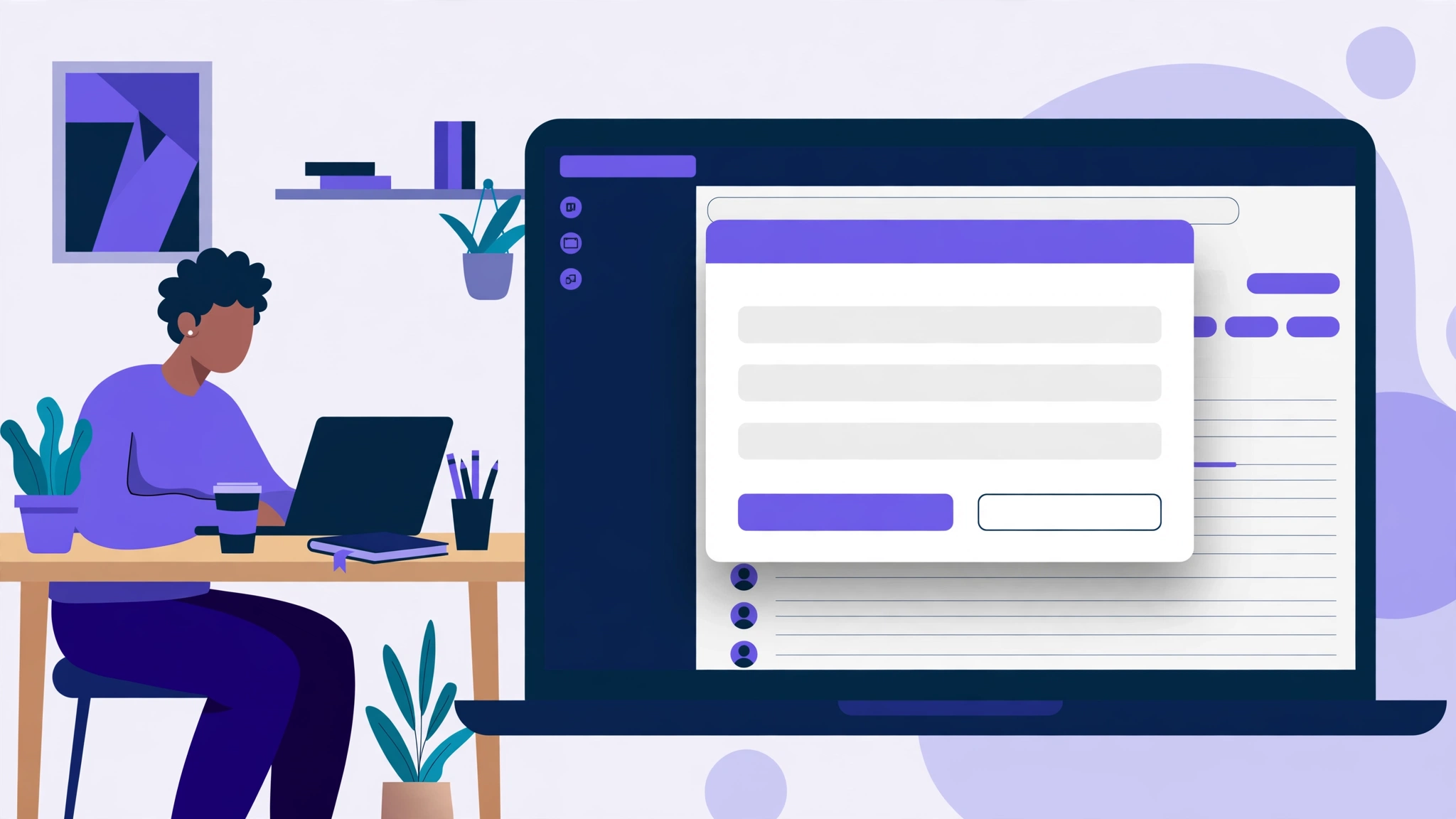
If any administrator can still log in, you can reset WordPress password details for any user in under a minute, with no email and no database work. This is the fastest method of all — provided you are not the only admin and you are locked out alone.
Log in with any Administrator account — Editors and Authors cannot change another user’s password. Go to Users > All Users, find the locked-out account, and click its username. To reset your own password, open Users > Profile instead.
Scroll to Account Management and click Set New Password. WordPress generates a strong password and shows its strength. Accept it or overwrite it, copy it somewhere safe, then click Update User (or Update Profile). The new password takes effect immediately.
If you reset someone else’s password, send it through a secure channel — never in a shared chat — and ask them to change it after logging in. The same screen handles routine password changes, and our WordPress security checklist covers the other steps to take after any security scare.
Method 3: Reset WordPress Password via phpMyAdmin
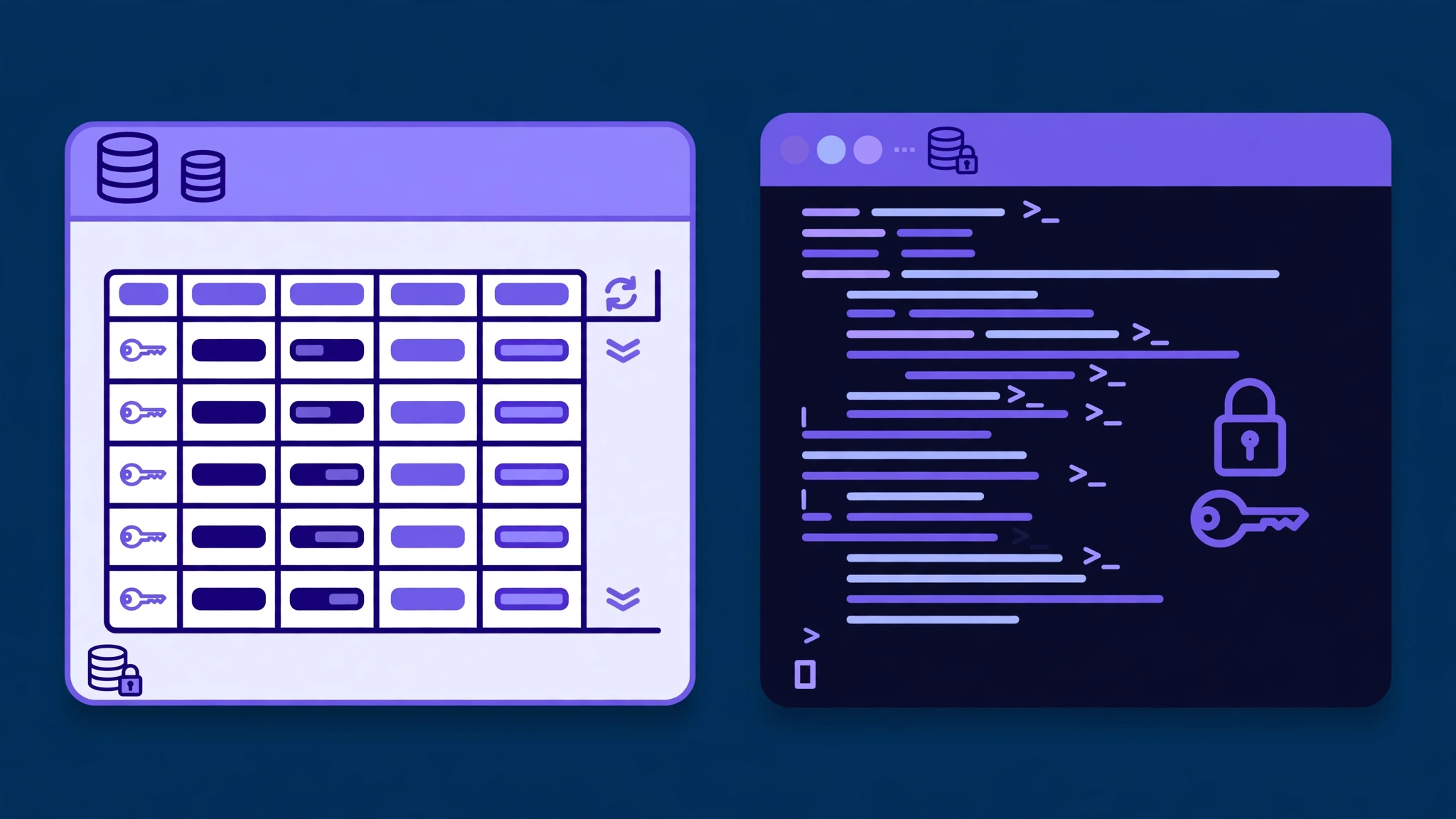
When email fails and no admin can log in, the database route to reset WordPress password records directly is the most reliable option with hosting panel access. It edits the password where WordPress stores it, in the wp_users table — a short, careful sequence WordPress itself documents.
In your hosting panel — cPanel, Plesk, or your host’s own panel — open phpMyAdmin, click Databases, and select your WordPress database. Unsure which one it is? Open wp-config.php in the site root and look for the DB_NAME value.
Find the wp_users table (the prefix may differ, but it always ends in users) and click Browse. Find the row where user_login matches the locked-out username — the main admin is usually ID 1 — and click Edit.
Find the user_pass field, which holds a long string of scrambled characters: the hashed password. Delete it and type your new password in plain text. This is the step people get wrong — type the actual new password, not a hash of it. In the Function dropdown next to user_pass, select MD5, then click Go. WordPress accepts the MD5 value and re-hashes it with stronger modern hashing at your next login. Check the function really says MD5 first: anything else stores the plain-text password as-is and the login will fail.
Log in at wp-login.php with the new password, then set a fresh one in Users > Profile, so the account ends with a password created by WordPress itself. One warning from the official documentation: use phpMyAdmin at your own risk, and get help if you doubt your ability to use it. Never edit any other field — changing user_login or user_email by accident creates a second problem.
Method 4: Reset WordPress Password With WP-CLI
WP-CLI is the fastest way to reset WordPress password credentials on a server you control, and the cleanest method for developers. One command changes the password — no email, browser, or database editing. It needs SSH access and WP-CLI installed; most managed WordPress hosts and VPS setups provide both.
Connect over SSH, move into the WordPress root directory (the folder containing wp-config.php), and list the users:
wp user list
Then run the update command with your own values:
wp user update 1 --user_pass='YourNewStrongPassword123!'
Replace 1 with the user ID (or use the username instead), and keep the quotes around the password — without them, punctuation in the password can confuse the shell. Running as the root user, add --allow-root at the end. WP-CLI confirms the change with a short success message.
Log in at wp-login.php with the new password. WP-CLI hashes it correctly, so there is no MD5 step and no follow-up change needed. If WP-CLI is not installed, check your host’s documentation, or fall back to Method 3. See the official wp user update documentation for every option the command accepts.
Method 5: Emergency Reset WordPress Password via functions.php
This is the last-resort way to reset WordPress password access when nothing else works: no email, no admin login, no database tool, no SSH. It adds a line of code to your active theme that forces a new password — remove it the moment you are back in.
Connect by FTP or your host’s file manager and download the functions.php file of your active theme. Add this line right at the beginning, after the first <?php:
wp_set_password( 'YourNewStrongPassword123!', 1 );
Replace the example password with a strong one, and 1 with the user ID if the admin is not user 1. Upload the file and log in — then immediately remove the line and upload again. The code runs on every page load until removed, so leaving it resets the password on every visit and leaves a live password in a theme file.
WordPress also documents a standalone script, emergency.php, placed in the site root and opened in a browser to set a new admin password without logging in. Delete it as soon as you have logged in — anyone who finds the file could use it to take over the account.
Never edit the parent theme’s functions.php directly if you can avoid it: the next theme update overwrites your edit, and a mistake can break the whole site with a white screen. Our guide to create a WordPress child theme shows how to set one up safely, and our staging site guide shows how to test edits safely. For the authoritative version of both options, see the official WordPress documentation on resetting your password.
The 5 Methods Compared
Use this table to choose how to reset WordPress password access on your site. The best method is not the most powerful one — it is the simplest one your access allows.
| Method | Speed | Difficulty | When to use it | Risk |
|---|---|---|---|---|
| 1. Email reset | ~2 minutes | Beginner | You can open the account’s inbox | Very low |
| 2. Admin Users screen | ~1 minute | Beginner | Another admin can log in | Very low |
| 3. phpMyAdmin | ~5 minutes | Intermediate | Email fails, but you have hosting panel access | Medium — database edits |
| 4. WP-CLI | ~1 minute | Advanced | You have SSH access and WP-CLI installed | Low — one command |
| 5. functions.php / emergency script | ~10 minutes | Advanced | Nothing else works | High — code must be removed at once |
Speed and risk do not move together: WP-CLI is both the fastest and one of the safest, because one command does exactly one thing. The emergency method is the slowest and riskiest, which is why it sits last.
After You Reset WordPress Password Access: Lock the Door
Getting back in is only half the job. Once you reset WordPress password access, take a few minutes to make sure the account — and the site — is safe.
Log in with the new password and confirm the dashboard loads normally. End any active login sessions you do not recognise. If the lockout followed a hack or a suspicious login, assume the old password was seen and change every admin account’s password.
Turn on two-factor authentication with a reputable plugin, so a stolen password alone is not enough to get in. Add a login-protection layer too: our guide to add Google reCAPTCHA to WordPress shows how to put a bot check on the login form.
Check for compromised accounts in Users > All Users, especially new administrators — attackers often create a second admin account so they can return after the password changes. Delete any account you cannot explain, and if anything looks suspicious, work through the WordPress security checklist in full. Finally, keep WordPress and PHP current — our guide to update PHP in WordPress explains how to check and change it safely.
Frequently Asked Questions
Can I reset WordPress password access without access to the email account?
Yes. If you cannot open the email address on the account, the email reset cannot work — but you can still reset WordPress password access another way: ask another administrator to change it from Users > All Users, edit user_pass in phpMyAdmin, or use WP-CLI over SSH. All three bypass email completely.
Can I reset a WordPress password without logging in to the dashboard?
Yes, and most lockouts are solved exactly that way. The email reset, phpMyAdmin, WP-CLI, and the emergency functions.php method all work without dashboard access. Only Method 2 needs someone logged in — every other way to reset WordPress password access works from outside the dashboard.
How long does it take to reset WordPress password access?
The email reset and the admin Users screen take one to two minutes. WP-CLI takes about a minute over SSH, and phpMyAdmin around five minutes including finding the right row. The emergency functions.php method takes about ten minutes — downloading, editing, and re-uploading the file, then removing the code.
How long is a WordPress password reset link valid?
A reset link is valid for 24 hours by default, and works only once. A second request cancels the first link, so always use the newest email. If a link reports invalid or expired, request a fresh one from the login page and open it promptly.
Why does WordPress say my reset link is invalid or expired?
The usual causes are an expired link (older than 24 hours), a link already used, or a newer reset request that cancelled this one. A link can also break if an email client shortens it or changes characters — copy the full link from the plain-text version of the email. If a fresh link fails too, your site may be stripping the login cookie, often because of an aggressive page cache on wp-login.php; exclude the login page from caching and try again.
Is it safe to reset a WordPress password with phpMyAdmin?
Yes, if you follow the documented steps and work on a backup. Only change the user_pass value and its MD5 function setting — never user_login, user_email, or the user ID. WordPress accepts the MD5 hash and re-hashes it securely on your next login. If you are not confident editing a database, use the email method or ask your host’s support team.
Conclusion
The best way to reset WordPress password access depends on what you can still reach, not on which method looks most impressive. The email reset solves most lockouts in two minutes. The admin Users screen is faster still when another administrator can log in. phpMyAdmin and WP-CLI cover the cases where email is broken, and the emergency functions.php method is there for the day nothing else works.
Bookmark this guide so the next time you need to reset WordPress password access, you can go straight to the right method. After the reset, finish the job: a strong unique password, two-factor authentication, and a quick check for unknown admin accounts.
The BadilHost Verdict
Start with the email reset — it solves most lockouts in about two minutes. If email fails, use phpMyAdmin with hosting access or WP-CLI with SSH; both are fast and reliable. Keep `functions.php` as a last resort only, and remove the code the moment you are back in. After any reset, enable two-factor authentication and check for unknown admin accounts.
Rating: 9/10 for the email reset as the default method — simple, official, and safe, with phpMyAdmin as the best fallback when email is broken.
Facts checked 22 November 2026 against the official WordPress documentation on resetting your password and the official WP-CLI user update reference. Reset links expire after 24 hours by default and work once; a new request cancels earlier links. WordPress accepts an MD5 hash in user_pass via phpMyAdmin and re-hashes it on login. The functions.php method uses wp_set_password() and must be removed after login.