

In this guide
- What a backup must include
- The 3-2-1 rule
- Plugin comparison: UpdraftPlus vs Jetpack vs BlogVault vs Duplicator
- First backup, step by step
- How often should you back up?
- Where to store backups
- The restore drill
- What free plugins can and cannot do
- Five backup mistakes
- FAQ
A backup you have never restored is a hope, not a plan. Most WordPress owners discover this after a bad update, a hacked plugin or a hosting bill they cannot pay — the files are “somewhere”, the database export is six months old, and nobody remembers which copy is complete.
This guide fixes that with a complete wordpress backup plugin setup built around one test: can you restore the site on staging and log in? If you have never tried, you do not have a backup yet.
By the end you will know what to back up, how often, where to store the copies, which plugin fits your site, and how to run a restore drill. If you are still building your site, start with our WordPress setup checklist first.
What a WordPress backup actually has to include
A WordPress site is two things, and a backup that misses either one is useless.
Your files. Everything in wp-content: themes, plugins, uploads and media — usually the large part of the backup.
Your database. Every post, page, comment, setting, user account and menu lives in the database. Without it, your files are an empty theme — a files-only backup cannot rebuild your site.
A sound wordpress backup plugin setup backs up both on a schedule, and sends the copies off your web server. Your host’s own backups do not count as your backup: hosts keep them for their own disaster recovery, retention is often short, and restoring can mean a support ticket and a wait. Keep your own copies.
Also back up before every big change — a theme switch, a major plugin update, a migration to a new host. That is why every wordpress backup plugin setup must cover both files and database. If you are planning a move, read our guide on how to move a WordPress site to a new host without downtime: a fresh backup is step one there too.
The 3-2-1 rule, in plain English
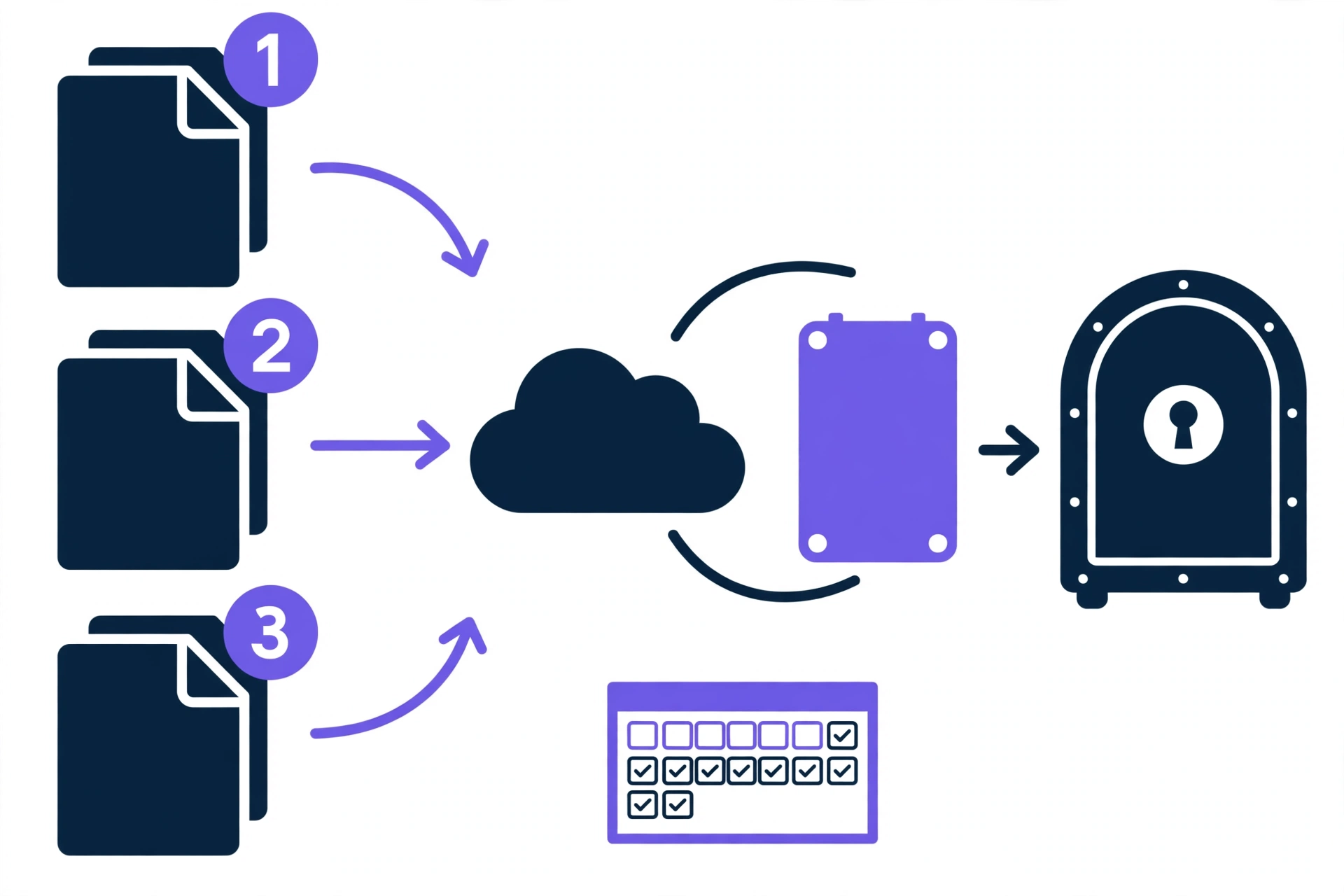
The 3-2-1 rule is the simplest backup standard that exists, and it is the backbone of any wordpress backup plugin setup:
- 3 copies of your data. The live site counts as one; you need two backup copies besides it.
- 2 different media types. Your server plus Google Drive counts; your server plus a second folder on the same server does not.
- 1 copy off-site. At least one backup must live somewhere your hosting account cannot touch.
For a small site, 3-2-1 is easy: the live site, a scheduled backup on Google Drive or Dropbox, and a second copy on Amazon S3 or another cloud drive. If all your “backups” sit inside your hosting account, you have one copy, not three — and your wordpress backup plugin setup is judged by where the copies live, not by how many features the plugin lists.
WordPress backup plugin setup: UpdraftPlus vs Jetpack Backup vs BlogVault vs Duplicator
UpdraftPlus and Duplicator store backups where you tell them to; Jetpack Backup and BlogVault store backups on their own servers. They cost and behave very differently.
| Plugin | Free tier | Cheapest paid plan | Storage destinations | Restore method | Best for |
|---|---|---|---|---|---|
| UpdraftPlus | Yes — scheduled, one cloud destination | $70/year (Personal, 2 sites) | Google Drive, Dropbox, S3, OneDrive, more | One-click restore in WordPress | Most small sites |
| Jetpack VaultPress Backup | No — paid only | $4.95/mo first year, then $9.95/mo ($119.40/yr, 1 site) | Jetpack’s own cloud (10 GB to start) | One-click restore in Jetpack | Real-time backups |
| BlogVault | No — paid only (7-day trial reported) | $99/yr list per site, shown at $49.50 (50% off) | BlogVault’s own servers | One-click restore in BlogVault | WooCommerce stores |
| Duplicator | Yes — Lite, manual backups only | $79/yr list (Basic, 2 sites); promos seen at $69.30 | Duplicator Cloud free; S3 and others on Pro | Installer file or one-click restore | Site moves and clones |
All prices in USD, before tax, checked on 19 November 2026. BlogVault and Duplicator list promotional first-year prices — budget renewals on the full list price.
UpdraftPlus Premium adds incremental backups, automatic backups before updates, multisite support and more destinations. Its Business plan is $95 a year for up to 10 sites — the cheapest option if you manage several sites. Jetpack VaultPress Backup covers one site per plan, does not support multisite, and its $4.95 monthly price is a first-year discount only: it renews at $9.95 a month. See the official Jetpack Backup page for the current terms.
A note on UpdraftPlus security: in October 2026, reports described a breach of TeamUpdraft’s website exposing customer data and UpdraftCentral keys. Update to version 1.26.13 or later and delete old UpdraftCentral keys.
Our recommendation: start with free UpdraftPlus. It has the only genuinely useful free tier here, it sends backups to storage you control, and the wordpress backup plugin setup below takes about fifteen minutes. Upgrade to Premium ($70 a year) for several sites or incremental backups. Choose Jetpack Backup or BlogVault instead for a WooCommerce store needing real-time backups — losing a day of orders costs more than either subscription. For more on picking the right foundation, see our roundup of the best WordPress hosting in 2026.
Setting up your first backup, step by step
This wordpress backup plugin setup uses free UpdraftPlus and Google Drive.
Step 1: Install UpdraftPlus
In your dashboard, go to Plugins → Add New, search for “UpdraftPlus”, and install and activate it. You can also download it from the official listing on wordpress.org/plugins/updraftplus/.
Step 2: Connect a cloud destination
Go to Settings → UpdraftPlus Backups → Settings, pick Google Drive under “Choose your remote storage”, and connect your Google account. Use a Google account you control, and keep two or three full backups.
Step 3: Schedule files and database separately
On the same screen, set separate schedules for files and database. Files change when you upload media or update a plugin; the database changes every time you publish, edit, or receive a comment or order. For a blog, start with weekly files and daily database backups — the core of any reliable wordpress backup plugin setup.
Step 4: Run your first backup now
Click Backup Now, tick both “Include your database” and “Include your files”, and let it finish. Then check Google Drive: the backup files should be there, with today’s date. If not, fix the connection before you trust this wordpress backup plugin setup.
Step 5: Write down where the backups live
Save a note in a password manager: which plugin, which storage account, and how many copies are kept. The person restoring your site in a crisis may be future you, six months from now, with no memory of this wordpress backup plugin setup.
How often should you back up?
Ask one question: how many hours of work can you afford to redo? That is your maximum backup interval, and it decides your wordpress backup plugin setup more than any feature list.
| Site type | Files | Database |
|---|---|---|
| Personal blog, a few posts a month | Weekly | Daily |
| Business site with a contact form and regular edits | Weekly | Daily |
| WooCommerce store | Daily | Real-time or hourly |
| News or community site with comments | Daily | Twice daily or hourly |
Database backups are small, so back up the database daily even on a quiet blog. Full backups on large sites take time, so schedule them overnight and consider a paid plan with incremental backups for your wordpress backup plugin setup. A faster site backs up more cleanly — see our guide on how to speed up WordPress.
Where to store your backups
Pick two storage options for a complete wordpress backup plugin setup.
Google Drive. Free 15 GB shared with Gmail, supported by UpdraftPlus free — but media-heavy sites can fill 15 GB fast.
Dropbox. Also supported by UpdraftPlus free, but the free tier is only 2 GB. Reliable and simple.
Amazon S3. The professional default: around $0.023 per GB per month for standard storage, effectively unlimited, supported by UpdraftPlus Premium and Duplicator Pro. Needs a little setup.
Your host’s storage or a second server. Only counts if genuinely separate from your live site — a different account or provider. A backup folder on the same server is not a second copy.
Local downloads. Downloading a backup to your own computer counts as a copy, and it is free. Do it monthly — but use it as your third copy, not your only one.
The restore drill: prove your backup works
A backup that has never been restored is untested. Run this drill once after your wordpress backup plugin setup, and repeat it every three to six months.

Before you start
You need a staging site — a copy on a subdomain like staging.yoursite.com, or a local install.
Step 1: Download a recent backup set
Download the latest full backup from your storage: database, plugins, themes, uploads and “others” files. A 0 KB database file means something went wrong.
Step 2: Restore it on staging
On staging, install the same backup plugin used in your wordpress backup plugin setup, upload the backup files, and run the restore (in UpdraftPlus: Existing Backups → Restore). Restore everything: database, plugins, themes, uploads, and others.
Step 3: Verify the restore, in this order
- The site loads. Open the staging homepage and three inner pages — no white screen, no missing styles.
- Log in. Use your normal admin login on staging. If login fails, the database restore is broken.
- Count the content. Compare post and page counts with the live site, and check sample images load.
- Test one dynamic feature. Submit the contact form, or place a test order if it is a store.
- Check the file count. Compare the file count in
wp-content/uploadson staging with the live site — a large gap means an incomplete backup.
Step 4: Record the result
Record the date, the backup restored, and whether every check passed. If anything failed, fix it now and drill again. A failed drill on a quiet afternoon is a gift; a failed restore during a real outage is a disaster. If the drill passes, you have a wordpress backup plugin setup you know works.
What free backup plugins can and cannot do
Free backup plugins are genuinely useful, and for a small blog they may be all you ever need — but know their limits.
What free UpdraftPlus and Duplicator Lite do well: scheduled or manual full backups, one cloud destination, one-click restore, and migration to a new host. That covers the core job.
What they cannot do: incremental backups, automatic backups before updates, real-time backups for stores, multisite support, and sending one backup to several destinations at once. Those need the paid version.
What no plugin can do: protect you from a backup you never tested, or from keeping every copy in the same place. The 3-2-1 rule and the restore drill are the strategy — no wordpress backup plugin setup replaces either one.
Host backups are a useful safety net, but retention is often 7 to 30 days, restores may need a support ticket, and on some cheap plans backups are an upsell. Your own backup is the copy you control.
Five mistakes that turn backups into false comfort
1. Backing up files but not the database. Check your plugin settings today: both boxes must be ticked.
2. Storing backups on the same server. If the server fails, the backup dies with the site.
3. Never testing a restore. Test it — the drill is what turns a wordpress backup plugin setup into a real safety net.
4. Keeping one backup and overwriting it. Keep at least two or three generations.
5. Backing up a hacked site and calling it done. A backup taken after an infection contains the infection. After cleaning a hack, run through the WordPress security checklist, then take a fresh backup.
Frequently asked questions
How do I set up a WordPress backup plugin?
Install a backup plugin such as UpdraftPlus, connect a cloud destination like Google Drive, set separate schedules for files and database, run a manual backup, and confirm the files appear in your storage. Then test the restore on staging. The full wordpress backup plugin setup is above — the install takes minutes, but the restore test is what makes it real.
Is the free version of UpdraftPlus enough?
For a small blog or business site, yes — a free wordpress backup plugin setup covers scheduled backups of files and database to one cloud destination with one-click restore. Upgrade to Premium ($70 a year) for several sites, incremental backups, or automatic backups before updates.
How often should I back up WordPress?
Daily database backups for almost every site, and weekly file backups for blogs and business sites, are the baseline for any wordpress backup plugin setup. WooCommerce stores need real-time or hourly database backups, because every order is money.
Where should I store WordPress backups?
Off-site, where your hosting account cannot touch it. Google Drive or Dropbox works for small sites; Amazon S3 is the cheap professional default for larger ones. Keep two copies besides the live site.
Can I restore a backup to a different host?
Yes — that is what migration plugins are built for. Duplicator specialises in it, and UpdraftPlus Premium includes a migration tool. Take a full backup, set up a fresh WordPress install on the new host, restore it there, and test before changing DNS. Our migration guide walks through the zero-downtime sequence.
Conclusion
A wordpress backup plugin setup is not finished when the plugin is installed. It is finished when you have three copies, in two places, with one off-site — and you have restored one of them on staging and logged in.
Complete your wordpress backup plugin setup today: install UpdraftPlus, connect Google Drive, schedule daily database and weekly file backups, and run your first restore drill this week. Your future self, facing a failed update at midnight, will be glad you did.
Prices in this article are in USD and were checked on 19 November 2026. Prices change — confirm the current price on the vendor’s site before you buy.