
A wordpress child theme is the safe way to customize your WordPress site without touching the theme you installed. It inherits everything from its parent theme — design, templates and features — and lets you change only the parts you want. When the parent updates, your changes survive.
Here is how to do it two ways: with a free plugin, and by hand with two small files — both verified against the WordPress Theme Handbook in November 2026.
In this guide
- What is a child theme?
- Why you need one before customizing
- Child theme vs editing the parent vs the Customizer
- What you need before you start
- Method 1: Create one with a plugin
- Method 2: Create one manually
- How to customize your child theme
- Child themes for block themes
- Common problems and fixes
- When you do not need a child theme
- Frequently asked questions
- Conclusion
What Is a WordPress Child Theme?
A wordpress child theme is a small theme that names another installed theme as its parent. WordPress runs the parent and uses the child’s files wherever they exist; everything you did not change still comes from the parent.
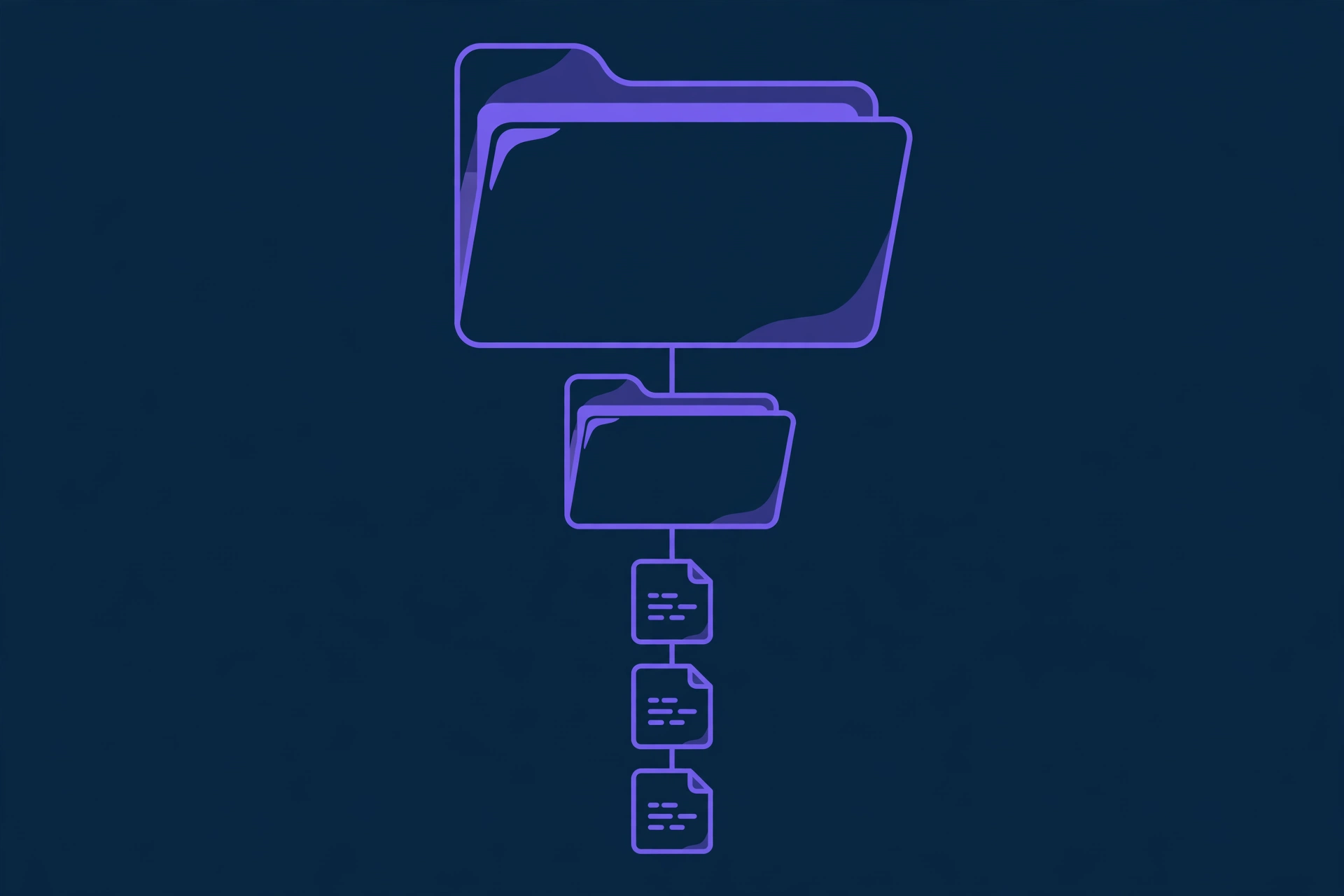
The WordPress Theme Handbook puts it simply: child themes let you modify an existing theme without directly editing that theme’s code. The only file a wordpress child theme strictly needs is style.css, with a header naming the parent; in practice you will also add functions.php to load the stylesheets.
Your site looks the same the moment you activate it — then every change you make lives in the child theme, safely separated from the parent’s code.
Why Every Customization Needs a WordPress Child Theme
Updates stop destroying your work. A theme update replaces every file in the parent theme folder, wiping custom CSS, templates and functions. A child theme keeps those changes in a folder the updater never touches.
Your changes stay portable. A wordpress child theme is a self-contained folder you can zip up, move to another site, or hand to a developer.
Troubleshooting gets easier. When something breaks, switch back to the parent theme in seconds. If the problem disappears, the cause is in your child theme. Keeping custom code separate is also one of the habits our WordPress security checklist recommends.
It is the first step into theme development. A child theme is the smallest theme you can build, and the Theme Handbook recommends it as the starting point for full themes.
WordPress Child Theme vs Editing the Parent Theme vs the Customizer
Not every change needs a child theme — the Customizer handles colours, and a snippets plugin handles a one-line PHP tweak.
| Approach | Survives updates? | Templates and PHP? | Risk | Best for |
|---|---|---|---|---|
| WordPress child theme | Yes | Yes — full control | Low | Lasting changes |
| Editing the parent theme | No — updates overwrite it | Yes | High | Nothing |
| Customizer (Additional CSS) | Yes | CSS only | Very low | Small style tweaks |
| Code snippets plugin | Yes | PHP only | Low | Small PHP tweaks |
Editing the parent theme directly has no upside: the same power as a wordpress child theme, lost at the first update.
What You Need Before You Start
First, know your parent theme’s folder name: check Appearance > Themes for the exact name, such as generatepress or astra. The child theme’s style.css must name it exactly — WordPress matches the folder name, not the display name.
Second, make a full backup before switching your site’s active theme — cheap insurance; see our WordPress backup guide if you do not have a recent one.
Third, work on a staging site if you can, so you can test without visitors seeing a broken site — see our guide to setting up a WordPress staging site.
Finally, pick a method: the plugin needs no code and takes five minutes; the manual method needs two small files.
Plugin vs manual at a glance:
| Plugin method | Manual method | |
|---|---|---|
| Coding needed | None | Copy two code snippets |
| Time | About 5 minutes | About 15 minutes |
| Control | The plugin chooses the enqueue method | Full control |
| Best for | Beginners | Developers and block themes |
Method 1: Create a WordPress Child Theme With a Plugin
The fastest way to create a wordpress child theme is the free Child Theme Configurator plugin, active on 300,000+ sites. It builds the folder and files for you and can copy your Customizer settings, menus and widgets into the child theme.
Step 1: Install Child Theme Configurator
Go to Plugins > Add New, search for “Child Theme Configurator”, and click Install Now and Activate. It is free.
Step 2: Analyse Your Parent Theme
Go to Tools > Child Themes, select your parent theme and click Analyze — the plugin picks the correct enqueue method automatically.
Step 3: Create the Child Theme
Tick the option to copy the parent theme’s settings, then click Create New Child Theme — the plugin builds the folder with both files inside wp-content/themes/.
Step 4: Preview and Activate
Go to Appearance > Themes, preview your new child theme, then click Activate. Do not delete the parent theme — the child theme cannot work without it.
One caution: the plugin was built for classic themes, so test it on staging first. Once the child theme works, you can delete the plugin — the child theme keeps working on its own.
Method 2: Create a WordPress Child Theme Manually
The manual method is the one the WordPress Theme Handbook documents. You need one folder and two files — here we build a child of Twenty Twenty-Five, so replace twentytwentyfive with your parent theme’s folder name throughout.
Step 1: Create the Child Theme Folder
Create a folder inside wp-content/themes/ via your file manager or FTP/SFTP, named after the parent theme with -child added — for example, twentytwentyfive-child.
Step 2: Create style.css With the Theme Header
In the new folder, create style.css, starting with this comment block — WordPress reads it as the theme’s identity card:
/*
Theme Name: Twenty Twenty-Five Child
Description: A child theme of Twenty Twenty-Five with my own customizations.
Author: Your Name
Template: twentytwentyfive
Version: 1.0.0
Text Domain: twentytwentyfive-child
*/
The one line you must get exactly right is Template: — its value must match the parent theme’s folder name 100%. If the folder is astra, the line must read Template: astra.
Add your own CSS below the header — only the rules you are changing, never the parent’s whole stylesheet, and never @import to pull in the parent’s styles: that old method slows the page down (see our guide to speeding up WordPress). The enqueue code in the next step loads the parent’s styles correctly.
Step 3: Enqueue the Styles in functions.php
Create a second file in the child theme folder called functions.php and paste in this code:
<?php
/**
 * Enqueue parent and child theme stylesheets.
 */
add_action( 'wp_enqueue_scripts', 'my_child_enqueue_styles' );
function my_child_enqueue_styles() {
    wp_enqueue_style(
        'parent-style',
        get_parent_theme_file_uri( 'style.css' )
    );
    wp_enqueue_style(
        'child-style',
        get_stylesheet_uri(),
        array( 'parent-style' ),
        wp_get_theme()->get( 'Version' )
    );
}
This loads the parent’s style.css first, then the child’s, with the parent as a dependency — so the order is always correct.
Unlike template files, a child theme’s functions.php does not replace the parent’s — both are loaded, child first. That makes it the safe place for custom code, but never copy the parent’s functions.php in wholesale: duplicate function names cause fatal errors.
Step 4: Upload, Activate and Check
If you built the files on your computer, zip the folder and upload it via Appearance > Themes > Add New > Upload Theme. Then go to Appearance > Themes, find your child theme, and click Activate.
Your site should look exactly as it did before, because the wordpress child theme inherits the parent’s full design. Check the homepage, header, footer and menus — if all looks the same, you have succeeded.
How to Customize Your WordPress Child Theme
Change Styles With CSS
Add CSS rules below the header comment in the child theme’s style.css — it loads after the parent’s, so your rules win when both target the same element.
Override Template Files
To change a template, copy the file from the parent theme into the child folder with the same name and path — for example, header.php. WordPress will use the child’s copy instead. Note which files you overrode for later parent updates.
Add Functions in functions.php
Use the child theme’s functions.php for small PHP functions: registering a widget area, changing the excerpt length, or removing a feature. Keep each function small and commented, and test on staging — a PHP error here can lock you out until you fix the file by FTP.
WordPress Child Themes for Block Themes
Block themes such as Twenty Twenty-Four and Twenty Twenty-Five store most styling in a theme.json file, and the Site Editor saves changes in the database, not in theme files.
For a block theme, use the free Create Block Theme plugin from WordPress.org. Install it, go to Appearance > Create Block Theme, and choose “Create a Child of Parent Theme” — it copies the parent’s templates, styles and theme.json correctly, which classic-theme plugins often get wrong.
Built by hand, the folder and style.css header work exactly as for a classic theme. The difference is the enqueue step: block themes usually load no stylesheet, so you only need the functions.php code if you add CSS. For deeper changes, add a theme.json file — its values take priority over the parent’s.
Common WordPress Child Theme Problems and Fixes
The child theme does not appear in Appearance > Themes. The style.css header is missing or malformed — check the comment block is at the very top of the file, Theme Name: is present, and Template: matches the parent folder name exactly.
“The parent theme is missing” error. The Template: value matches no installed theme folder. Compare it letter by letter with the folder name in wp-content/themes/ — it is almost always a typo, a capital letter or a missing hyphen. Also confirm the parent is still installed.
The site looks unstyled after activation. The parent stylesheet is not loading. Check your functions.php enqueue code and how the parent loads its own styles — the snippet depends on whether it uses get_template_directory_uri(), get_parent_theme_file_uri() or get_stylesheet_uri(). The Theme Handbook’s child themes chapter shows each case.
Menus, widgets or Customizer settings reset. Switching themes can reset theme-specific settings. Recreate the menus and reassign the widgets, or use Child Theme Configurator’s option to copy the parent’s settings.
White screen after editing functions.php. A PHP syntax error in the child theme’s functions.php will break the site. Rename the folder by FTP to deactivate it, fix the error, then rename it back. Back up functions.php before every edit, and keep PHP current — see our guide to updating PHP in WordPress.
When You Do Not Need a WordPress Child Theme
A wordpress child theme is the right tool for lasting customization, but not always necessary. For one colour or font size, the Customizer’s Additional CSS panel does the job; for one small PHP snippet, a code snippets plugin is simpler and equally safe.
Skip a child theme if your theme already provides the control you need. Many modern themes, including the ones in our GeneratePress vs Astra vs Kadence comparison, include built-in hooks, layout controls and custom CSS areas that cover common changes. If you are rewriting most templates, the Theme Handbook suggests forking the theme into a full parent theme instead.
Frequently Asked Questions
What is a WordPress child theme?
A wordpress child theme inherits the design and functionality of another theme, called the parent theme. It lets you customize the parent without editing its files, so your changes survive updates. The only file it strictly needs is style.css with a Template: header naming the parent theme’s folder.
Do I need coding skills to create a WordPress child theme?
No. The free Child Theme Configurator plugin creates a wordpress child theme in a few clicks with no code. The manual method needs you to copy two short snippets into two files, provided ready to paste above.
Will a child theme slow down my website?
No, not measurably — a wordpress child theme adds one extra small stylesheet request. Problems only appear if you copy the parent’s entire stylesheet into the child or use the outdated @import method.
Can I create a child theme of a child theme?
No. WordPress supports only two levels: parent and child. There is no standard “grandchild” theme. For block themes, the Site Editor’s customizations act as an extra layer above the child theme, but those live in the database, not in a theme folder.
What happens to my child theme when the parent theme updates?
Nothing bad. The update replaces only the parent theme’s files, and your child theme folder is left untouched. The exception is overridden templates: if the parent updates one, your child’s older copy still wins, so check them after major parent updates.
Can I use a child theme with any WordPress theme?
Yes, with any well-built theme, free or premium. Some premium themes ship their own ready-made child theme — check the documentation first. A few badly coded themes load styles unusually, so the enqueue snippet may need adjusting; the Theme Handbook documents the variations.
Conclusion
A wordpress child theme is a fifteen-minute investment that protects every customization you will ever make. The plugin method takes a few clicks; the manual method gives you two small files. Either way, the result is a safe layer between your changes and the next theme update.
Create the child theme before you customize, not after you lose work to an update. Back up first, test on staging, and keep your changes small. Your future self — updating the parent six months from now without losing a change — will be glad you did.
Verdict: For more than a one-off colour tweak, a wordpress child theme is the only correct way to customize a WordPress theme. Use the free Child Theme Configurator plugin for a five-minute job, or the manual two-file method for full control — both free and verified against the official WordPress Theme Handbook. Steps verified November 2026.