
If your host has emailed you about an old PHP version, or WordPress Site Health is warning you that your server is out of date, it is time to update PHP in WordPress. PHP is the language WordPress runs on, and your server’s version decides how fast, secure, and stable your site is.
The good news: you can update PHP in WordPress without touching code or changing your content or design. The switch takes about two minutes; the preparation around it is what keeps your site safe.
In this guide
- Why You Should Update PHP in WordPress
- Which PHP Version Should You Choose in 2026?
- How to Check Your Current PHP Version
- Before You Update PHP in WordPress: The 5-Minute Safety Checklist
- 4 Safe Ways to Update PHP in WordPress
- After the Switch: The 10-Minute Test Checklist
- What to Do If Your Site Breaks After the Update
- How Often Should You Update PHP in WordPress?
- Frequently Asked Questions
- Conclusion
Why You Should Update PHP in WordPress
Every PHP version has a fixed support life: about two years of active support, then two years of security fixes only. After that, the PHP project releases nothing more for it, however serious the flaw, so known vulnerabilities stay open on your server forever.
That is not a theoretical risk. On 21 October 2026, the PHP project released emergency security updates for two critical remote-code-execution flaws, CVE-2026-109618 and CVE-2026-109619. Patched builds were issued only for PHP 8.2 and newer. Sites still on PHP 8.1 or older received no official fix at all.
Speed is the second reason to update PHP in WordPress. WordPress runs measurably faster on PHP 8.3 and 8.4 than on 7.4 or 8.0. If you have already worked through our guide on how to speed up WordPress, a PHP update is one of the highest-impact steps left.
The third reason is compatibility: WordPress core, themes, and plugins are tested against current PHP versions. Finally, there is a deadline: PHP 8.2 gets its last security fixes on 31 December 2026, and PHP 8.1 already reached end of life on 31 December 2025.
Which PHP Version Should You Choose in 2026?
WordPress.org recommends PHP 8.3 or greater, and the minimum WordPress runs on is PHP 7.4. That minimum is a floor, not a target. Here is where each version stands as of November 2026:
| PHP version | Security fixes until | Status in November 2026 | Recommendation |
|---|---|---|---|
| 8.1 and older | Already ended | End of life | Upgrade immediately |
| 8.2 | 31 December 2026 | Security fixes only | Move before year-end |
| 8.3 | 31 December 2027 | Security fixes only | Safe, conservative choice |
| 8.4 | 31 December 2028 | Active support | Best choice for most sites |
| 8.5 | 31 December 2029 | Active support | Great if plugins support it |
For most sites, PHP 8.4 is the right target in November 2026: active support until 31 December 2026 and security fixes until 31 December 2028. WordPress 6.7 and newer fully support it.
PHP 8.3 is the safe fallback, with security fixes until 31 December 2027. Choose it if your host does not offer 8.4 yet. PHP 8.5, released on 20 November 2025, suits a new site, but test it on staging first for an existing site.
Do not stop at PHP 8.2: moving from 8.1 to 8.2 in November 2026 only buys a few weeks of support. Go straight to 8.3 or 8.4 and test once. Check the official requirements page at wordpress.org.
How to Check Your Current PHP Version
Before you update PHP in WordPress, find out which version you run now. The most reliable way is inside WordPress itself, because it shows the version actually serving your website.
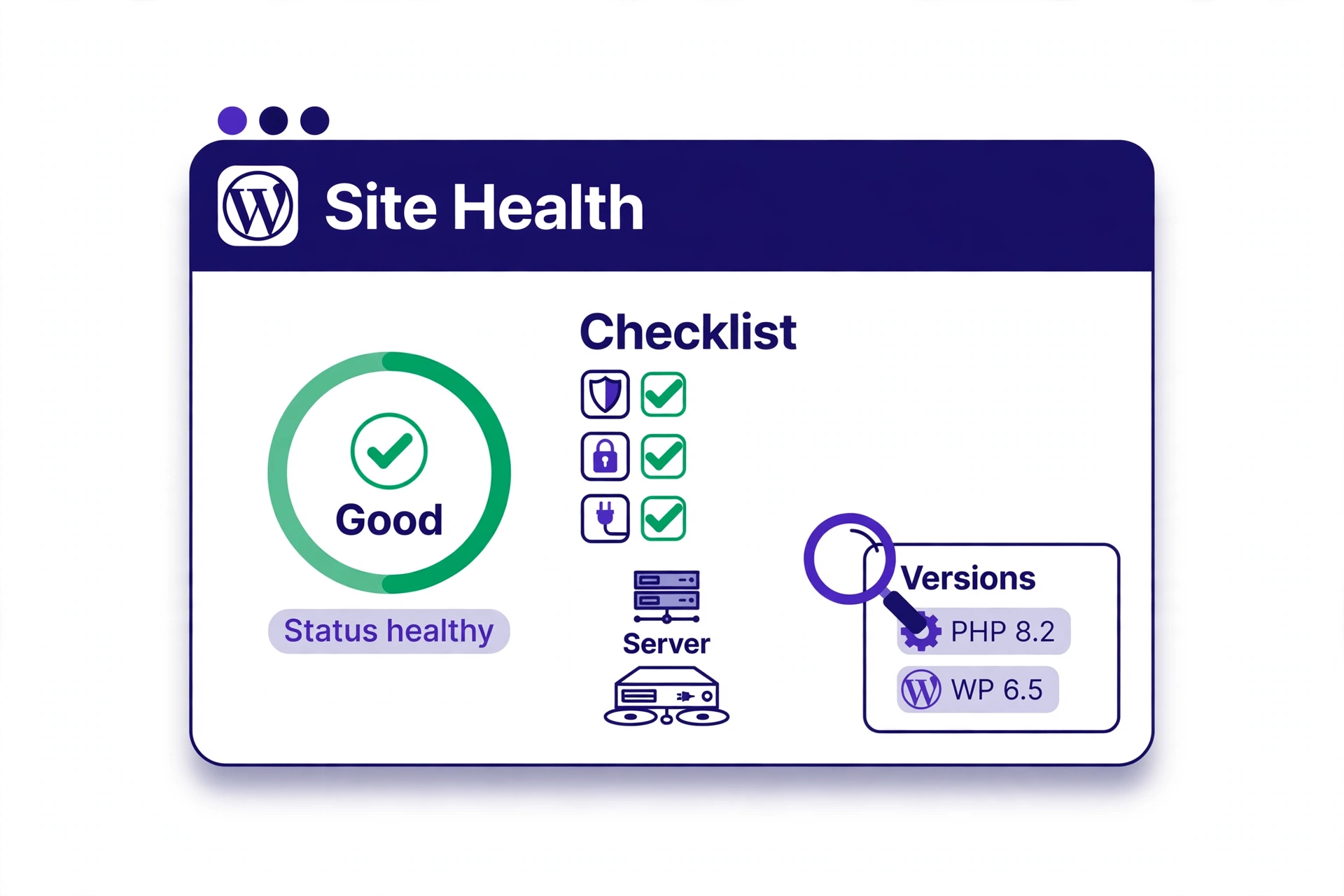
Go to Tools, then Site Health, and click the Info tab. Expand the Server section and read the PHP version line. If your version is out of date, the Status tab will flag it too.
Your hosting panel shows the same number. In cPanel it appears in MultiPHP Manager; in Plesk it appears under Websites and Domains, then PHP Settings. If you have SSH access, run wp --info from your WordPress folder. One caution: that command reports the command-line PHP version, which can differ from the version your web server uses, so trust Site Health for the website itself.
Note your current version and your target version. If you are on PHP 7.4 or 8.0, the jump is big, so test on staging first.
Before You Update PHP in WordPress: The 5-Minute Safety Checklist
Changing PHP is easy to undo, but only if you prepare first. Work through this checklist before you touch any setting.
1. Take a full backup. Back up your files and your database, and confirm the backup actually exists before you continue. Follow our WordPress backup guide and store a copy away from the server. A backup is your rollback plan.
2. Update WordPress core, your theme, and all plugins. Current versions are the ones tested on current PHP. An outdated plugin is the most common cause of errors after an update, so remove that risk first.
3. Check plugin and theme compatibility. Look at the changelog of any plugin you depend on, especially page builders and e-commerce plugins. If a plugin has not been updated in over a year, consider replacing it before you switch.
4. Test on a staging copy for big jumps. If you are moving from PHP 7.4 or 8.0, or your site is a store, test the new version on staging first. See our guide to creating a WordPress staging site.
5. Pick a quiet time and note your current version. Make the switch when traffic is low, and write down the PHP version you run now so you can switch straight back if needed. Most hosting panels let you change the version back in under a minute.
4 Safe Ways to Update PHP in WordPress
PHP is a server setting, not a WordPress setting, so the switch always happens in your hosting account. WordPress simply uses whatever version the server gives it. Here is how the four methods compare:
| Method | Difficulty | Risk | Best for |
|---|---|---|---|
| cPanel MultiPHP Manager | Easy | Low | Shared hosting with cPanel |
| Hosting dashboard / Plesk | Easy | Low | Managed hosting, VPS with a panel |
| WP-CLI over SSH | Intermediate | Medium | Developers, VPS, many sites |
| Compatibility-check plugin | Easy | Low | Checking readiness, not switching |
The first two methods are how most people update PHP in WordPress. WP-CLI is for servers you manage yourself. A plugin cannot change your PHP version, but it can check whether your code is ready, which is useful before a big jump.
Method 1: cPanel MultiPHP Manager
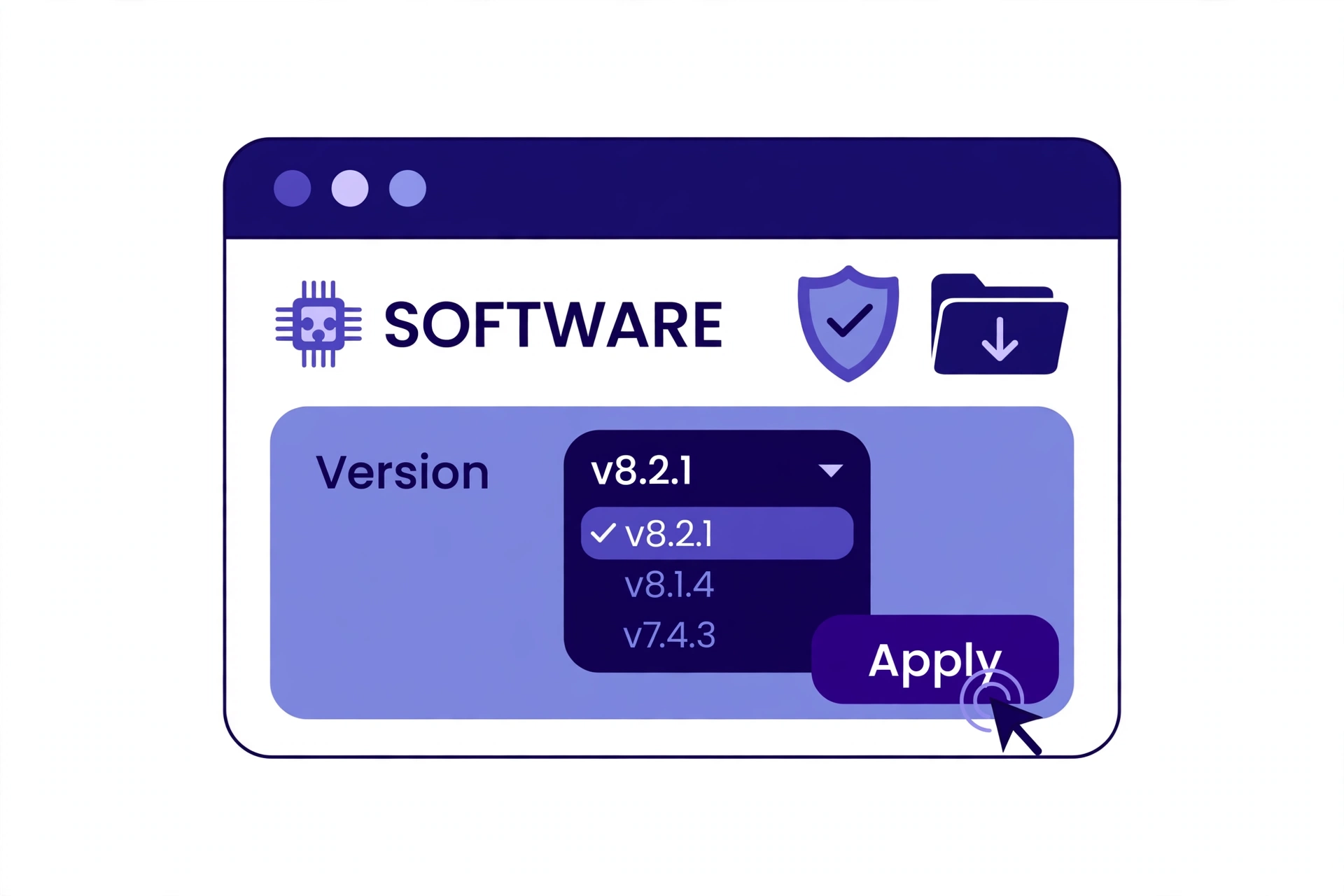
This is the most common method on shared hosting, and it takes about two minutes. Log in to cPanel, find MultiPHP Manager in the Software section, tick your domain, choose the new version from the dropdown, for example PHP 8.4, and click Apply.
Open MultiPHP Manager, not MultiPHP INI Editor, which only changes PHP settings. Some CloudLinux hosts show a Select PHP Version tool instead: pick the version and click Set as current. Then reload your site and confirm the new version in Site Health.
Method 2: Hosting Dashboard or Plesk
To update PHP in WordPress on a managed host, use its own one-click switch. On Plesk, go to Websites and Domains, select your domain, open PHP Settings, choose the version, and click OK. On managed hosts, look for a PHP engine, Tools, or Site settings tab.
Pick the target version, apply it, and confirm the change in Site Health. If PHP 8.4 is missing, ask support when it will be added, or use 8.3. If your host offers no PHP switch at all, consider a host that keeps its stack current: a host stuck on an end-of-life PHP version is a security problem.
Method 3: WP-CLI on a VPS
If you manage your own server, WP-CLI is how you update PHP in WordPress with full control. Check what is installed with php -v and wp --info, then install the target version, for example sudo apt install php8.4-fpm php8.4-cli php8.4-mysql on Ubuntu or Debian.
Point your web server at the new PHP-FPM pool, reload the web server and PHP-FPM, and confirm the change in Site Health. Update the CLI version too with sudo update-alternatives --config php, or cron jobs will keep running on the old version. Test on staging first.
Method 4: Check Readiness with a Plugin First
No plugin can change your server PHP version, so do not install one that promises to do it. What a plugin can do is scan your theme and plugins for code that will break on the new version. The PHP Compatibility Checker plugin, and developer tools such as PHPCompatibilityWP, scan your code against a target PHP version and report the files that need attention.
Use this as a pre-flight check, not as the switch itself. Run the scan, fix or replace anything it flags, then make the actual change with Method 1 or 2.
After the Switch: The 10-Minute Test Checklist
After you update PHP in WordPress, the switch itself is instant, but the job is not done until you have tested the result. Spend ten minutes clicking through the site as a visitor would: load your home page, a blog post, and your most important landing page, then log in to wp-admin and open the dashboard and the post editor.
Submit your contact form, and if you run a store, place a test order. Then open Tools, then Site Health, and confirm the PHP version line shows your target version with no new critical issues. Check your error log for PHP warnings in the first hour. A clean log and a working site mean the update is done.
What to Do If Your Site Breaks After the Update
Most problems after you update PHP in WordPress show up immediately as a white screen, a 500 error, or a visible PHP error message. Do not panic or start editing files at random. Switch the PHP version back to the previous one in your hosting panel first: that alone fixes most breakage, in under a minute.
Once the site is back, work out what broke before you try again. The error log usually names the plugin or theme file that failed. Disable that plugin from wp-admin, or rename its folder over FTP if you cannot log in, then switch PHP versions again. If the problem is a 500 error, our guide on fixing the WordPress 500 internal server error walks through the diagnosis.
Two other causes are easy to fix. Some sites hit a memory limit after the switch: see our guide on how to increase the WordPress memory limit if you see memory errors. And if your host applies the new version only to the website, not to cron jobs, ask which PHP binary your cron jobs use.
If a plugin has no update and no replacement, staying on an end-of-life PHP version to keep one abandoned plugin alive is a bad trade. Replace the plugin, or ask a developer to update its code if it is custom.
How Often Should You Update PHP in WordPress?
Treat PHP like WordPress core: check it twice a year. A new PHP version ships every November, so move to the newest well-supported version once a year, after testing.
Put a recurring reminder in your calendar for January, a few weeks after each November release. By then, plugin authors have confirmed compatibility, and you can update PHP in WordPress calmly instead of rushing it when a deadline arrives. A site on PHP 8.4 today will not need another move until late 2028.
Our verdict: For most WordPress sites in November 2026, update PHP in WordPress to version 8.4. It is fast, fully supported, and secure until the end of 2028. Take a backup, update WordPress and your plugins first, switch the version in your hosting panel, and test for ten minutes. If anything breaks, switch back in one click. Staying on an old version is far riskier than updating.
Frequently Asked Questions
Does updating WordPress update PHP?
No. Updating WordPress core does not change your PHP version, because PHP is a server setting controlled by your hosting account. You have to update PHP in WordPress separately, in cPanel, Plesk, or your host dashboard.
Will updating PHP break my WordPress site?
It can, but it rarely does on an up-to-date site. The usual cause is an outdated plugin or theme using code removed in newer PHP versions, which is why you update everything first and test on staging for big jumps. If something breaks, switching back restores the site in under a minute.
What is the best PHP version for WordPress in 2026?
PHP 8.4 is the best choice for most sites in November 2026. WordPress.org recommends PHP 8.3 or greater, and 8.4 gets security fixes until 31 December 2028. PHP 8.3 is the safe fallback, and PHP 8.5 is worth testing if your plugins support it.
How do I update PHP in WordPress without cPanel?
Use your host dashboard or Plesk instead. In Plesk, go to Websites and Domains, select your domain, open PHP Settings, and choose the version. Managed hosts offer the same switch under a Tools or Site settings tab.
Can I update PHP from inside the WordPress dashboard?
No, there is no PHP version setting inside wp-admin. The dashboard can only show which version you run, under Tools, then Site Health, then Info, then Server. The change always happens in your hosting account.
How long does it take to update PHP in WordPress?
The switch itself takes about two minutes in cPanel or your host dashboard. Allow thirty minutes in total: five minutes for the backup and updates, two minutes for the switch, and ten to fifteen minutes to test the site afterwards.
Conclusion
Learning how to update PHP in WordPress is one of the highest-value maintenance tasks a site owner can do. It costs nothing, takes about half an hour including testing, and improves security, speed, and compatibility in a single change.
The safe order never changes: check your version, back up the site, update WordPress and your plugins, test on staging if the jump is big, switch the version in your hosting panel, and test for ten minutes. Choose PHP 8.4 if your host offers it, fall back to 8.3 if it does not, and move off PHP 8.2 before 31 December 2026. Do it this week, while you have time to test calmly.