

In this guide
- What Mixed Content Is and Why Browsers Block It
- How to Find the Insecure Resources First
- Method 1: Fix the WordPress Address Settings
- Method 2: Fix WordPress Mixed Content Errors With a Plugin
- Method 3: Fix WordPress Mixed Content Errors in the Database
- Method 4: Force HTTPS With .htaccess
- Method 5: Fix Hard-Coded URLs in Themes, Widgets and CSS
- The Cloudflare Trap: Why Flexible SSL Causes Redirect Loops
- Methods Compared: Which Fix Fits Your Site?
- How to Prevent Mixed Content From Coming Back
- When the Padlock Still Will Not Appear
- Our Verdict
- Frequently Asked Questions
- Conclusion
You installed the SSL certificate, your site loads over HTTPS, and yet the padlock is missing. That broken padlock is the classic sign of mixed content after a move to HTTPS. The good news: you can fix WordPress mixed content errors in under an hour once you know where the insecure URLs are hiding.
Mixed content means your page arrives over HTTPS, but some images, scripts or fonts still arrive over plain HTTP. Browsers treat that as a security hole, because an attacker on the same network could tamper with the unencrypted parts. That is why you need to fix WordPress mixed content errors at the source, not just hide the warning.
What Mixed Content Is and Why Browsers Block It
A page is only as secure as its least secure resource. When you load a page over HTTPS, the browser expects every sub-resource to use HTTPS too. If a single script loads over HTTP, the encrypted page leaks part of itself in plain text, and that is the first thing to understand when you fix WordPress mixed content errors.
Browsers split mixed content into two kinds. Active mixed content covers scripts, stylesheets, iframes and form actions, anything that can change the page or steal data. Chrome has blocked it by default since Chrome 79, so a blocked script can break a slider, a checkout or a layout. Passive mixed content covers images, audio and video; Chrome usually loads these and may auto-upgrade them, but it still downgrades the padlock. Either way, the way to fix WordPress mixed content errors is the same: find the HTTP URLs and change them at the source.
| Cause | What breaks | Where to fix it |
|---|---|---|
| WordPress Address still HTTP | New media and links use HTTP | Settings > General or wp-config.php |
| Old posts with HTTP image URLs | Images warn or fail | Database search and replace |
| Theme or plugin hard-codes an HTTP script | Slider, font or script blocked | Theme files or plugin settings |
| External resource served over HTTP only | That resource stays insecure | Replace it or host it yourself |
| Cloudflare set to Flexible SSL | Redirect loop, or the origin stays on HTTP | Cloudflare SSL/TLS mode |
Active vs passive: which one is breaking your page?
If your layout is broken, suspect active mixed content first; if the page looks fine but the padlock is missing, suspect passive mixed content, usually an old image. The diagnosis below catches both together.
How to Find the Insecure Resources First
Never start replacing URLs blind. The fastest way to fix WordPress mixed content errors is to list the exact resources first, because most sites have only a handful of offenders. Ten minutes here saves an hour of guessing.
Open the affected page in Chrome, press F12 or Cmd+Option+I on Mac, and click the Console tab. Refresh the page with the panel open, because the console only records requests made while it is open. Every mixed content line names the full URL of the insecure resource, in red for blocked items and yellow for warnings. Write down every URL it names, because that list is your repair plan when you fix WordPress mixed content errors.
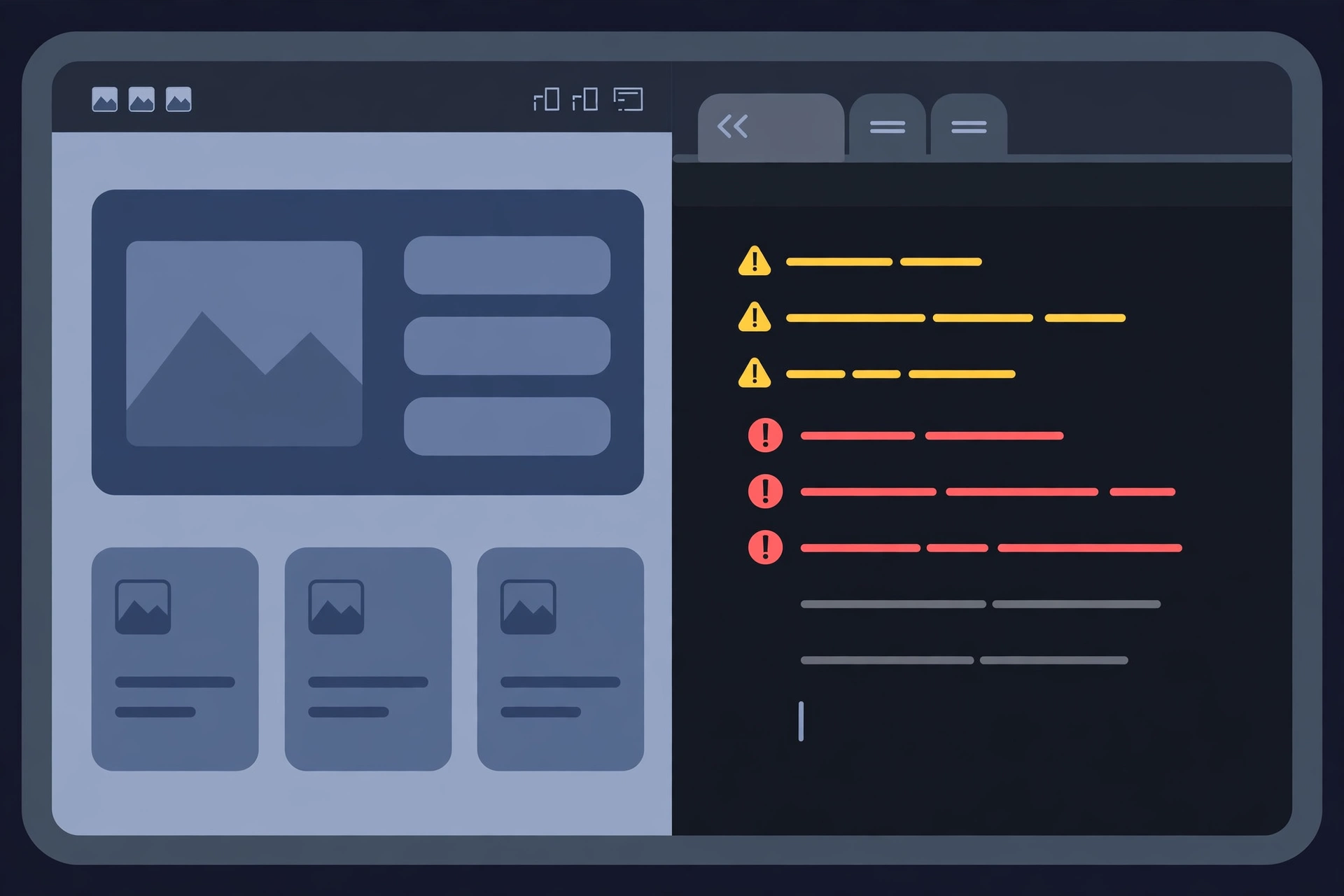
Check the Security tab next for every non-secure origin at a glance, and the Network tab, where typing http:// into the filter box shows only the insecure requests. Test the homepage, a long blog post, a page with a contact form, and your checkout page if you have one, because the pages that still need you to fix WordPress mixed content errors often hide on one page type only. For a large site, a free scanner such as Why No Padlock can sweep the whole site afterwards as a final check.
Method 1: Fix the WordPress Address Settings
Start here, because it stops new mixed content at the source. In Settings > General, check the two URL fields: WordPress Address (URL), where WordPress itself lives, and Site Address (URL), the address visitors type. Both must start with https://, and if either still says http://, change it and save. That one change is the first step to fix WordPress mixed content errors for good, because WordPress then generates HTTPS URLs for new uploads and links.
If the two fields are greyed out, the URLs are hard-coded in wp-config.php, so edit those lines instead of the settings screen. Add or change the lines above the line that says “That’s all, stop editing! Happy blogging.”:
define( 'WP_HOME', 'https://yourdomain.com' );
define( 'WP_SITEURL', 'https://yourdomain.com' );
These constants override the database values. Only do this after the certificate is working, because switching to HTTPS with no valid certificate can lock you out of the admin.
Method 2: Fix WordPress Mixed Content Errors With a Plugin
If you want the quickest way to fix WordPress mixed content errors, a plugin can do the heavy lifting. Really Simple Security, formerly Really Simple SSL, is the standard choice: its free version on WordPress.org includes HTTPS migration, 301 redirects and a basic mixed content fixer that rewrites HTTP URLs to HTTPS as each page is served.
Install it from Plugins > Add New, activate it, and follow its setup wizard, which detects your certificate, switches the site to HTTPS and turns on the fixer. Then reload your test pages and check the console again. For a small site with a handful of old HTTP links, you can fix WordPress mixed content errors without touching a line of code, and this is often the whole job.
The paid version adds a full mixed content scan of the front end and back end, with a Fix option for the items it can resolve, plus HSTS and premium support. Pro pricing, verified on 21 November 2026, is $49 in the first year for Personal on 1 site, renewing at $69 a year, $99 in the first year for Professional on 5 sites, and $199 in the first year for Agency on 25 sites. Check the live price at checkout, because the first-year discount does not apply to renewals.
Use the plugin route when you want speed, but it will not fix WordPress mixed content errors permanently; skip it when you want the database itself clean, because the free fixer masks old URLs rather than changing them.
Method 3: Fix WordPress Mixed Content Errors in the Database
Most mixed content lives in the database: old posts, pages and widgets with http:// links to your own domain. The permanent way to fix WordPress mixed content errors in the database is a search and replace that changes http://yourdomain.com to https://yourdomain.com everywhere, using a tool that understands serialized data. Never run a raw SQL REPLACE query by hand; it can corrupt serialized settings.
Back up first, with no exceptions: follow our WordPress backup guide and confirm the backup exists before you touch the database, because a backup turns a mistake into a five-minute restore. Then install the free Better Search Replace plugin from WordPress.org and go to Tools > Better Search Replace. Enter http://yourdomain.com in Search for and https://yourdomain.com in Replace with to fix WordPress mixed content errors in the database, select the tables, and tick Run as dry run first. The dry run reports how many fields would change in each table without changing anything.
Run the replacement and verify it
Run the replacement to fix WordPress mixed content errors in the database, then reload your test pages and check the console. The plugin handles serialized data correctly and lets you pick tables one by one. It has no built-in undo, so your backup is the only way back, and that is why the backup step comes first. If your site earns money or takes orders, test on a staging copy first; our guide to building a WordPress staging site shows how to clone the site safely.
With SSH access, WP-CLI does the same job; always dry-run first and skip the guid column:
wp search-replace 'http://yourdomain.com' 'https://yourdomain.com' --all-tables --skip-columns=guid --dry-run
wp search-replace 'http://yourdomain.com' 'https://yourdomain.com' --all-tables --skip-columns=guid
Method 4: Force HTTPS With .htaccess
WordPress settings alone do not stop anyone reaching the HTTP version, so you also need a server-level redirect. A redirect alone will not fix WordPress mixed content errors stored in the database, but it stops new HTTP visits and cleans up internal links that still point to the old protocol. On Apache and LiteSpeed hosting, add these rules near the top of the .htaccess file in your WordPress root, above the # BEGIN WordPress block:
RewriteEngine On
RewriteCond %{HTTPS} off
RewriteRule ^(.*)$ https://%{HTTP_HOST}%{REQUEST_URI} [L,R=301]
This sends insecure connections to the HTTPS version with a 301 permanent redirect. Place the rules above the WordPress block, which WordPress rewrites when permalinks are flushed. Test by typing your domain with http:// and confirming it lands on HTTPS. On Nginx, the equivalent is a server block returning 301 to https://$host$request_uri for port 80 traffic; your host can add it if you do not manage the server.
Force the admin to HTTPS as well
Add this line to wp-config.php, above the “That’s all, stop editing!” line, to force logins and admin sessions over SSL:
define( 'FORCE_SSL_ADMIN', true );
WordPress sets this itself when the WordPress Address already starts with https. It is still worth adding on older sites, because an admin area served over HTTP leaks login cookies, and it does not fix WordPress mixed content errors on its own.
Method 5: Fix Hard-Coded URLs in Themes, Widgets and CSS
Some mixed content survives a database replacement because it lives outside the database. A theme file, a widget, a CSS rule or a plugin setting can hard-code an http:// URL, and those leftovers force you to fix WordPress mixed content errors by hand. The console names the exact file, so start there.
Open the file the console names, usually header.php, footer.php or a template part, and change the http:// URL to https:// or to a protocol-relative URL starting with //. A protocol-relative URL uses whichever protocol the visitor is already on. The same applies to CSS: a background image or imported font with an http:// URL triggers the warning on every page that loads that stylesheet. Check text and image widgets, the site logo and custom HTML blocks too. If a plugin loads a script over HTTP and has no HTTPS setting, contact its author or replace it.
The Cloudflare Trap: Why Flexible SSL Causes Redirect Loops
Behind Cloudflare, the SSL mode you pick can create mixed content or a redirect loop all by itself: a request is two connections, visitor to Cloudflare, then Cloudflare to your origin server. The SSL/TLS mode controls only the second leg, so the padlock tells you nothing about the origin. If Cloudflare is in the chain, check the mode before you try to fix WordPress mixed content errors anywhere else.
Flexible mode encrypts only the visitor-to-Cloudflare leg and fetches from your origin over plain HTTP. If your .htaccess rules, SSL plugin or site URL then force HTTPS, the server redirects to https://, Cloudflare fetches over HTTP again, and the cycle repeats until the browser gives up with ERR_TOO_MANY_REDIRECTS. That loop is the most common Cloudflare mistake on WordPress.
| Cloudflare mode | Visitor to Cloudflare | Cloudflare to origin | Origin certificate checked |
|---|---|---|---|
| Flexible | Encrypted | Plain HTTP | No, none needed |
| Full | Encrypted | Encrypted | No |
| Full (Strict) | Encrypted | Encrypted | Yes |
Set the mode to Full (Strict) under SSL/TLS > Overview, and install a valid origin certificate: a free Let’s Encrypt certificate from your host, or a Cloudflare Origin CA certificate. Full is a usable fallback for a self-signed origin certificate, but it does not validate it, so an attacker between Cloudflare and your server could fake one. Read the Cloudflare SSL modes documentation before changing anything on a live site. If the loop already has you locked out, switch to Full (Strict) first, then re-enable the origin redirect. Our guide to fixing a WordPress redirect loop covers the full diagnosis, including the X-Forwarded-Proto check.
Methods Compared: Which Fix Fits Your Site?
Most sites need two: one to stop new HTTP URLs and one to clean the old ones. The table below compares the four repair methods by difficulty, risk and what each one fixes.
| Method | Difficulty | Risk | What it fixes | Best for |
|---|---|---|---|---|
| Plugin (Really Simple Security) | Easy | Low | Rewrites URLs on the fly | A quick padlock fix |
| Database search and replace | Medium | Medium, no undo | Old HTTP URLs in content | The permanent fix |
| .htaccess redirect | Medium | Medium, a typo can break the site | HTTP visits to the site | Every site |
| Manual theme and widget edits | Hard | Low, if you edit a child theme | Hard-coded URLs | Stubborn leftovers |

The plugin is the fastest way to fix WordPress mixed content errors when the site is live, and the database replacement is the fix that lasts, because it removes the old URLs instead of masking them. Do the plugin first if you are in a hurry, then fix WordPress mixed content errors in the database during a quiet hour, and keep the .htaccess redirect in place permanently.
How to Prevent Mixed Content From Coming Back
Fixing the current errors is only half the job: new content can reintroduce the same problem. The simplest habit that keeps you from having to fix WordPress mixed content errors again is to always paste HTTPS links and upload media through the WordPress media library. A single HTTP image in a post can break the padlock on that page.
Add a Content-Security-Policy header with upgrade-insecure-requests as a safety net, not as the fix: it upgrades HTTP sub-resources automatically, but cannot fix a resource with no HTTPS version. Add it in .htaccess or through your security plugin. Our WordPress security checklist covers HSTS and the other hardening steps worth doing once the padlock is clean.
When the Padlock Still Will Not Appear
If the console is clean and the padlock is still missing, the problem is probably not mixed content. Before you try to fix WordPress mixed content errors that are not there, clear every cache first: your caching plugin, your host cache, Cloudflare if you use it, and the browser, then hard-refresh with Ctrl+Shift+R on Windows or Cmd+Shift+R on Mac. A cached HTTP page can keep showing the warning long after the live page is fixed; our guide to speeding up WordPress explains where those caches live.
Check the certificate next: an expired, wrong-hostname or missing-intermediate certificate breaks the padlock with no mixed content line in the console. Most hosts renew Let’s Encrypt certificates automatically, but a failed renewal is easy to miss: check the dates in the browser.
If a page shows a server error, diagnose that first; see our guides to the WordPress 500 internal server error and WordPress 404 errors. A white screen or a 500 after editing .htaccess usually means a typo in the new rules, so restore the backup copy and try again.
Our Verdict
Frequently Asked Questions
What causes WordPress mixed content errors after installing SSL?
Installing a certificate only secures new connections. Old posts, widgets, theme files and plugin settings still contain http:// URLs from before the move, and the browser flags every one of them. The certificate is usually fine; the stored URLs are the problem.
Can I fix WordPress mixed content errors without a plugin?
Yes. Update the WordPress Address and Site Address to HTTPS, add the .htaccess redirect, and run a database search and replace with Better Search Replace or WP-CLI. The plugin only speeds the job up; nothing in this guide requires one.
Is Really Simple SSL free enough to fix mixed content?
Yes, for most sites. The free version includes HTTPS migration and a basic mixed content fixer that rewrites URLs as pages are served. Pro, from $49 in the first year, adds a full scan that lists every offending asset and fixes the ones it can resolve.
Why does my site show a redirect loop after I enable HTTPS?
The usual cause is Cloudflare set to Flexible SSL while the origin forces HTTPS. Cloudflare fetches over HTTP, the server redirects to HTTPS, and the loop repeats. Switch Cloudflare to Full (Strict) with a valid origin certificate.
Will mixed content hurt my SEO?
Yes, indirectly. Google prefers HTTPS pages, and a broken padlock erodes visitor trust, which raises bounce rates and lowers conversions. Mixed content itself is not a direct ranking penalty, but a site that looks insecure earns fewer clicks and fewer links.
How do I check that the fix worked?
Open the page in Chrome DevTools, check the Console tab for mixed content lines and the Security tab for non-secure origins, then hard-refresh. Repeat the check on the homepage, a blog post and any page with a form, and run a whole-site scanner as a final sweep.
Conclusion
Mixed content looks alarming, but it is a cleanup job. To fix WordPress mixed content errors for good, find the insecure resources in DevTools, set both WordPress addresses to HTTPS, replace the old HTTP URLs in the database, force HTTPS with a redirect, and check your Cloudflare mode. Do the steps in that order. That is the complete way to fix WordPress mixed content errors, and your visitors will see the clean padlock they expect.