
Nothing kills a visitor’s trust faster than a “Page Not Found” screen. One minute your post is ranking and bringing in traffic; the next it returns a blank 404 error. Usually you can fix WordPress 404 errors in a few minutes, without touching code.
A 404 error simply means the server could not find the page at the address requested. The page may still exist in your dashboard, the link may be wrong, or WordPress may have lost the instructions that map pretty URLs to content. This guide shows you how to fix WordPress 404 errors with eight proven methods, from quickest to most involved — all checked against official WordPress documentation on 20 November 2026.
In This Guide
- What Causes WordPress 404 Errors?
- How to Fix WordPress 404 Errors: 8 Proven Methods (Method 1: Reset Your Permalink Settings; Method 2: Check Your .htaccess File; Method 3: Fix Changed Slugs With 301 Redirects; Method 4: Find the Conflicting Plugin; Method 5: Switch to a Default Theme to Test; Method 6: Check File Permissions; Method 7: Clear Every Layer of Cache; Method 8: Check Your Server Configuration)
- The 8 Methods at a Glance
- How to Prevent WordPress 404 Errors in the Future
- Frequently Asked Questions
- Conclusion
What Causes WordPress 404 Errors?
A WordPress 404 error has a small set of usual suspects. The most common reason site owners need to fix WordPress 404 errors is a permalink problem: WordPress stores rewrite rules that turn pretty addresses such as /best-hosting/ into the right post, and they can fall out of sync after a migration or update.
Other causes that force you to fix WordPress 404 errors: a missing or corrupted .htaccess file, a slug changed without a redirect, a plugin that rewrites URLs, a theme with its own URL rules, deleted files, and stale cache serving a page that no longer exists.
Is It One Page or Your Whole Site?
If only one page returns a 404 while the rest of the site works, the problem is local to that page: a changed slug, a trashed post, a broken link, or a plugin affecting only that content type.
If every post and page returns a 404 but your homepage loads, the rewrite rules are broken: the homepage needs no rewriting, while the rest depends on .htaccess (Apache and LiteSpeed) or the server block (Nginx). If the whole site returns a 404, the domain may point at the wrong folder — skip to Method 8.
How to Diagnose a 404 Before You Fix It
Open the broken page, press F12, and check the Network tab. Reload: a genuine 404 shows a 404 status, while a page that only looks broken may be failing on a missing image or script. Diagnose first, then fix WordPress 404 errors with the matching method.
Google Search Console is the other free tool worth checking: under Indexing, then Pages, the “Not found (404)” reason lists every URL Google tried to crawl and could not find. A 404 differs from a white screen or a 500 error, which mean the server failed while building the page. If you see a blank page instead, our guide to the WordPress white screen of death covers that separately.
How to Fix WordPress 404 Errors: 8 Proven Methods
Work through these in order — Method 1 alone resolves most cases. Back up first (see our WordPress backup guide): Methods 2 and 6 touch server files. Test the broken page after each method.
Method 1: Reset Your Permalink Settings
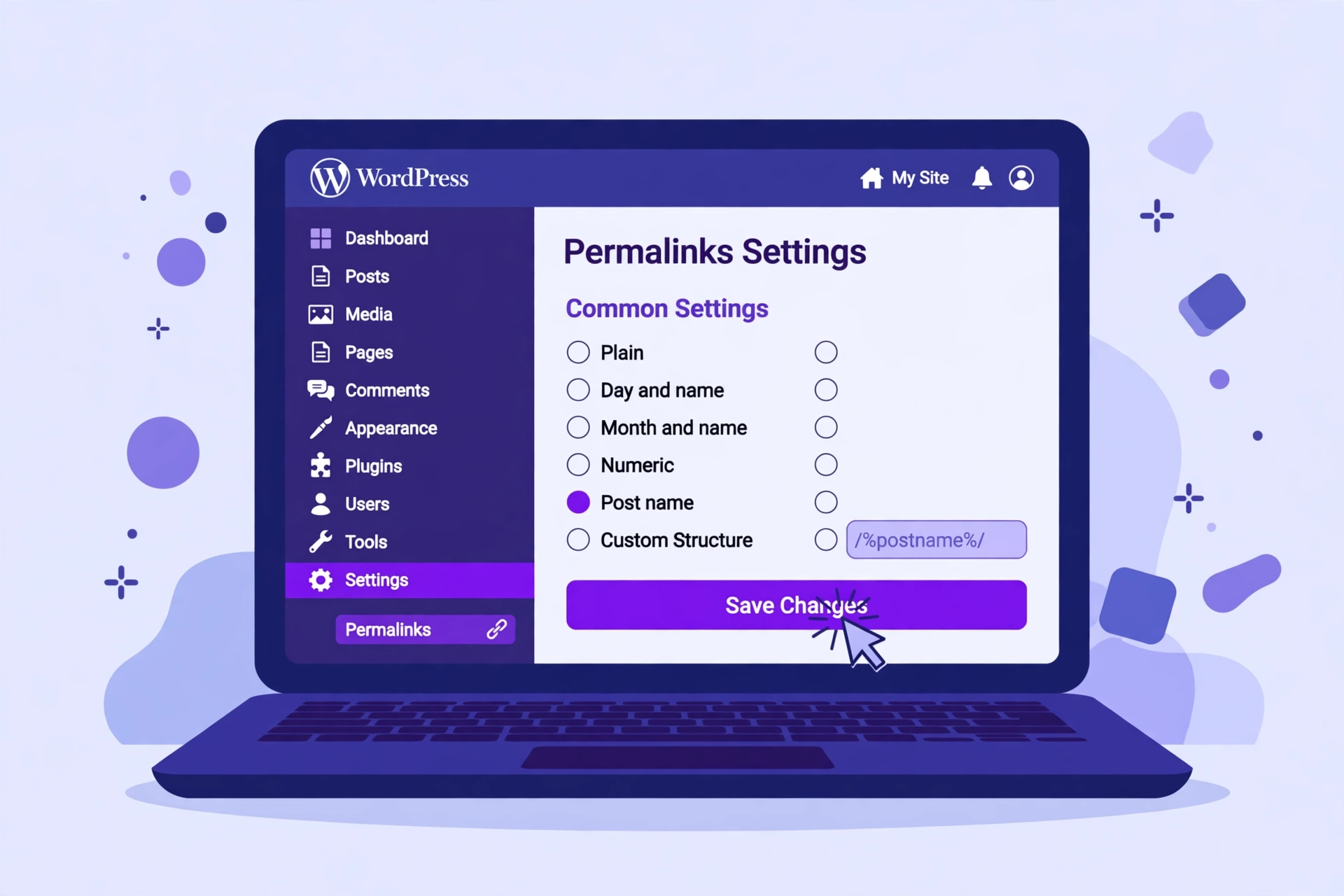
This is the fastest way to fix WordPress 404 errors, and it resolves most cases. Resaving permalinks forces WordPress to rebuild its rewrite rules from scratch, without changing any URLs.
Go to Settings, then Permalinks, change nothing, and click Save Changes. WordPress shows a “Permalink structure updated” message. Reload the broken page — if it loads, you are done. If it returns after a migration or update, repeat this step: it takes seconds.
Method 2: Check Your .htaccess File
If resaving permalinks did not help, the .htaccess file may be missing, empty, or corrupted. On Apache and LiteSpeed servers, this small file in your WordPress root folder tells the server how to hand pretty URLs to WordPress. Without the correct block, every page except the homepage returns a 404 — a classic case where you need to fix WordPress 404 errors at the server-file level.
Open your hosting file manager or FTP client, go to the folder WordPress is installed in (usually public_html), and turn on “Show hidden files”. Download a copy of .htaccess as a backup, then check it contains the standard WordPress block:
# BEGIN WordPress
<IfModule mod_rewrite.c>
RewriteEngine On
RewriteRule .* - [E=HTTP_AUTHORIZATION:%{HTTP:Authorization}]
RewriteBase /
RewriteRule ^index\.php$ - [L]
RewriteCond %{REQUEST_FILENAME} !-f
RewriteCond %{REQUEST_FILENAME} !-d
RewriteRule . /index.php [L]
</IfModule>
# END WordPress
If the file is missing or the block is damaged, paste the block above in and save. Quicker still: delete the file, then resave your permalinks — WordPress writes a fresh one. If WordPress says the file is not writable, fix permissions with Method 6 first.
Method 3: Fix Changed Slugs With 301 Redirects
If a single page returns a 404, check whether its slug changed — a quick check that can fix WordPress 404 errors on that page in minutes. Open the post and look at the slug under the title: if someone edited it or changed a category base, the old address matches nothing, and every link and search result pointing at it breaks.
The fix is a 301 redirect from the old URL to the new one: it tells browsers and Google the move is permanent, so visitors land on the right page and most of the old page’s search value carries over. Rank Math includes a redirection manager; dedicated redirect plugins work the same way.
Add one redirect per changed URL, using the relative path (from /old-post-slug/ to /new-post-slug/), then test the old link. This is also the right fix after a migration — see our guide to migrate a WordPress site to a new host. Never redirect a changed slug to your homepage: search engines treat that as a dead end.
Method 4: Find the Conflicting Plugin
Some plugins rewrite URLs or add rules to .htaccess — security, redirect, caching, and multilingual plugins are the usual suspects. If 404 errors started right after you installed or updated a plugin, that plugin is the prime suspect. This is a common way to fix WordPress 404 errors that appear suddenly on a healthy site.
Go to Plugins, then Installed Plugins and deactivate all plugins. If the broken page loads, reactivate them one by one, testing after each, until the 404 returns. The last one reactivated is the culprit: leave it off, look for an update or replacement, or contact its developer.
If you cannot reach your dashboard, rename wp-content/plugins to plugins.hold via FTP or your file manager, log in to WordPress (which deactivates the plugins), rename the folder back, and reactivate one by one. The official WordPress FAQ Troubleshooting documentation describes both methods. Test plugin changes on staging first — our guide to creating a WordPress staging site shows how.
Method 5: Switch to a Default Theme to Test
Themes can cause 404 errors too, especially ones that register custom post types or URL rules. Testing a theme is a quick way to fix WordPress 404 errors that survive the plugin test.
Go to Appearance, then Themes and activate a default WordPress theme — the Twenty-* theme bundled with your install. Do not delete your current theme; just switch and reload the broken page. If the 404 is gone, your theme is the cause: check for an update or contact its developer. If it remains, switch back — you have ruled out the theme.
Method 6: Check File Permissions
WordPress needs the right file permissions to write .htaccess and upload media. If permissions are too strict, WordPress cannot save the rewrite rules, and media files may return 404 errors even when posts load. Permission problems are an easy way to fix WordPress 404 errors affecting images and downloads in particular.
Standard permissions are 644 for files and 755 for directories, with wp-config.php hardened to 440 or 400 and .htaccess writable by WordPress (usually 644). Check them in your FTP client or file manager and correct any that differ — the official WordPress guide to changing file permissions explains the safe values.
Never set files or folders to 777: that makes them readable, writable, and executable by everyone on the server. Our WordPress security checklist explains safer habits. Also check whether the missing file exists — if an image is missing from your Media Library too, it was deleted and needs re-uploading.
Method 7: Clear Every Layer of Cache
Sometimes the page is already fixed, but a cached copy of the 404 keeps being served. A site can have four cache layers — browser, caching plugin, server, and CDN — and you must clear all of them before trusting the result. Clearing cache is the simplest way to fix WordPress 404 errors that seem to survive every other method.
Hard-refresh your browser (Ctrl+F5 on Windows, Cmd+Shift+R on Mac) or test in a private window. Then purge your caching plugin’s cache, clear any server-level cache in your hosting panel, and purge the affected URLs from your CDN dashboard (or use development mode to bypass the cache while testing).
Also check your caching plugin for cached 404 pages: some cache error pages aggressively, so a fixed page keeps showing the old error until the cache expires. Our guide on how to speed up WordPress explains how caching layers interact.
Method 8: Check Your Server Configuration
If nothing above worked, the problem lives on the server. Use this method when you need to fix WordPress 404 errors that affect the whole site, including the homepage.
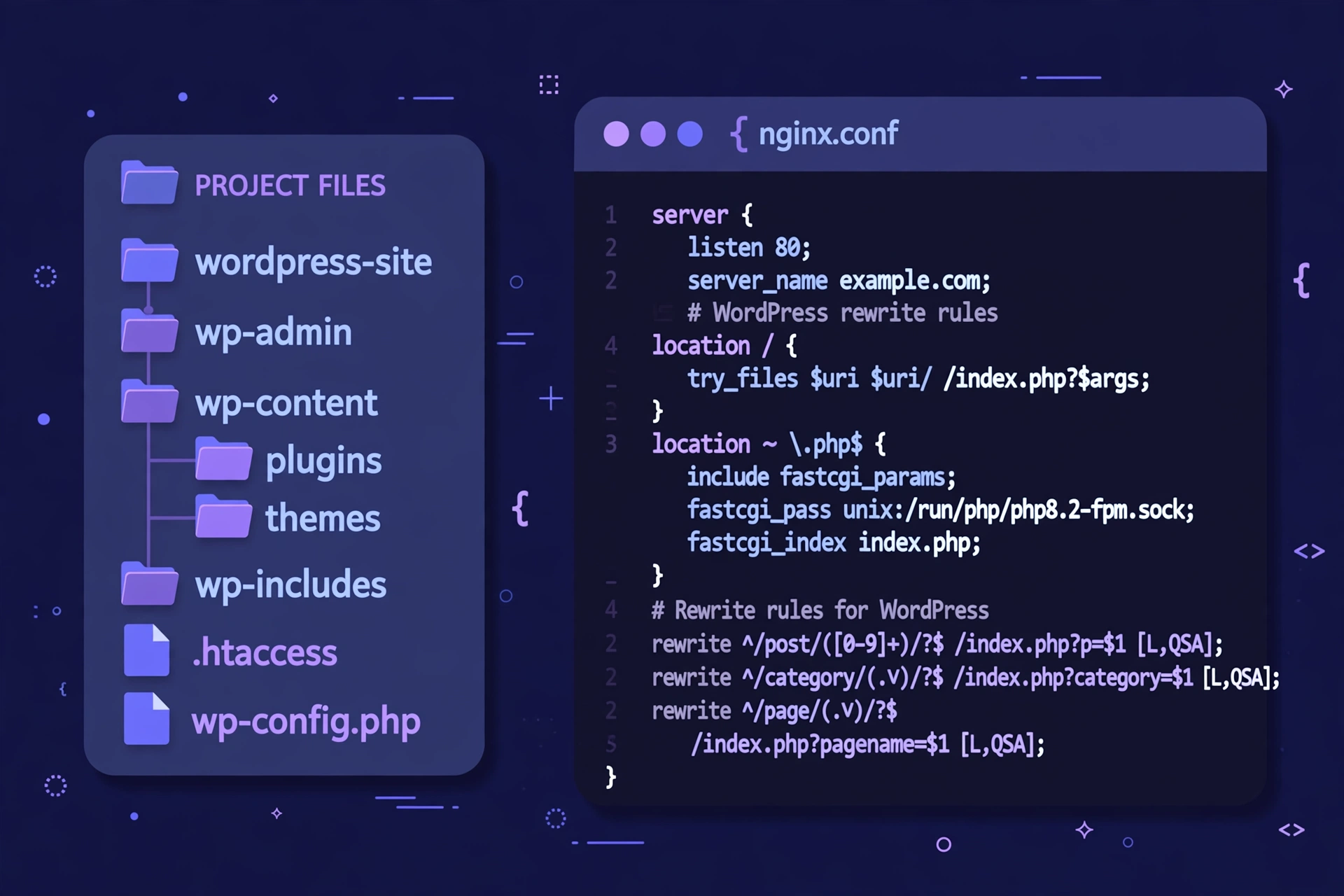
On Apache, the mod_rewrite module must be enabled for pretty permalinks: WordPress documentation notes that 404 errors with a pretty permalink structure can mean mod_rewrite is not activated, so enable it in the Apache configuration or ask your host to. On Nginx there is no .htaccess file — the server block needs a try_files rule such as try_files $uri $uri/ /index.php?$args;.
Also confirm your domain points to the correct document root and the WordPress files are in that folder — a domain pointed at an empty folder returns a 404 for everything. If unsure, contact your host and say what you tried: which methods you used, that permalinks were resaved, and whether the 404 is site-wide or limited to specific pages.
A different error needs a different guide: a 500 means fix the WordPress 500 internal server error, and a database failure means the error establishing a database connection in WordPress.
The 8 Methods at a Glance
| Method | What It Fixes | Difficulty | Time Needed |
|---|---|---|---|
| 1. Reset permalinks | Stale rewrite rules | Easy | Under 1 minute |
| 2. Check .htaccess | Missing .htaccess file | Easy to medium | 5–10 minutes |
| 3. 301 redirects | Changed slugs | Easy | 5 minutes per URL |
| 4. Disable plugins | Plugin conflicts | Easy | 10–20 minutes |
| 5. Switch theme | Theme conflicts | Easy | 5 minutes |
| 6. File permissions | Bad permissions; missing files | Medium | 10–15 minutes |
| 7. Clear cache | Stale cached 404s | Easy | 5 minutes |
| 8. Server config / host | mod_rewrite off; bad Nginx rules | Medium to hard | 15–30 minutes |
How to Prevent WordPress 404 Errors in the Future
Fixing a 404 once is good; stopping the next one is better. To fix WordPress 404 errors for good, build three habits into your routine.
First, never change a post slug without adding a 301 redirect from the old URL in the same session — redirects are cheap to create and expensive to forget. If you restructure categories or change your permalink structure, map the old URLs to the new ones first.
Second, monitor broken links: check Search Console’s “Not found (404)” report monthly and run a broken-link checker after any migration, redesign, or bulk edit.
Third, test risky changes on a staging site. Plugin updates, theme changes, and migrations are when 404 errors appear, and testing away from your live site means visitors never see the mistake — and you will rarely need to fix WordPress 404 errors again.
Frequently Asked Questions
How long does it take to fix WordPress 404 errors?
Most cases take under a minute: resaving permalink settings resolves most site-wide 404 errors. Plugin conflicts take 10 to 20 minutes; server problems can take 30 minutes or longer.
Why do my WordPress posts return a 404 but my homepage works?
This points at broken rewrite rules: the homepage needs no rewriting, while posts and pages depend on .htaccess or your Nginx configuration. Resaving permalinks is the first step to fix WordPress 404 errors on posts — then check .htaccess, as in Methods 1 and 2.
Can a plugin cause WordPress 404 errors?
Yes. Plugins that manage redirects, security, caching, or multilingual content can add rewrite rules that conflict with WordPress. Deactivate all plugins, test the page, then reactivate them one by one to find the one responsible, as described in Method 4. That process will fix WordPress 404 errors caused by any conflicting plugin.
Will 404 errors hurt my SEO?
A few 404 errors are normal and harmless on their own. Many of them, especially on pages that used to rank, waste crawl budget and send visitors away — fix the important ones with redirects and let Google recrawl them. To fix WordPress 404 errors that affect ranking pages, prioritise the URLs Search Console reports under “Not found (404)”.
Do I need to fix every 404 error on my site?
No. Some 404s are harmless, such as bots probing for files that never existed. Focus on URLs real visitors request: pages that used to exist, links from other sites, and URLs in your sitemap. You still need to fix WordPress 404 errors on those — ignore one-off requests for paths that never existed.
Conclusion
WordPress 404 errors look alarming, but they follow a short list of causes and fixes. Start by resaving your permalinks, check your .htaccess file, add redirects for changed slugs, and test your plugins and theme — in most cases, one step will fix WordPress 404 errors within minutes. The method that works tells you what went wrong, so write it down.
To fix WordPress 404 errors permanently, pair the fix with prevention: redirect every changed slug, check Search Console monthly, and test risky changes on staging — then neither your visitors nor Google will ever see the error page.