

If your business still takes bookings by phone, email, or direct message, you are losing customers every day. People book at midnight, on their phones, and pick the business that lets them choose a time and pay in under a minute. You can add booking system to WordPress without hiring a developer or rebuilding your site.
This guide shows you how to add booking system to WordPress in 2026: which plugin fits, what each one costs, and the setup steps that take most sites from zero to taking bookings in under an hour. All prices are in USD, checked on 24 November 2026.
In this guide
- The short answer: how to add booking system to WordPress
- Before you start: four decisions that pick your plugin
- The 6 best WordPress booking plugins compared
- Amelia: best all-round booking plugin
- Bookly: best for salons and multi-staff teams
- Simply Schedule Appointments: best for solo consultants
- MotoPress Appointment Booking: best value for service businesses
- WooCommerce Bookings: best if you already sell with WooCommerce
- Booking Calendar: best for rooms, rentals and full-day bookings
- How to add booking system to WordPress step by step
- Payments, reminders and calendar sync
- Mistakes to avoid
- Frequently asked questions
- Verdict
The short answer: how to add booking system to WordPress
The fastest way to add booking system to WordPress is to install a booking plugin, create your services and hours, and place the form on a page with a shortcode or block. That is the whole job, and it is how most small businesses add booking system to WordPress in a single afternoon. For most of them, the free version of Amelia or Simply Schedule Appointments takes bookings the same day, and you only pay when you need online payments, calendar sync, or more staff.
Pick Amelia for appointments and events in one plugin, Bookly for a salon with several staff, and Simply Schedule Appointments if you are a solo consultant. Pick WooCommerce Bookings only if you already sell through WooCommerce, and Booking Calendar for rooms by the day.
Before you start: four decisions that pick your plugin
Answer four questions before you add booking system to WordPress. They decide which plugin fits and stop you paying for features you will never use.
First, what are you booking? Hourly appointments — a haircut, a consultation, a class — need a different plugin from full-day rentals such as a guesthouse room.
Second, how many people take bookings? A solo consultant needs one calendar; a salon with six stylists needs per-staff schedules, and that is where free versions hit their ceiling: Amelia Lite allows one employee, and Bookly’s free version covers one staff member and five services.
Third, do you take payment at booking? Some businesses take payment in person; others need a deposit to cut no-shows. Free versions rarely include card payments — Amelia Lite is the exception, with Square included free — so budget for a paid plan when you add booking system to WordPress. Fourth, do bookings need to reach your calendar? Two-way Google Calendar sync is a paid feature in almost every plugin.
The 6 best WordPress booking plugins compared
| Plugin | Free version | Paid from | Best for | Payments | Calendar sync |
|---|---|---|---|---|---|
| Amelia | Yes (Lite) | $49/yr | Appointments + events, all-round | Square free; Stripe/PayPal paid | Paid plans |
| Bookly | Yes | $89 (Pro) | Salons, multi-staff teams | Paid (Pro) | Paid (Pro) |
| Simply Schedule Appointments | Yes (Basic) | $99/yr | Solo consultants, fast setup | Paid (Professional) | Paid (Plus) |
| MotoPress Appointment Booking | Yes | $49/yr | Service businesses on a budget | Stripe/PayPal paid | Paid add-on |
| WooCommerce Bookings | No | $249/yr | Stores already on WooCommerce | Any WooCommerce gateway | Google Calendar |
| Booking Calendar | Yes | $79 one-time | Rooms, rentals, full days | Paid editions | Free (.ics) |
Prices checked 24 November 2026; “Paid from” is the cheapest tier for one site. Confirm prices on the vendor’s page before you buy.
Amelia: best all-round booking plugin
Amelia is the most complete plugin in this list, and the best starting point when you add booking system to WordPress once and do not want to think about it again. It handles appointments, classes, and events in one plugin, with a modern booking wizard and an admin area that stays usable as you grow.
Amelia Lite is unusually generous: appointments and events for one employee, plus card payments through Square with no plugin fee — the only free plugin here that does that. Its limits are clear: one employee, no buffers or reminders, and no calendar sync until you upgrade. Paid plans start at $49/yr for Starter (one site): a second employee, buffers, group bookings, coupons, and a customer panel. Standard at $99/yr adds calendar sync, Stripe, PayPal, deposits, and recurring bookings. That range is why Amelia is the default answer when you add booking system to WordPress for a service business.
Bookly: best for salons and multi-staff teams
Bookly is one of the oldest ways to add booking system to WordPress, with more than 70,000 active installs, and still the natural choice for salons, spas, gyms, and clinics. Its strength is depth: staff schedules, custom forms, customer records, and a large add-on library.
The free version covers basic booking for one staff member and five services — enough for a solo operator, but tight for a team. Bookly Pro starts at $89 and unlocks online payments, multi-staff management, and a customer cabinet. Older listings sell Pro as a one-time $89 licence through CodeCanyon; the vendor’s own page in October 2026 listed Pro at $49/yr as a first-year offer (regular $89/yr). Add-ons for deposits, coupons, and calendar sync are sold separately, so a full setup costs more than the headline price. It is the deepest option when you add booking system to WordPress for a team.
Simply Schedule Appointments: best for solo consultants
Simply Schedule Appointments, usually shortened to SSA, is the fastest plugin in this guide to set up. Most users go from install to a working booking page in under ten minutes: pick availability, connect Google Calendar, drop the widget on a page, and you are live. It also holds the best review score in the category, 5.0 out of 5 from 155 WordPress.org reviews.
The free Basic edition covers unlimited appointment types, buffers, blackout dates, time-zone-aware slots, and a page where clients can edit or cancel. What it does not include is Google Calendar sync, reminders, or any payments. Plus starts at $99/yr for the first year (renewing at $129), adding sync and reminders. Professional at $199/yr (renewing at $249) adds Stripe and PayPal, and Business at $399/yr (renewing at $499) adds team scheduling. That speed is why solo consultants add booking system to WordPress with SSA more often than with any other plugin here.
MotoPress Appointment Booking: best value for service businesses
MotoPress Appointment Booking is built for service businesses that need proper scheduling without agency prices. It covers staff schedules, services with durations and prices, buffers, and online payments through Stripe and PayPal on every paid plan, plus bank transfer and pay on site.
The free version handles basic booking. Paid plans start from $49/yr for one site (September 2026 check), and a bundle with seven add-ons starts at $99/yr. Some directories still list $79/yr, so confirm the price before you buy. Choose MotoPress if you want the essentials at a fair price. It is the cheapest paid route when you add booking system to WordPress for a small team.
WooCommerce Bookings: best if you already sell with WooCommerce
WooCommerce Bookings is the official booking extension from the WooCommerce team, and it turns bookable time into a product. Bookings inherit your store’s checkout, coupons, taxes, payment gateways, and customer accounts, with no second system to manage. It books in minutes, hours, days, or months, with resources, buffers, and price rules by date or weekday.
The price is the catch: $249/yr for one site, no free version, and WooCommerce required. Deposits need a separate $219/yr extension, and add-ons cost $49–$79 each, so a full setup can approach $600/yr. It also carries a 2.7-star marketplace rating. Choose it only if you already run a WooCommerce store. That is the trade-off when you add booking system to WordPress through your shop checkout.
Booking Calendar: best for rooms, rentals and full-day bookings
Booking Calendar, by wpdevelop, is the oldest plugin in this guide — on WordPress.org since 2009 — and it thinks in dates rather than staff. That makes it the right pick for guesthouses, holiday rentals, and any business that books by the day instead of by the hour.
The free version gives you one booking resource with full-day or time-slot bookings, a form builder, double-booking prevention, and two-way .ics sync with Airbnb, Booking.com, and VRBO. Its limit is exactly one calendar, with no online payments. Paid editions are one-time licences with six months of updates: Personal from $79 (on sale at $41.87 on 14 November 2026), Business Small $149, Business Medium $249, Business Large $349, MultiUser $649. Online payments start at Business Small. For date-based bookings, it is the simplest way to add booking system to WordPress.

How to add booking system to WordPress step by step
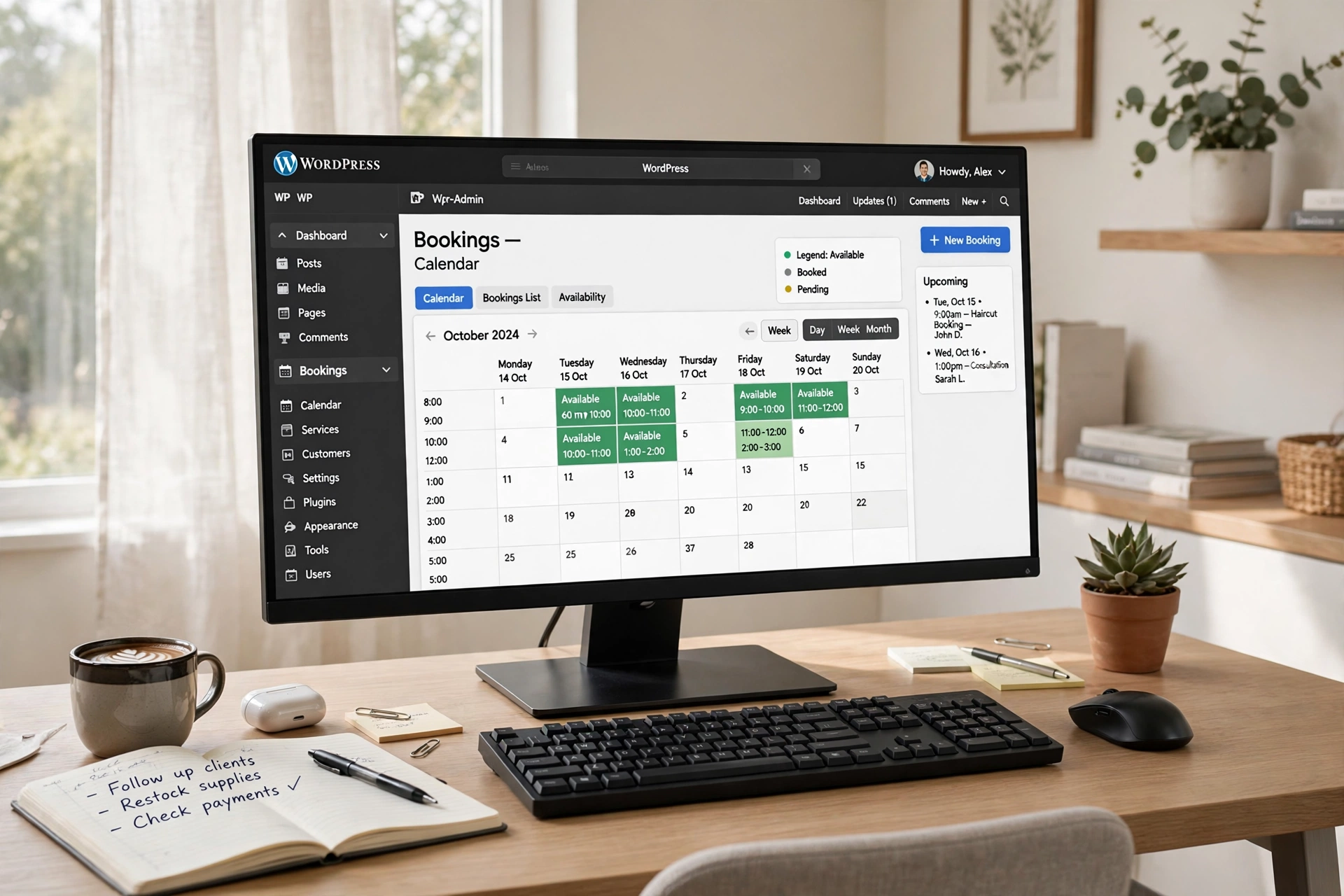
These steps use Amelia as the example, because its free version covers the full flow — but the steps are the same however you add booking system to WordPress, and the whole process takes under an hour.
Step 1: Install and activate the plugin
From your dashboard, go to Plugins, then Add New, search for the plugin, and click Install Now, then Activate. The free versions are all on WordPress.org; WooCommerce Bookings is the exception — buy it from the WooCommerce marketplace and upload the zip.
Step 2: Create your services
Open the plugin’s menu and create your first service: a name, a duration, and a price — a haircut is 45 minutes at $40; a consultation is 60 minutes at $90. Add a buffer after each booking if you need reset time. Services come first: this is the core of how you add booking system to WordPress.
Step 3: Set your working hours and staff
Add each staff member with their working hours, days off, and services. Set lunch breaks, holidays, and minimum notice — no bookings less than two hours ahead — before you publish: this is the step most people rush, and it causes most double bookings. If you also run a membership site, keep the systems separate: bookings manage time, memberships manage access — see our guide to creating a WordPress membership site.
Step 4: Connect payments (optional but recommended)
If you take deposits, connect your gateway now. In Amelia, Stripe and PayPal need the Standard plan; the free version takes Square. In Bookly and SSA, payments need a paid plan. Test with a real $1 booking from your own phone before you announce anything — a payment failure discovered by a customer costs more than the test. Getting payments right is the step most people rush when you add booking system to WordPress.
Step 5: Put the booking form on a page
Create a “Book Now” page and add the plugin’s block or shortcode. Keep it simple: the form, your cancellation policy in two lines, and a phone number. Do not bury the form below marketing copy.
Step 6: Set up confirmations and reminders
Turn on email confirmations and notifications for yourself, then add reminders: one email 24 hours before and one message one hour before. Reminders are the best no-show cure — most no-shows are forgotten appointments, not cancelled ones — and cheap insurance once you add booking system to WordPress. A live chat widget next to the form answers visitors who are not ready to book — see our guide to adding live chat to WordPress.
Step 7: Test the full flow, then go live
Book as a customer would: pick a service, a time, pay, and check the confirmation arrives and the slot disappears. Then cancel and confirm the slot reopens. Only then link the page from your menu and homepage — that test is the last step before you add booking system to WordPress for real customers. Finally, measure it: adding Google Analytics to WordPress shows how many visitors finish a booking.
Payments, reminders and calendar sync
Three features decide whether your booking system feels professional or amateur, and they are usually locked behind paid plans — so plan for them before you add booking system to WordPress.
Payments first. Taking a deposit cuts no-shows sharply, because a customer with money down shows up. Stripe and PayPal are the standard gateways, and every paid plugin here supports at least one. Square is the budget route: Amelia Lite takes Square payments free, the cheapest way to accept cards for bookings on WordPress.
Reminders second. An email 24 hours before and a message one hour before works best. Most plugins send email reminders on paid plans; SMS usually costs extra. If your plugin lacks reminders, use your contact form plugin instead — see our guide to adding a contact form in WordPress.
Calendar sync third. Two-way sync means a booking on your site blocks the time in your calendar, and a personal event blocks the time on your site. Without it, you will double-book yourself. Sync is paid in Amelia, Bookly, SSA, and MotoPress, and free in Booking Calendar only as .ics import and export. If you live in your calendar, price the plan that includes it.
Mistakes to avoid
The most common mistake when you add booking system to WordPress is choosing the plugin before you know what you are booking. A rental business that buys an appointments plugin will fight it for a year — decide appointments versus rentals first.
The second mistake is skipping the test booking. A form that looks fine in the admin area can fail on a phone, reject a valid card, or send confirmations to spam. Make one real booking and one real cancellation before you tell anyone the page exists. A broken form loses trust fast after you add booking system to WordPress.
The third mistake is hiding the booking page. If “Book Now” is not in your menu, header, and homepage, customers will email you instead — the workflow you just paid to replace. Visibility is the point when you add booking system to WordPress: if nobody finds the button, the plugin cannot help.
The fourth mistake is forgetting time zones: show slots in the visitor’s time zone and state your own, or 10:00 will mean two different hours.
The fifth mistake is ignoring the free version’s ceiling: free plans cap staff, services, or calendars, and the ceiling always arrives on your busiest week — usually the first week after you add booking system to WordPress and word gets out.
Frequently asked questions
Can I add a booking system to WordPress for free?
Yes. Amelia Lite, Bookly, Simply Schedule Appointments, MotoPress Appointment Booking, and Booking Calendar all have free versions on WordPress.org. The free versions cover basic bookings, but online payments (except Square in Amelia Lite), calendar sync, reminders, and extra staff usually need a paid plan.
Which booking plugin is best for a small business?
Amelia is the best all-round choice for most small businesses because its free version includes Square payments and it covers appointments, classes, and events in one plugin. Solo consultants who want the fastest setup should look at Simply Schedule Appointments, and salons with several staff should look at Bookly.
Do I need WooCommerce to take bookings?
No. Only WooCommerce Bookings requires WooCommerce. Amelia, Bookly, Simply Schedule Appointments, MotoPress, and Booking Calendar all work on a plain WordPress site and take payments through their own Stripe, PayPal, or Square integrations.
How much does a WordPress booking plugin cost?
Free versions cost nothing. Paid plans start at $49/yr for Amelia and MotoPress, $89 for Bookly Pro, $99/yr for Simply Schedule Appointments, and $249/yr for WooCommerce Bookings. Booking Calendar sells one-time licences from $79. All prices are in USD and were checked on 24 November 2026.
Can customers cancel or reschedule their own bookings?
Yes, in most plugins. Amelia, Bookly, and Simply Schedule Appointments all give customers a link to manage their booking, and SSA includes a dedicated page where clients can edit or cancel. Set a cancellation deadline — 24 hours is standard — so late cancellations do not leave empty slots you cannot refill.
Verdict
Verdict: To add booking system to WordPress in 2026, start with Amelia Lite: it is free, it takes Square payments without a paid plan, and it covers appointments, classes, and events in one install. Upgrade to Standard ($99/yr) when you need calendar sync and Stripe or PayPal. Solo consultants who value speed over depth should pick Simply Schedule Appointments instead, salons with several staff should pick Bookly, and anyone renting rooms by the day should pick Booking Calendar. Only choose WooCommerce Bookings if you already sell through WooCommerce — at $249/yr with no free version, it is the most expensive route to the same result.
The technical part of adding a booking system takes under an hour. The business part — clear services, honest prices, reminders that actually go out — is what turns a booking form into bookings. Install the free version today, make one test booking, and put the button where your customers can see it.