
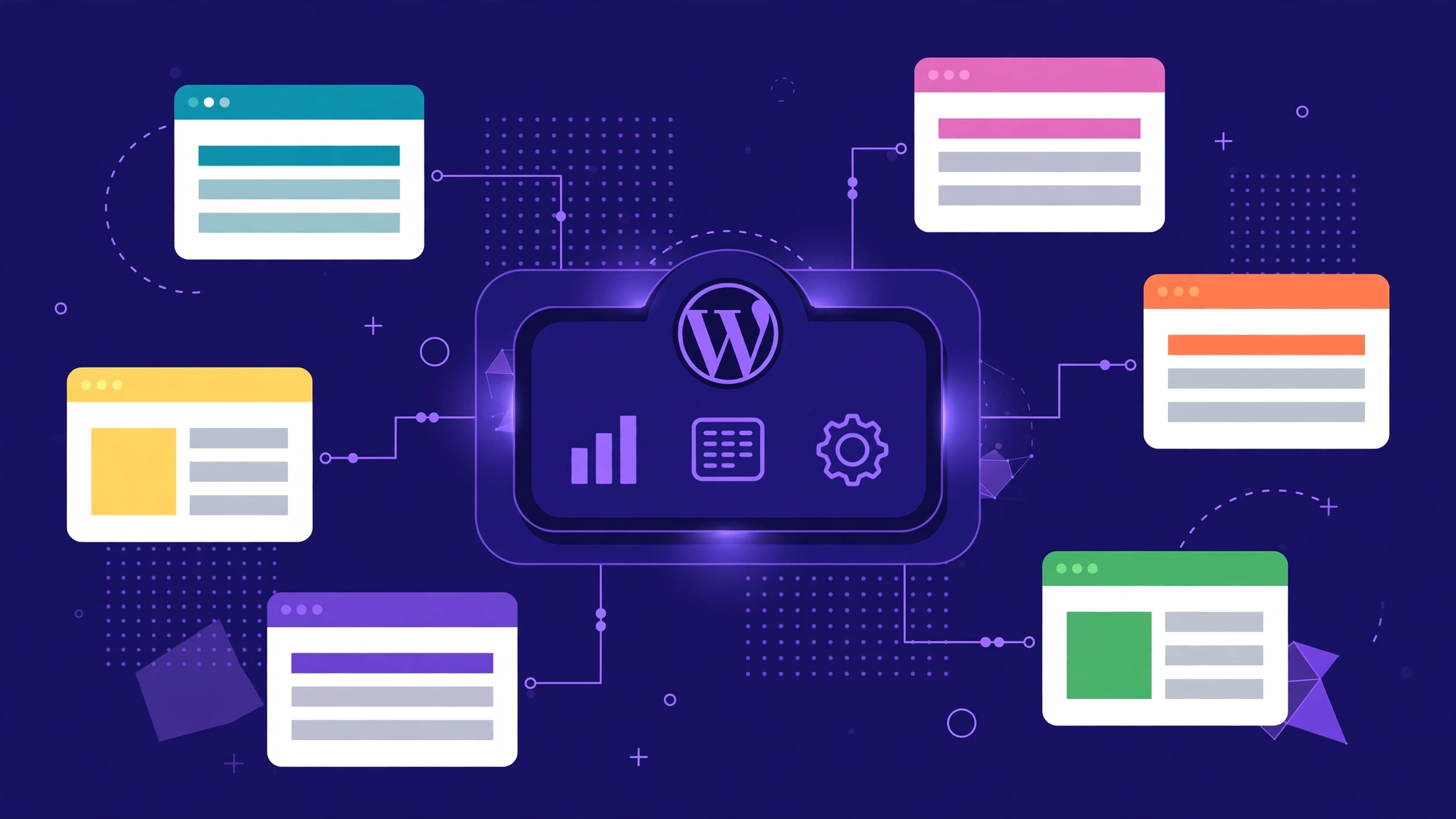
Running one WordPress site is simple. Running five, ten, or fifty of them is a different job entirely — unless you run them as a network. A wordpress multisite setup turns a single WordPress installation into a hub that powers many sites, each with its own content and users, all managed from one dashboard.
This guide walks you through the whole process, from the backup you should take before you touch anything to the moment your first subsite goes live. You do not need a plugin or any extra payment: Multisite is built into WordPress core, so the feature itself costs $0 beyond the hosting and domain you already pay for.
In this guide
- What Is WordPress Multisite — and When Should You Use It?
- Before You Start: The Pre-Flight Checklist
- WordPress Multisite Setup: The Step-by-Step Process
- Subdomains vs Subdirectories: Which Should You Choose?
- Managing Your Network After Setup
- Multisite vs Separate WordPress Installs
- Common WordPress Multisite Problems and Fixes
- Frequently Asked Questions
- Conclusion
What Is WordPress Multisite — and When Should You Use It?
WordPress Multisite is a core feature, introduced in WordPress 3.0, that lets one installation run a network of sites. Every site shares the same core files, plugins, and themes, while each site keeps its own content, media folder, and database tables (for example, wp_2_posts for site 2). User accounts are shared through the global wp_users table.
Network Admin is a separate dashboard only Super Admins can reach. A Super Admin adds or removes sites, installs and network-activates plugins and themes, and changes network-wide settings. Each site still has its own admin, managing that site’s content and users but unable to install new plugins or themes.
Multisite shines when your sites are related and share infrastructure: a school district with a site per school, a company with regional sites, or a franchise with a site per location. One update patches every site, one backup covers the network, and one login opens everything. When sites need real isolation — different owners or conflicting plugin versions — separate installs are safer, as the comparison below shows.
Before You Start: The Pre-Flight Checklist
A smooth wordpress multisite setup starts before you edit a single file: converting an existing site changes its database and permalink structure, so preparation is not optional.
First, take a full backup of your site and database and download a copy to your own computer. If anything goes wrong mid-conversion, a backup you can restore without the dashboard is the difference between a bad afternoon and a lost site. New to backups? Follow our WordPress backup guide first.
Second, deactivate all plugins. Plugins that alter admin menus, permalinks, or user roles are the most common cause of a Network Setup screen that refuses to appear. Reactivate them after the network is running, once you have checked each one for Multisite compatibility.
Third, confirm pretty permalinks work: go to Settings, then Permalinks, pick any structure other than Plain, and open a published post to confirm its URL loads. Multisite relies on rewrite rules, so broken permalinks now mean a broken network later.
Finally, check your hosting. Most shared hosts support Multisite, and many one-click installers offer it as a checkbox. If your host uses Nginx instead of Apache, there is no .htaccess file: add the equivalent rewrite rules to your Nginx server block instead. The steps below assume Apache, which most shared hosting uses; the official WordPress documentation publishes the Nginx rules separately.
WordPress Multisite Setup: The Step-by-Step Process
Here is the complete wordpress multisite setup in four stages: enable the feature, run Network Setup, paste the generated code into your files, and log back in as Super Admin. The official WordPress lesson on setting up a multisite network covers the same flow.
Step 1: Enable Multisite in wp-config.php
Connect with SFTP or your host’s file manager and open wp-config.php in the root directory of your WordPress installation. Add this line just above the comment that reads “That’s all, stop editing! Happy publishing.”:
define( 'WP_ALLOW_MULTISITE', true );
Save the file. This line alone does not convert your site — it only reveals the Network Setup screen. If your site errors after this edit, restore your saved copy of wp-config.php and check placement and syntax.
Step 2: Open Tools, Then Network Setup
Log in to your WordPress dashboard and go to Tools, then Network Setup.
Step 3: Choose Subdomains or Subdirectories
The Network Setup screen asks you to choose how your network’s sites will be addressed — the most important decision in the entire wordpress multisite setup, because it is effectively permanent. Changing it later is a full migration, not a setting change.
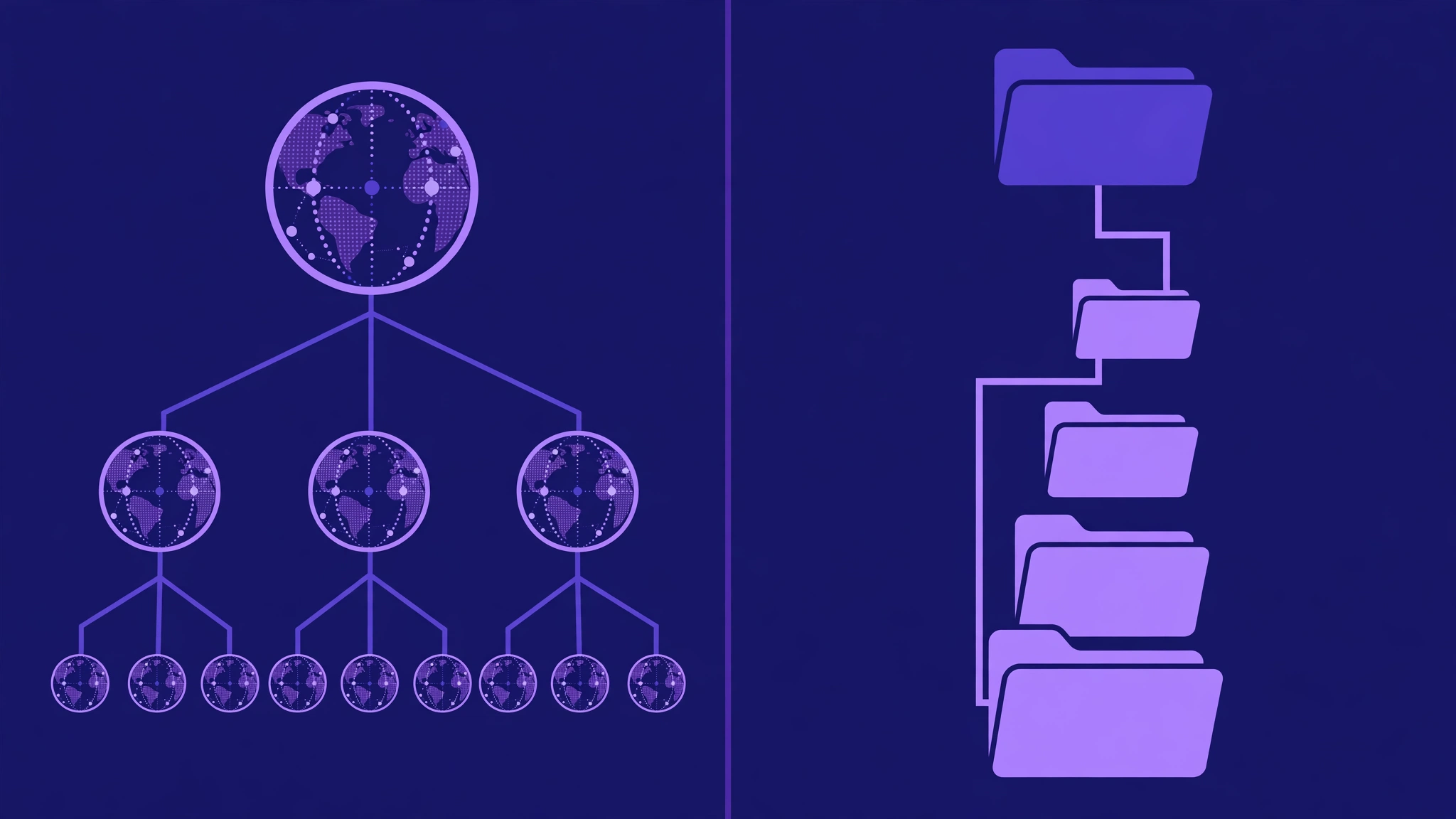
Subdomains give each site an address like site1.example.com. They look professional and independent, and work on new and existing sites alike. The price is DNS work: a wildcard DNS record (*.example.com) pointing at your server, plus a wildcard SSL certificate.
Subdirectories give each site an address like example.com/site1 and need no extra DNS configuration, making them the simpler choice on a fresh install. But WordPress will not offer subdirectories if your existing site has published content older than a month, because a new site path could collide with an existing post URL. On a fresh install, both options are offered. If you genuinely need subdirectories on an older site, the ALLOW_SUBDIRECTORY_INSTALL constant lifts the restriction — but only after checking that none of your existing URLs would clash with a future site slug.
Two more edge cases: if WordPress is installed in a subdirectory of your domain rather than the root, only subdirectories are offered; and if your site address is localhost, an IP address, or uses a port other than 80 or 443, subdomains are not offered either.
Enter your network title and administrator email, confirm your choice, and click Install. WordPress will create the extra database tables the network needs.
Step 4: Add the Generated Code to wp-config.php and .htaccess
After installation, WordPress shows you two blocks of code. The first goes into wp-config.php, above the “stop editing” comment, and looks like this for a subdirectory network:
define( 'MULTISITE', true );
define( 'SUBDOMAIN_INSTALL', false );
define( 'DOMAIN_CURRENT_SITE', 'example.com' );
define( 'PATH_CURRENT_SITE', '/' );
define( 'SITE_ID_CURRENT_SITE', 1 );
define( 'BLOG_ID_CURRENT_SITE', 1 );
The second block goes into the .htaccess file in your site’s root, replacing the existing WordPress rewrite rules. Copy both blocks exactly as WordPress generates them — do not reuse the example above, because the values depend on your domain and structure. Nginx users should paste the equivalent rules into their server block instead, as Nginx does not read .htaccess.
Step 5: Log Back In as Super Admin
Refresh your dashboard and log in again. When you return, the top admin bar has a new “My Sites” menu, and Network Admin lives at yoursite.com/wp-admin/network/. You are now the network’s Super Admin, and the wordpress multisite setup is technically complete.
Before moving on, open Settings, then Network Settings, and set the defaults: visitor registration, available themes, upload limits, and the welcome email new sites receive.
Step 6: Create Your First Subsite
From Network Admin, go to Sites, then Add New. Give the site an address slug, a title, and an admin email, then click Add Site. The new site appears immediately — log in to its dashboard and start publishing.
Subdomains vs Subdirectories: Which Should You Choose?
If you are still torn, the comparison below should settle it.
| Factor | Subdomains (site1.example.com) | Subdirectories (example.com/site1) |
|---|---|---|
| Setup effort | Needs wildcard DNS and wildcard SSL | No DNS changes needed |
| Works on existing sites | Yes, any age | No, if posts older than a month |
| Main site post URLs | Unchanged | Main site posts move under /blog/ |
| Best for | Client sites, brands, franchises | Departments, sections, languages |
Rule of thumb: different audiences or brands, choose subdomains; sections of one organisation, choose subdirectories. If you plan to map a custom domain to each site later, either structure works, because domain mapping replaces the network address entirely.
Managing Your Network After Setup
Day-to-day management comes down to one idea: the Super Admin decides what exists, site admins decide what happens inside their own site.
Network-Activating Plugins and Themes
Plugins and themes are installed once, at the network level, by the Super Admin — a site admin cannot install anything new. The Super Admin can then network-activate a plugin, turning it on for every site at once, or leave it available so each site admin can activate it for their own site. Themes work the same way: the Super Admin enables a theme for the network, and site admins choose from the enabled list.
| Action | Who can do it | Where |
|---|---|---|
| Install a plugin or theme | Super Admin only | Network Admin, then Plugins or Themes |
| Network-activate a plugin | Super Admin only | Network Admin, then Plugins |
| Activate an available plugin | Site admin, per site | Site dashboard, then Plugins |
| Create or delete a site | Super Admin only | Network Admin, then Sites |
This split is the whole point of Multisite governance: a client cannot install a bloated plugin that slows the whole network, and an agency can push a security plugin to every site with one click. Test every plugin for Multisite compatibility on staging first — our guide on how to create a WordPress staging site shows the safe way to test changes.
Adding Sites and Managing Users
New sites take under a minute to create: Network Admin, then Sites, then Add New. Each site gets its own admin — an existing network user or a new account created on the spot. Users are shared across the network: one account can be an admin on one site, an editor on another, and a subscriber on a third. Super Admins sit above all of it, with every network-level action plus everything a site administrator can do on any site. Keep the user list tidy: remove users who no longer need access, and never hand out Super Admin to anyone who does not need it. For a security routine that applies to every site in the network, see our WordPress security checklist.
Domain Mapping Basics
Domain mapping lets a subsite use its own custom domain — clientname.com instead of clientname.example.com or example.com/clientname. Since WordPress 4.5 it is built into core, so no plugin is required. Point the custom domain’s DNS at your server, add the domain from Network Admin, then Sites, then Edit, and make sure your SSL certificate covers it. Moving a site between domains is also how you migrate a subsite out of the network — our guide to migrating a WordPress site to a new host covers the moving parts.
Multisite vs Separate WordPress Installs
The decision that matters most is not how to configure the network, but whether to use Multisite.
| Factor | WordPress Multisite | Separate Installs |
|---|---|---|
| Updates | One core update patches all sites | Each site updated separately |
| Plugins and themes | Installed once, shared | Installed per site |
| Failure isolation | One bad plugin can break all sites | One site’s problem stays on that site |
| Best for | Related sites, one owner | Unrelated sites, different owners |
| Cost | One hosting plan, $0 for Multisite itself | One plan per site (or one plan with addons) |
If your sites share an owner, a brand, or a team, Multisite saves hours every week. If they share nothing but a server, separate installs give each site room to fail safely. The wrong architecture costs far more than the extra update clicks.
Performance deserves a special note: every site shares the same server resources, so a traffic spike on one site slows the rest. Put caching in place and keep image sizes under control — our guide on how to speed up WordPress applies site by site, and the wins multiply across a network.
Common WordPress Multisite Problems and Fixes
Most problems are small and have been seen a thousand times before.
“Network Setup” does not appear under Tools. The WP_ALLOW_MULTISITE line is missing, misplaced, or in the wrong wp-config.php — some hosts have more than one WordPress install on the same account. It must sit above the “stop editing” comment, and you must be logged in as an administrator. Deactivate plugins that alter admin menus and refresh.
Subdirectory option is missing. Your site has published content older than a month, which hides the option by design. Choose subdomains, or use the ALLOW_SUBDIRECTORY_INSTALL constant only after checking for URL collisions. Starting fresh is cleaner if you have not launched.
Subdomains show a “server not found” error. Your wildcard DNS record is missing or has not propagated yet. Add a wildcard A record (*.example.com) pointing at your server and wait for propagation — usually minutes, occasionally up to a day. A wildcard SSL certificate is also required, or browsers will block the new subdomains.
One more habit: keep the network lean. Every network-activated plugin runs on every site, so a plugin you only need on one site should be activated on that site alone. A child theme is the safe place for per-site design tweaks that should survive theme updates — see how to create a WordPress child theme if you have not built one.
Frequently Asked Questions
Is WordPress Multisite free?
Yes. Multisite is a built-in feature of WordPress core, so there is no licence fee and no plugin to buy. You still pay for hosting and domains as normal, and some managed hosts charge more for plans that officially support Multisite, but the feature itself costs $0.
Can I convert my existing WordPress site to Multisite?
Yes, on any site, but with one restriction: if the site has published content older than a month, WordPress will only offer the subdomain structure, because a new site path could collide with an existing post URL. Back up first, deactivate all plugins, and expect your main site’s post URLs to gain a /blog/ prefix if you choose subdirectories.
Can each site in a Multisite network have its own domain?
Yes. Domain mapping has been built into WordPress core since version 4.5. Point the custom domain’s DNS at your server, add it to the site in Network Admin, and make sure your SSL certificate covers it. Each subsite can then live on a completely different domain.
Do subsites share plugins and themes?
They share the installed plugins and themes, but activation is per site unless the Super Admin network-activates a plugin. A site admin can only activate plugins and themes the Super Admin has made available, and cannot install new ones.
Can I use different themes on each subsite?
Yes. Each site can use any theme the Super Admin has enabled for the network, and different sites can run completely different themes. That is one of the main reasons agencies choose Multisite for client sites.
How many sites can a WordPress Multisite network handle?
There is no hard-coded limit in WordPress. Small networks of a dozen sites run happily on ordinary shared hosting, while networks with thousands of sites — WordPress.com itself is the famous example — need dedicated infrastructure. In practice, your hosting resources set the limit, not WordPress.
Conclusion
A wordpress multisite setup is one of those jobs that looks intimidating from the outside and turns out to be a short, mechanical process once you know the order: back up, add one line to wp-config.php, run Network Setup, paste the generated code, and log back in as Super Admin. The real work is the decision you make before you start — subdomains or subdirectories, Multisite or separate installs — because that choice is permanent.
If your sites are related, share a team, and should be updated together, Multisite will save you hours every week. If they need isolation, choose separate installs. Either way, you now know how the network is built, who controls what, and how to fix the problems that show up in a wordpress multisite setup.
The BadilHost Verdict
WordPress Multisite is free, built into core, and takes under an hour to set up — but its real cost is the commitment. Choose it when your sites share an owner and a team, pick subdomains for independent brands and subdirectories for sections of one property, and never convert a live site without a tested backup. Get the structure right on day one, and the network pays you back in saved update clicks.
Rating: 9/10 for related-site networks — powerful and free, but unforgiving of the wrong structure choice.
Details checked 22 November 2026 against the official WordPress documentation; WordPress 7.1.4 is the current stable release. Caveats: on Nginx there is no .htaccess file — use the Nginx rewrite rules in the official WordPress documentation instead. The subdirectory option is hidden on existing sites with published content older than a month unless ALLOW_SUBDIRECTORY_INSTALL is set.