
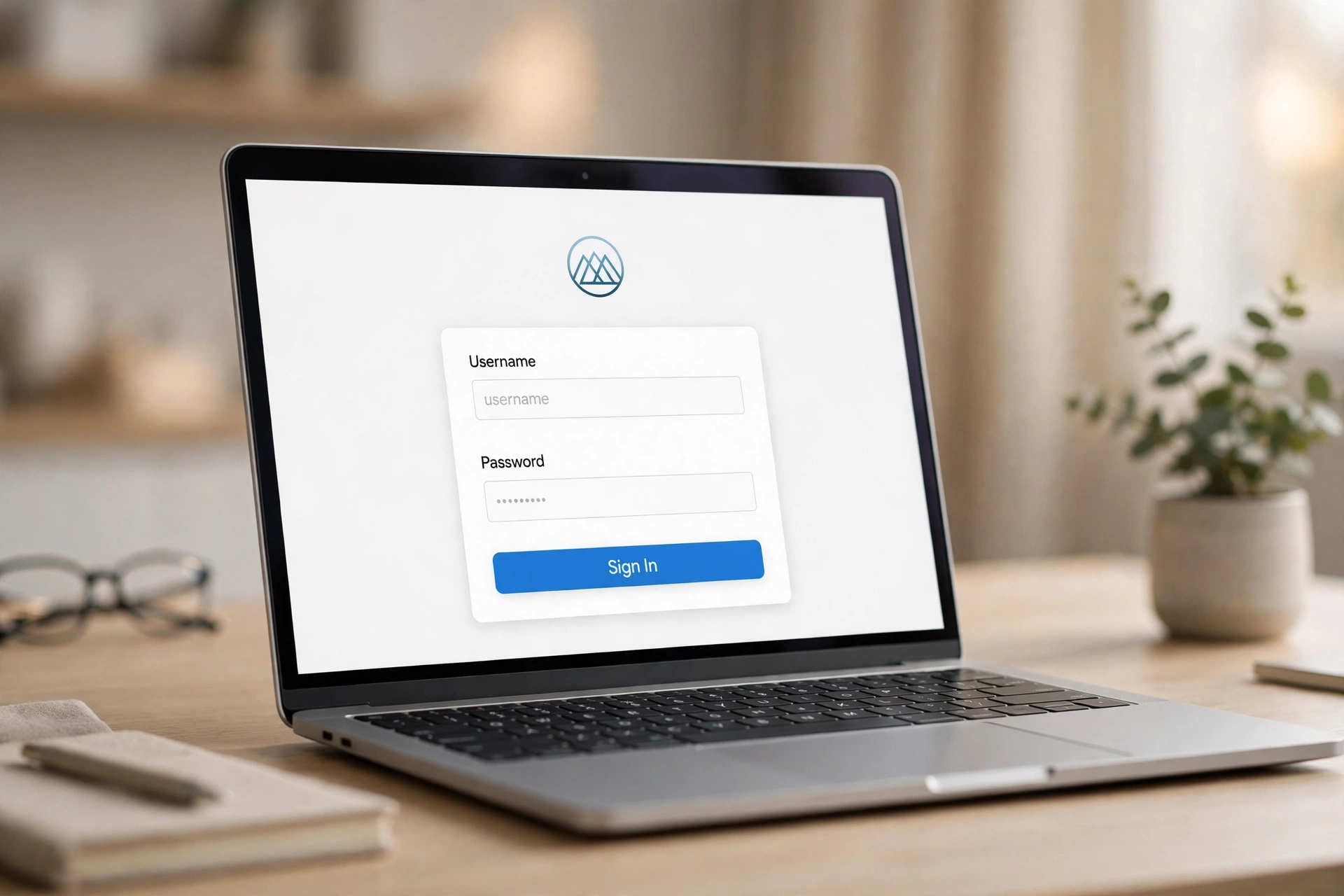
Every WordPress site ships with the same plain grey login screen at wp-login.php, and every visitor who logs in sees the WordPress logo instead of yours. A custom login page WordPress setup fixes that in under an hour: your logo, your colours and your background on a login screen that looks like part of your site.
This guide shows you how to create a custom login page in WordPress three ways: with a dedicated plugin, with the built-in Customizer and a few lines of CSS, and with a small code snippet in your child theme. It compares the leading plugins with verified prices, walks through each method step by step, and covers the security steps that matter once you start changing the login screen. Every price and version number was checked against the official plugin pages on 23 November 2026.
In this guide
- Why customize your WordPress login page
- The four methods at a glance
- Method 1: LoginPress (no-code plugin)
- Method 2: Colorlib Login Customizer (free plugin)
- Method 3: Theme My Login (front-end login pages)
- Method 4: Custom code in your child theme
- Which custom login page WordPress method should you choose?
- Security checklist for your custom login page
- Mistakes that break a custom login page
- Frequently asked questions
- Our verdict
Why customize your WordPress login page
The default WordPress login page is functional but anonymous: the WordPress logo, a link back to wordpress.org, and the same grey background every other WordPress site uses. For a personal blog that hardly matters. For a business site, a membership site or a WooCommerce store, it is a missed first impression — the login screen is often the first page a customer or client sees after you hand them an account.
A custom login page WordPress build solves three problems at once. First, branding: your logo, brand colours and a background image turn a generic screen into a page that looks like it belongs to your site. Second, trust: a login page that matches the rest of your site reassures users they are in the right place, which matters where people enter passwords and payment details. Third, usability: a “back to site” link, a support link and custom error messages mean fewer users get stuck or email you for help.
There is also a quiet security benefit to a custom login page WordPress project. The redesign itself does not hide your site — wp-login.php still exists underneath — but it is the natural moment to add a custom login URL, login attempt limits and two-factor authentication, which together make brute-force attacks noticeably harder.
The four methods at a glance
A custom login page WordPress project comes down to one choice: how much control do you want, and how much work are you willing to do? The table below compares the four methods in this guide so you can pick in a minute and skip to the right section.
| Method | Cost | Coding needed | Best for |
|---|---|---|---|
| LoginPress | Free; Pro from $99/year | None | Full styling, templates and security add-ons in one plugin |
| Colorlib Login Customizer | Free | None | A quick, free branded login page with live preview |
| Theme My Login | Free | None | Front-end login pages that match your theme |
| Custom code (child theme) | Free | Basic PHP/CSS | Full control with no extra plugin |
Start with LoginPress for the most options, Colorlib’s plugin for free and simple, Theme My Login to keep users off wp-admin, or the code method if you already run a child theme.
Method 1: LoginPress (no-code plugin)
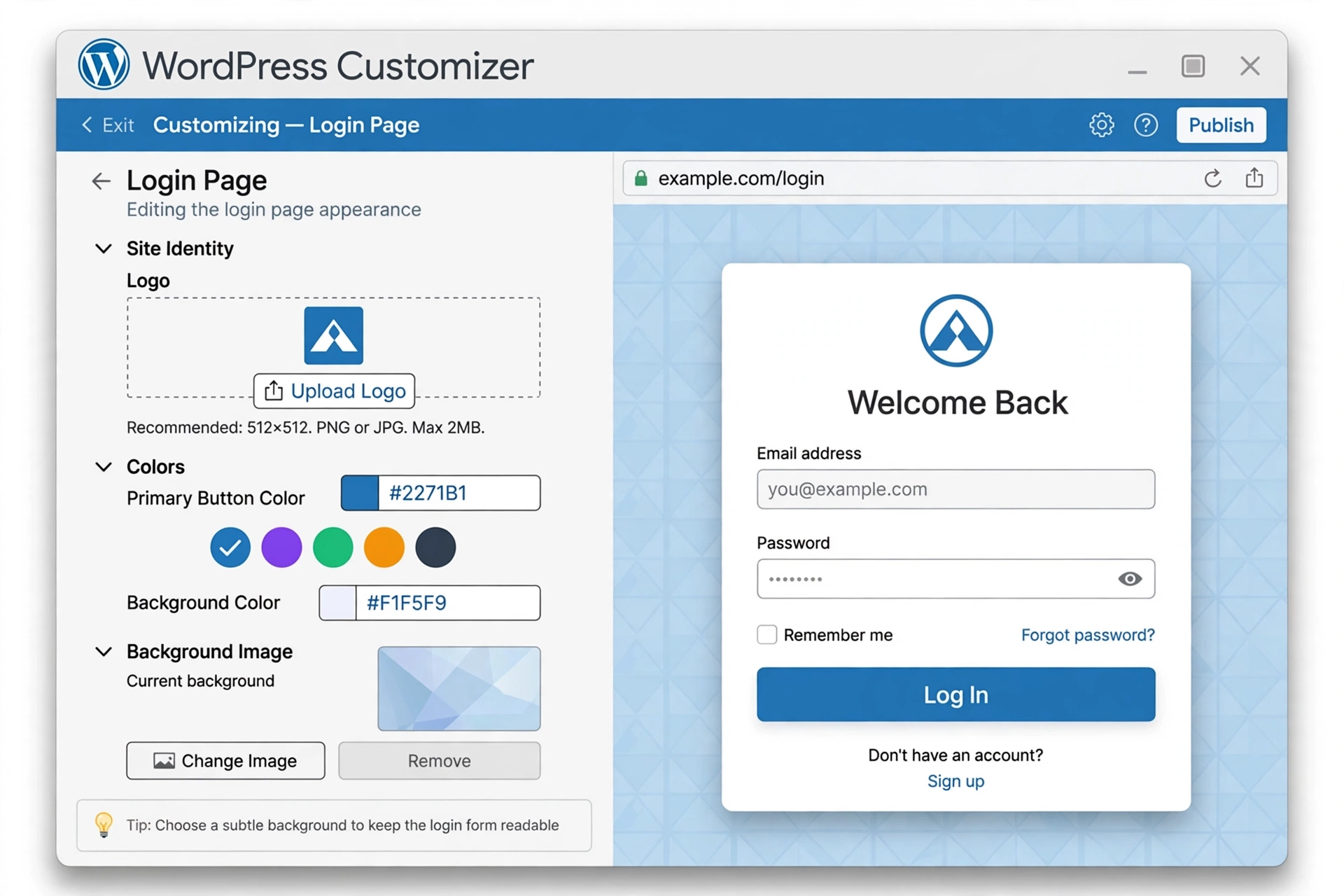
LoginPress is the most popular dedicated login customizer on WordPress.org, and the one we recommend first for a custom login page WordPress build. It is free to install, works entirely inside the WordPress Customizer with a live preview, and covers the whole login screen: logo, background, form, button, error messages and footer text.
What LoginPress gives you
The free version lets you replace the WordPress logo with your own (image, width, height, link and hover title), set a background image or colour, restyle the form (width, height, border, background and input fields), change the button colour, rewrite the error and welcome messages, and add a footer message. It also includes a custom CSS area and a set of pre-designed background images. Everything is responsive, so the custom login page WordPress design you build on desktop still looks right on a phone.
The paid version, LoginPress Pro, adds pre-designed login templates, background slideshows and video backgrounds, Google Fonts integration, multiple CAPTCHA options, social login, limit login attempts, login redirects, auto login links and a hide-login feature that changes your login URL. Pro starts at $99 per year for the Startup plan (2 websites), rises to $199 per year for the Agency plan (unlimited websites), and a lifetime licence costs $499. All prices were checked on the official pricing page on 23 November 2026, and every plan includes a 14-day money-back guarantee.
How to set it up
1. Install and activate the plugin. From your dashboard go to Plugins → Add New, search for “LoginPress”, then install and activate it — or download it from the official LoginPress plugin page.
2. Open the Customizer. Go to LoginPress → Customizer to start styling your custom login page WordPress screen, or open Appearance → Customize and find the LoginPress section. The live preview shows your login page on the right while you change settings on the left.
3. Replace the logo. Upload your logo, set its width and height, and point its link at your homepage instead of wordpress.org. A logo around 300 pixels wide works well; upload it at double size for crisp display on high-density screens.
4. Set the background and form colours. Choose a background image or a solid brand colour for your custom login page WordPress design, then style the form and button. Keep the contrast high — a light form on a dark background, or a dark button on a light form — so the fields stay readable.
5. Rewrite the messages. LoginPress lets you change the default error text and the welcome message. Short, friendly wording works best: tell users what went wrong and what to do next.
6. Save and test your custom login page WordPress design. Publish the changes, then open your login page in a private browser window and log out to see exactly what your users see. Test on a phone too, since the form width and logo size behave differently on small screens.
LoginPress is actively maintained — version 6.2.5 was released in July 2026 and is tested up to WordPress 7.0.9 — with a 96% rating across more than 1,080 reviews and over 8 million downloads. That combination of popularity and recent maintenance is why it is our first recommendation for a custom login page WordPress build.
Method 2: Colorlib Login Customizer (free plugin)
If you want a custom login page WordPress setup that costs nothing and does one job well, Colorlib’s Custom Login Page Customizer is the lightest option in this guide. It is a free plugin built on the WordPress Customizer, with no premium tier and no extra features you did not ask for.
The plugin lets you change the logo, background image or colour, form colours, button colours and the login form layout on your custom login page WordPress screen, all with a live preview. There are no templates, no social login and no security add-ons — it styles the login page and stops there. That focus is the point: it adds almost no weight to your site and takes about ten minutes to configure.
It is also well maintained. Version 2.3.1 is tested up to WordPress 7.1.5, requires WordPress 6.0 or higher, and holds a 98% rating across 479 reviews, with more than 1.1 million downloads. Install it like any plugin — Plugins → Add New, search for “Custom Login Page Customizer”, install and activate — then open Appearance → Customize and look for the login customizer panel.
Choose this method when you want a custom login page WordPress page on a tight budget and do not need templates, CAPTCHA or redirects. If you later outgrow it, switching to LoginPress takes minutes: both plugins work through the same Customizer, and your logo and images stay in your media library.
Method 3: Theme My Login (front-end login pages)
Theme My Login takes a different approach from the other plugins in this guide. Instead of restyling wp-login.php, it creates front-end login, registration, lost-password and profile pages using your theme’s own templates. Your users never see the WordPress admin login screen — they log in on a page that looks exactly like the rest of your site.
That makes it the best choice for a custom login page WordPress setup on membership sites, community sites and client portals, where logging in should feel like part of the product. It also supports custom redirects after login and logout, so you can send members to a dashboard page instead of the admin area.
The plugin is free and actively maintained: version 7.3.1 is tested up to WordPress 7.1.5, requires WordPress 5.7 or higher, and has more than 4.5 million downloads. Its review rating is lower than the other plugins here — 74% across 460 reviews — mostly because front-end login pages need your theme to cooperate. Before committing to a custom login page WordPress setup with this plugin, test the login, registration and password-reset pages in a private window.
One warning: because Theme My Login replaces the login flow rather than styling it, it can conflict with other login plugins. Do not run it alongside LoginPress or another login customizer — pick one approach and stick with it.
Method 4: Custom code in your child theme
If you already use a child theme and would rather not add another plugin, you can build a custom login page WordPress setup with a small amount of code. It rests on three WordPress hooks, all documented on the official developer site: login_enqueue_scripts loads your stylesheet on the login page, login_headerurl changes where the logo links to, and login_headertitle changes the logo’s hover text.
First, add a stylesheet for your custom login page WordPress design. Create a file called login-style.css in your child theme and add the code below to your child theme’s functions.php. It loads your stylesheet only on the login screen, so it never affects the rest of your site.
function bh_custom_login_styles() {
    wp_enqueue_style(
        'bh-login-style',
        get_stylesheet_directory_uri() . '/login-style.css'
    );
}
add_action( 'login_enqueue_scripts', 'bh_custom_login_styles' );

function bh_custom_login_logo_url() {
    return home_url();
}
add_filter( 'login_headerurl', 'bh_custom_login_logo_url' );

function bh_custom_login_logo_title() {
    return get_bloginfo( 'name' );
}
add_filter( 'login_headertitle', 'bh_custom_login_logo_title' );
Then write the CSS — this example replaces the logo, sets a background colour and styles the button:
body.login {
    background: #0a2540;
}

body.login div#login h1 a {
    background-image: url( 'images/logo.png' );
    background-size: contain;
    width: 300px;
    height: 90px;
}

body.login .button-primary {
    background: #6c5ce7;
    border-color: #6c5ce7;
}
A few rules make the code method painless. Always work in a child theme — a theme update wipes edits to parent theme files. If you do not have a child theme yet, follow our guide to creating a WordPress child theme first. Upload your logo to your child theme’s images folder or your media library, and keep the CSS short: the login page has only a handful of elements, so fifty lines is usually enough for a complete custom login page WordPress redesign.
The code method costs nothing, adds no plugin overhead and gives you total control. Its downside is maintenance: you own the code, so you test it after every major WordPress update and fix it yourself if a future release changes the login markup. For a single site run by someone comfortable with CSS, that trade is worth it. For client sites you hand over, a plugin is safer because the next person can change it without touching code. Our guide to adding custom CSS to WordPress covers the same technique in more depth.
Which custom login page WordPress method should you choose?
The right method depends on what your login page has to do, not on which plugin has the longest feature list.
- You want the best all-round result: LoginPress. The free version covers branding completely; Pro adds templates and security features for $99 a year.
- You want free and simple: Colorlib Login Customizer. Ten minutes, no cost, no upsell, and a live preview in the Customizer.
- Your users should never see wp-admin: Theme My Login. Front-end login pages that match your theme, ideal for membership and community sites.
- You hate extra plugins: the code method. A child theme, one stylesheet and three hooks give you full control for free.
If you are still unsure, start with LoginPress free for your custom login page WordPress project. It takes the least time to set up, it is the easiest to hand over to a client, and you can switch methods later without losing your logo or background images.
Security checklist for your custom login page
A custom login page WordPress redesign is not a safer login page on its own. It is the right moment to add the protections that actually stop attacks, because a branded login screen invites more login attempts, not fewer.
Limit login attempts. WordPress allows unlimited login guesses by default, which is exactly what brute-force bots want. LoginPress Pro includes a limit-login-attempts add-on, and free plugins such as Limit Login Attempts Reloaded do the same job: lock an account for 20 minutes after five failed tries and the bots move on.
Add reCAPTCHA to the login form. A CAPTCHA stops automated guessing cold. LoginPress Pro includes multiple CAPTCHA options, and our guide to adding Google reCAPTCHA to WordPress walks through the free setup for your custom login page WordPress build.
Change the login URL. Hiding wp-login.php behind a custom address such as /sign-in/ removes your custom login page WordPress screen from the automated scans that try the default URL first. LoginPress Pro’s hide-login add-on does this in one click. Changing the URL is obscurity, not security on its own — it helps only alongside attempt limits and strong passwords.
Force strong passwords and two-factor authentication. No login design survives weak passwords. Require strong passwords for every user above subscriber level, and turn on two-factor authentication for all administrators. Our WordPress security checklist covers both in detail.
Keep the page fast and the logo honest. A login background image larger than 300 KB slows the page for every user, so compress it before uploading. And never remove the link back to your site: users who land on the login page by mistake need an obvious way home.
Mistakes that break a custom login page
Most custom login page WordPress projects fail in the same few ways — all easy to avoid once you know them.
- Styling the login page in the parent theme. A theme update deletes your changes overnight. Use a child theme for code, or a plugin that stores its settings in the database.
- Running two login plugins at once. LoginPress and Theme My Login fight over the same hooks and produce a broken custom login page WordPress screen. Pick one and deactivate the other completely.
- A logo that is too large. A 2 MB PNG logo makes the login page feel sluggish and looks blurry when scaled down by CSS. Resize it to the size you display — around 300 pixels wide — and compress it.
- Low-contrast colours. White text on a pale background, or a light button on a light form, makes the form on your custom login page WordPress screen unreadable on some devices. Check the contrast in daylight and on a phone, not just on your monitor.
- Forgetting the password-reset page. The lost-password form shares your styling too. Test it after every change: a broken reset form locks users out.
- Losing access after changing the login URL. If you hide
wp-login.php, bookmark the new address and keep a second admin session open while you test. If you lock yourself out, our guide to resetting a WordPress password covers the recovery options.
Frequently asked questions
Can I create a custom login page in WordPress without a plugin?
Yes. Add a stylesheet to your child theme and load it with the login_enqueue_scripts hook, then use the login_headerurl and login_headertitle filters to change the logo link and title. It takes about fifteen minutes and costs nothing, but you maintain the code yourself after every major WordPress update.
What is the best plugin for a custom login page in WordPress?
For most sites, LoginPress. The free version covers logo, background, form and messages with a live preview, and Pro adds templates, CAPTCHA and social login from $99 a year. Colorlib Login Customizer is the best free-only option, and Theme My Login is the best choice when users should log in on front-end pages instead of wp-login.php.
Does a custom login page improve WordPress security?
On its own, no — a custom login page WordPress design changes how the page looks, not how it is protected. Security comes from limiting login attempts, adding reCAPTCHA, using strong passwords and two-factor authentication, and optionally changing the login URL. Treat the redesign as the moment to add those protections, not as a replacement for them.
Will a custom login page break when WordPress updates?
A plugin-based login page rarely breaks, because maintained plugins such as LoginPress and Colorlib Login Customizer are updated alongside WordPress — both are tested up to WordPress 7.1.5 or higher as of November 2026. A code-based login page can break if a future release changes the login markup, which is why the code method belongs in a child theme you control.
Can I use a custom login page with WooCommerce or a membership plugin?
Yes. LoginPress and Colorlib’s plugin style the standard wp-login.php screen, so they work with WooCommerce and most membership plugins out of the box. Theme My Login can conflict with membership plugins that provide their own login pages, so test the combination before going live and use only one login system at a time.
How do I change the WordPress logo on the login page?
In LoginPress or Colorlib Login Customizer, upload your logo in the Customizer’s logo setting and set its width and height. With code, add a CSS rule for body.login div#login h1 a that sets background-image to your logo file and background-size: contain. Either way, point the logo’s link at your homepage instead of wordpress.org.
Our verdict
A custom login page WordPress build is one of the highest-return small jobs on a WordPress site: under an hour of work, no ongoing cost if you use a free plugin or a few lines of code, and every user who logs in sees your brand instead of the default WordPress screen. Start with LoginPress free for the easiest result, or use the code method for full control, and use the redesign as the moment to add login attempt limits, reCAPTCHA and two-factor authentication.