
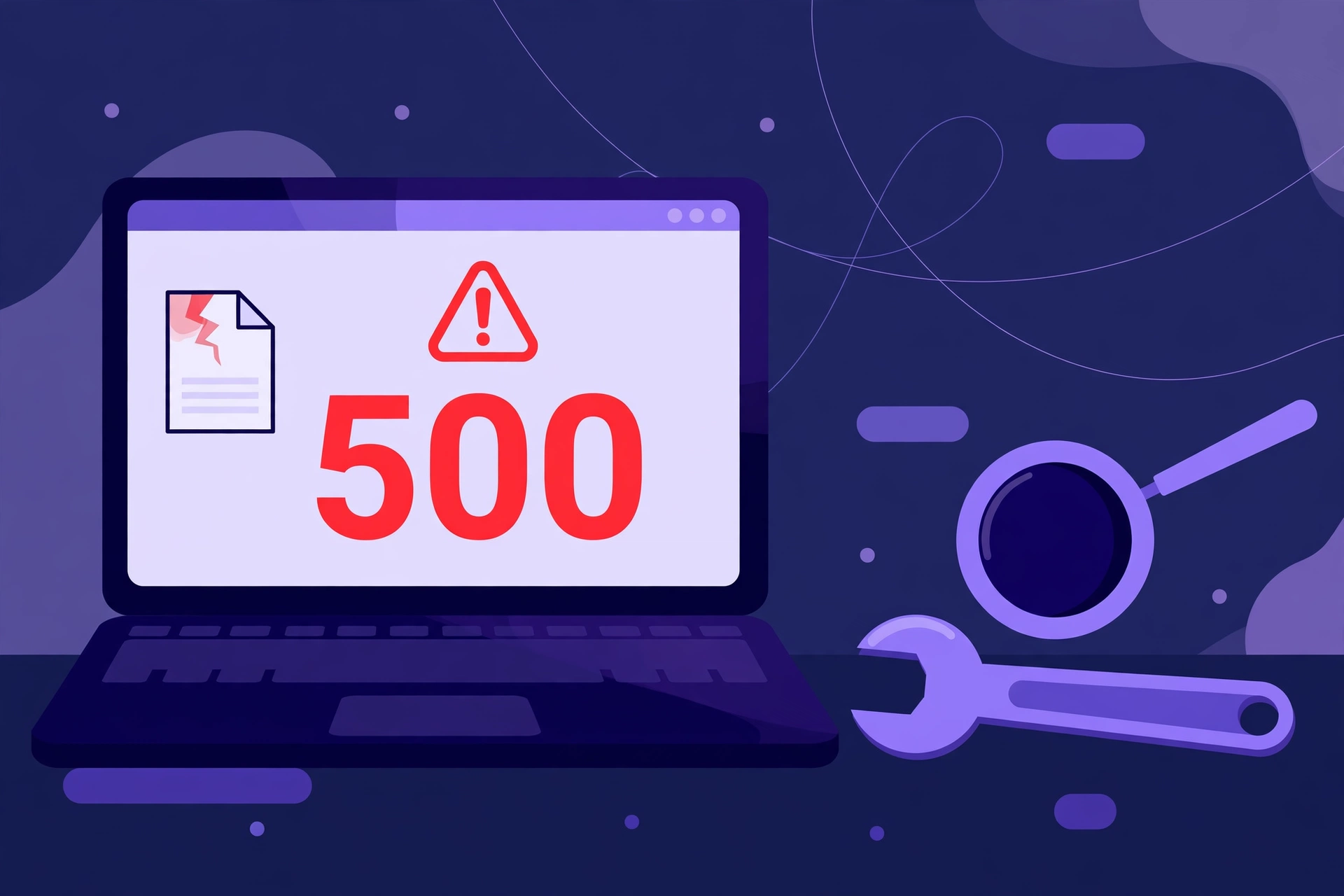
You open your site and instead of your homepage you see five unhelpful words: “500 Internal Server Error.” The wordpress 500 internal server error is one of the most frustrating problems a site owner can face, because it tells you something broke without telling you what.
The good news: the wordpress 500 internal server error is almost always fixable, usually in under an hour. It is a generic message your server sends when WordPress hits a problem it cannot recover from — a faulty plugin, a broken configuration file, or a memory limit that is too low. Work through the fixes below in order, and most sites are back online before you finish the list.
This guide shows you how to find the real error behind the message and fix it step by step, even if you cannot reach your dashboard. No coding experience is needed, and every fix below is free.
In this guide
- What Is the WordPress 500 Internal Server Error?
- What Causes the WordPress 500 Internal Server Error?
- Before You Start: Back Up Your Site First
- Fix 1: Check the Error Log and Enable WP_DEBUG
- Fix 2: Deactivate All Plugins
- Fix 3: Switch to a Default Theme
- Fix 4: Increase the PHP Memory Limit
- Fix 5: Fix a Corrupt .htaccess File
- Fix 6: Check Your PHP Version
- Fix 7: Contact Your Host and Restore a Backup
- Which Fix Should You Try First?
- How to Prevent the WordPress 500 Internal Server Error
- Frequently Asked Questions
What Is the WordPress 500 Internal Server Error?
The wordpress 500 internal server error is a generic HTTP status code that means something went wrong on the server while it was trying to load your page. Your browser asked for the page, the server tried to build it, and a problem stopped it before any content could be sent back — and because the server hides the details, you see the same short message no matter what failed.
That vagueness is what makes it so stressful: a 404 tells you a page is missing, but the wordpress 500 internal server error tells you nothing at all. It is a symptom, not a diagnosis. Your content is almost always safe, though — the error stops WordPress from displaying your posts and pages, but it does not delete them.
The error can hit your whole site, only the front end, or only wp-admin. When wp-admin still loads but the front end fails, the problem is usually your theme or a front-end plugin; when both fail, the wordpress 500 internal server error is more often caused by a plugin that loads everywhere, a memory limit, or a broken configuration file.
What Causes the WordPress 500 Internal Server Error?
Most cases of the wordpress 500 internal server error come down to a short list of causes:
- A faulty or conflicting plugin — a bad update, a new install, or two plugins that disagree — can trigger a PHP fatal error on every page. This is the most common cause.
- A broken theme. A bad theme update or edit can crash the site the same way, since a theme runs code on every page.
- A corrupt .htaccess file. On Apache servers, a bad rule in
.htaccess, often added by a plugin or a copied snippet, can block the entire site. - PHP memory exhaustion. A heavy page, a large import or too many plugins can exceed the memory limit and crash the request.
- A PHP version mismatch. A plugin written for a newer PHP version fails on an old one, and an old plugin can fail on a brand-new PHP version.
- A syntax error in wp-config.php or .htaccess — one missing semicolon in a hand-edited file can take the whole site down.
- A server-side problem — a full disk, a crashed service, or a misconfigured server setting.
Before You Start: Back Up Your Site First
If the wordpress 500 internal server error still lets you into wp-admin, take a backup before you touch anything — it turns every fix below into a safe experiment you can undo in minutes. Save both the files and the database with your backup plugin or hosting control panel.
If you cannot reach wp-admin, use your hosting file manager or an FTP client to download a copy of your wp-content folder and wp-config.php. If your host offers one-click backups in Plesk or cPanel, use that instead — it is faster and covers the database too. Do not skip this step: every fix below edits files that can break your site further if typed wrong. For the full process, see our WordPress backup guide.
Fix 1: Check the Error Log and Enable WP_DEBUG
The fastest way to diagnose a wordpress 500 internal server error is to read the real error behind it. WordPress has a built-in debug mode that writes PHP errors to a log file, and turning it on takes two minutes — without it you are guessing, and with it the log usually names the exact plugin, theme or file that failed.
Connect to your site with your hosting file manager or an FTP client and open wp-config.php in the root folder. Add these three lines directly above the line that says /* That's all, stop editing! Happy publishing. */:
define( 'WP_DEBUG', true );
define( 'WP_DEBUG_LOG', true );
define( 'WP_DEBUG_DISPLAY', false );
WP_DEBUG switches debug mode on, WP_DEBUG_LOG writes every error to wp-content/debug.log, and WP_DEBUG_DISPLAY set to false keeps those errors off your public pages. Reload your site once, then open wp-content/debug.log and look at the last entries: a line mentioning a plugin or theme folder, a “fatal error,” or an “allowed memory size exhausted” message tells you exactly which fix to try next.
If your host provides a server error log in Plesk or cPanel, check that too — it sometimes catches errors WordPress never sees. When the site is fixed, set WP_DEBUG back to false and delete debug.log, since the log sits in a publicly reachable folder. The official reference is the Debugging in WordPress handbook.
Fix 2: Deactivate All Plugins
A single faulty plugin is the most common cause of the wordpress 500 internal server error, so testing plugins is the highest-value step here. If you can still reach wp-admin, go to Plugins » Installed Plugins, select all, choose Deactivate, and apply it. Reload your site — if it loads, a plugin was the problem.
Reactivate your plugins one at a time, reloading the site after each one. When the error returns, the plugin you just switched on is the culprit — update it, replace it, or contact its developer, and leave it deactivated until then.
If you cannot reach wp-admin, do the same thing through your files. Connect with your hosting file manager or an FTP client, open the wp-content folder, and rename the plugins folder to plugins-deactivated. WordPress will see no plugins at all and load without them. If the site comes back, rename the folder back to plugins, then rename each plugin’s folder inside it one at a time until you find the one that breaks the site. Keep that folder renamed so the wordpress 500 internal server error stays gone while you find a replacement.
Fix 3: Switch to a Default Theme
If deactivating plugins did not help, your theme is the next suspect: a theme runs code on every page, so a bad update or broken edit can produce a wordpress 500 internal server error across the whole site.
If wp-admin still works, go to Appearance » Themes and activate a default WordPress theme such as Twenty Twenty-Five. Reload your site: if it loads, your theme is the problem. Check for a theme update, roll back a recent update, or contact the theme developer. If you edited theme files yourself, undo the last edit first — one misplaced character in functions.php can crash the site.
If you cannot reach wp-admin, rename your active theme’s folder inside wp-content/themes. WordPress will fall back to a default theme automatically if one is installed. If the site loads after the rename, the wordpress 500 internal server error was caused by your theme. Keep it deactivated and switch to a clean copy — and if you run a child theme, test the parent theme alone, since the fault is sometimes in the child’s overrides.
Fix 4: Increase the PHP Memory Limit
When WordPress runs out of memory, the page request dies and the server answers with a wordpress 500 internal server error. This often strikes after adding a heavy plugin, importing a large batch of content, or running a page builder on a long page — and the debug log will usually say so directly.
WordPress asks for 40 MB of memory by default on a single site and 64 MB on multisite — enough for a basic site, but tight once plugins pile up. Raising the limit to 256M is the standard safe step; add this line to wp-config.php, above the /* That's all, stop editing! Happy publishing. */ line:
define( 'WP_MEMORY_LIMIT', '256M' );
If that does not take effect, try the other two routes. On an Apache server, add this line to your .htaccess file:
php_value memory_limit 256M
Or edit the php.ini file on your server and set:
memory_limit = 256M
Many hosts also let you change the memory limit from the control panel: in Plesk, open your domain’s PHP settings; in cPanel, use Select PHP Version » Options. After raising the limit, reload the site — if the wordpress 500 internal server error is gone, you are done. Do not raise the limit far above 256M to paper over the problem; if your site needs much more memory, a plugin is probably leaking it. The official reference for editing this file is the Editing wp-config.php handbook.
Fix 5: Fix a Corrupt .htaccess File
A corrupt .htaccess file is one of the most common causes of a wordpress 500 internal server error on Apache servers. The file holds the server rules for your site, and a bad rule — added by a plugin, a security tool, or a copied snippet — can block every page at once, often right after a plugin install or a manual edit.
The quickest test is to rename the file: find .htaccess in your site’s root folder, next to wp-admin and wp-config.php, and rename it to .htaccess_old. Reload your site — if it loads, the old file was the problem.
Now generate a clean one. If wp-admin works, go to Settings » Permalinks and click Save Changes without changing anything — WordPress will write a fresh .htaccess file and the wordpress 500 internal server error should clear. To create the file by hand, use the default WordPress rules:
# BEGIN WordPress
<IfModule mod_rewrite.c>
RewriteEngine On
RewriteBase /
RewriteRule ^index.php$ - [L]
RewriteCond %{REQUEST_FILENAME} !-f
RewriteCond %{REQUEST_FILENAME} !-d
RewriteRule . /index.php [L]
</IfModule>
# END WordPress
Keep your old file as .htaccess_old until the site works, since it may hold redirect rules you still need — copy those across one at a time, testing after each. Note that .htaccess only applies on Apache servers; on Nginx the equivalent rules live in the server configuration, which only your host can edit.
Fix 6: Check Your PHP Version
A PHP version mismatch is a quiet cause of the wordpress 500 internal server error: a plugin written for a newer PHP version fails on an old one, and an old plugin can fail on a brand-new PHP release. The error often appears right after your host upgrades PHP, or after you install a plugin needing a newer version than your server runs.
WordPress requires PHP 7.4 or later and recommends PHP 8.3 or later. Check your version in Tools » Site Health » Info » Server, or in your hosting control panel under your domain’s PHP settings, and compare it with the requirements your plugins and theme state.
If your PHP version is below the recommended level, update it in your hosting panel, moving one version at a time and testing after each step — a big jump can break old plugins in new ways. If you cannot reach wp-admin, change the version in Plesk or cPanel directly. If an update triggers the wordpress 500 internal server error, switch back to the previous version and test your plugins on a staging copy first — see our guide to building a WordPress staging site.
Fix 7: Contact Your Host and Restore a Backup
If none of the fixes above worked, the problem is probably outside WordPress. A wordpress 500 internal server error with no plugin, theme, memory or configuration cause usually points to the server itself — a full disk, a crashed service, or a setting only the host can see.
Before you write to support, gather three things: the exact time the error started, what changed just before it, and the last few lines of wp-content/debug.log or your server error log. Paste the log excerpt into the ticket — support teams solve a wordpress 500 internal server error far faster when they can see the actual error text. Ask them to confirm your file permissions are correct (folders 755, files 644) and to check disk space on your account.
If the site worked recently, restoring a backup is often faster than further diagnosis. Restore from your backup plugin or hosting panel, picking a backup dated before the error first appeared, then update one thing at a time so you can see which change brings it back. Our WordPress backup guide covers the restore process in detail.
You can also reinstall WordPress core files from Dashboard » Updates » Re-install Now. This replaces core files with fresh copies without touching your content, themes or plugins. If even that fails, the problem is at the server level, and your host can repair or move your account.
Which Fix Should You Try First?
Use the symptom to pick your starting point instead of working through the list blindly — the table matches each common situation to the fix most likely to solve a wordpress 500 internal server error.
| Symptom | Most likely cause | Try first |
|---|---|---|
| Error started right after installing or updating a plugin | Plugin conflict or fatal error | Fix 2: Deactivate all plugins |
| Error started after editing .htaccess or wp-config.php | Syntax error in a config file | Fix 5: Fix .htaccess, then check wp-config.php |
| Error started after a WordPress core update | Corrupted core files | Fix 7: Reinstall core files |
| No recent changes, whole site down | Memory exhaustion | Fix 4: Increase the PHP memory limit |
| Only one page errors, the rest of the site loads | Permalink or rewrite problem | Fix 5: Fix .htaccess |
| Error appears on heavy pages or after an import | Memory limit too low | Fix 4: Increase the PHP memory limit |
| wp-admin loads but the front end fails | Theme or front-end plugin | Fix 3: Switch to a default theme |
| Nothing works and no recent changes | Server-side problem | Fix 1: Read the log, then Fix 7: Contact your host |
If you are unsure where to start, start with Fix 1: reading the error log turns a blind search into a targeted fix.
How to Prevent the WordPress 500 Internal Server Error
You cannot prevent every 500 error, but a few habits make the wordpress 500 internal server error far less likely to return. Update one thing at a time — a plugin, then check, then the next — because bulk-updating ten plugins at once means you cannot tell which one broke the site. The same applies to themes and core updates, and always back up first.
Test changes on staging before they reach your live site, and keep PHP, WordPress core, themes and plugins up to date together — an old plugin on new PHP, or a new plugin on old PHP, is the classic recipe for the wordpress 500 internal server error. Keep automatic backups running, delete plugins you no longer use, and keep debug mode off once the problem is solved. Check Site Health monthly and follow our WordPress security checklist.
Frequently Asked Questions
What does the WordPress 500 internal server error mean?
The wordpress 500 internal server error means your server hit a problem while building the page and could not finish it. It is a generic message hiding the real cause — usually a plugin conflict, a theme problem, a corrupt .htaccess file, a memory limit, or a server issue. Your content is safe: the error stops WordPress from showing your pages, but it does not delete them.
How do I fix the WordPress 500 internal server error if I cannot access wp-admin?
Use your hosting file manager or an FTP client. Enable debug logging in wp-config.php to read the real error in wp-content/debug.log, then rename the wp-content/plugins folder to deactivate all plugins, or rename your active theme’s folder to force a default theme. You can also rename .htaccess and raise the memory limit from wp-config.php. With no file access at all, ask your host.
Will the 500 error delete my content?
No. A wordpress 500 internal server error stops WordPress from displaying your content, but your posts, pages and images live in the database and the wp-content/uploads folder, and they survive it. A backup restore or a plugin fix brings everything back. If you are seeing a message about the database itself, see our guide to the error establishing a database connection.
How long does it take to fix the WordPress 500 internal server error?
Most cases take 15 to 45 minutes: reading the debug log and deactivating the faulty plugin usually takes under ten, and regenerating .htaccess or raising the memory limit about five. Only a server-level problem stretches the fix past an hour, and hosting support can usually resolve that the same day.
Why does the WordPress 500 internal server error keep coming back?
A returning error usually means the root cause was never fixed — a plugin that was reactivated instead of replaced, a memory limit that was raised once but outgrown again, or a .htaccess rule that a plugin keeps rewriting. Fix the cause named in the debug log rather than the symptom, and test on a staging copy before reactivating the plugin or rule that triggered it. A related blank-page failure is covered in our guide to the WordPress white screen of death.
Should I turn off WP_DEBUG after fixing the site?
Yes. Set WP_DEBUG back to false in wp-config.php and delete the wp-content/debug.log file when you finish. The debug log sits in a publicly reachable folder, and leaving it there can expose server paths and error details. Debug mode is a diagnostic tool, not a permanent setting.
Conclusion
The wordpress 500 internal server error looks like a dead end, but it is one of the most fixable errors in WordPress. A short generic message hides a specific cause — and once you read that cause in the debug log, the fix is usually a single plugin, theme, or memory setting.
Start with the error log, then test the likely culprits one at a time: deactivate plugins, switch the theme, raise the memory limit, and rebuild .htaccess. Work in order, back up before you change anything, and turn debug mode off when you are done. Your site, and your content, will still be there when the error is gone.
The BadilHost Verdict
If your site shows a wordpress 500 internal server error, do not panic and do not start reinstalling things at random. Read the error log first — it names the culprit in most cases — then deactivate plugins, test the theme, raise the memory limit to 256M, and rebuild your .htaccess file. One of those four steps brings the site back in most cases. Keep a backup routine running and test updates on staging, and the next 500 error will be a ten-minute fix instead of a lost afternoon.