
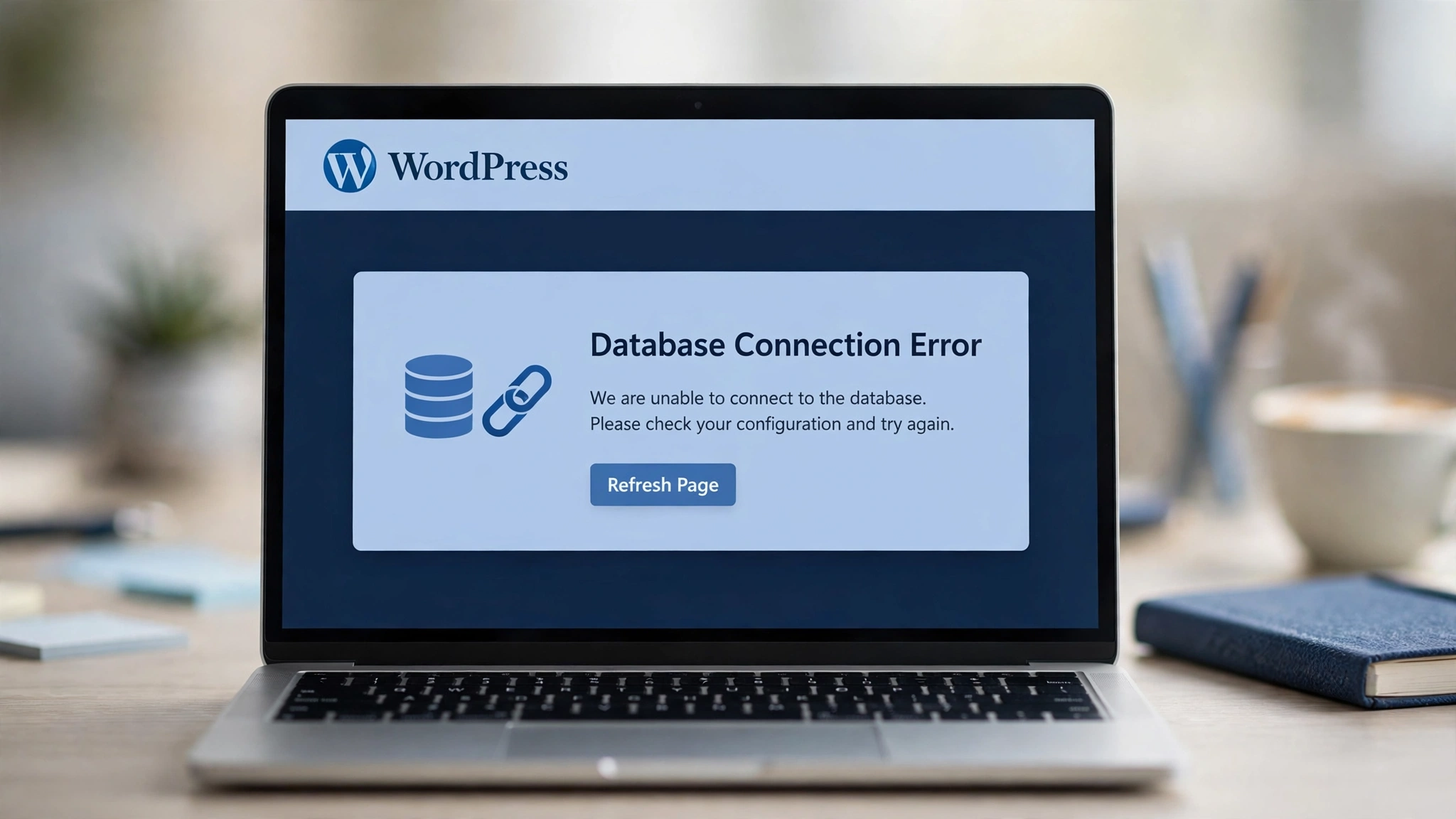
You open your site and see a plain white page: “Error establishing a database connection.” No homepage, no dashboard, no posts. This guide shows you how to fix the error establishing a database connection WordPress shows, in the fastest order.
The good news: this error is almost never fatal. Your content is usually still in the database, and the cause is often a wrong password or a table that needs repair.
In this guide
- What the error establishing a database connection WordPress means
- Diagnose it in 60 seconds
- Step 0: Back up first
- Cause, symptom, and fix
- Fix 1: Check your database credentials
- Fix 2: Check the database host value
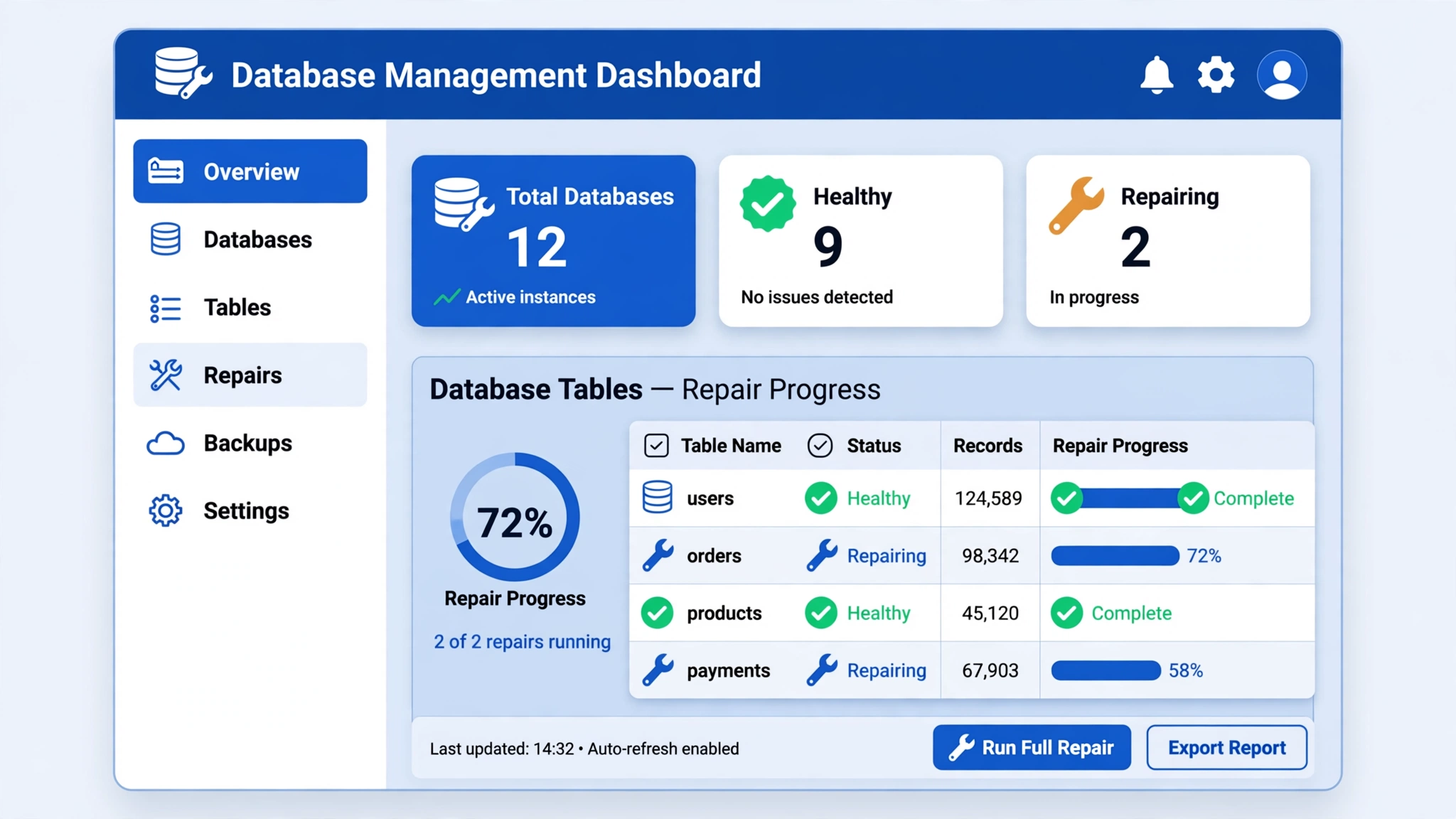
- Fix 3: Repair the database with the built-in tool
- Fix 4: Repair tables in phpMyAdmin
- Fix 5: Check quota and disk space
- Fix 6: Check whether MySQL is down
- Fix 7: Restore from a backup
- Repair methods compared
- When to contact your host
- Prevent this error in the future
- Frequently asked questions
- Conclusion
What the error establishing a database connection WordPress means
WordPress stores every post, page, comment, setting, and user account in a MySQL or MariaDB database, while the files hold the theme, plugins, and uploads. Each visit makes WordPress connect to the database and build the page from what it finds.
When that connection fails, WordPress has nothing to build the page from, so it shows the error establishing a database connection WordPress visitors see on a blank page. The message never says why.
Diagnose it in 60 seconds
First, try /wp-admin/: if it says “One or more database tables are unavailable. The database may need to be repaired,” you have table corruption. Jump to Fix 3.
Second, open phpMyAdmin in your hosting panel. If it lists your database and tables, MySQL is up. If phpMyAdmin itself fails, the server is the problem: when the error establishing a database connection WordPress shows matches a phpMyAdmin failure, go to Fix 6.
Step 0: Back up first
Every fix below changes a file, a table, or a password, so back up first.
If you have a recent backup, download a copy now. If phpMyAdmin still opens, export the database: select it, click Export, choose Quick, and save the SQL file. If you have FTP access, download a copy of wp-config.php before editing it: one wrong character takes the whole site offline.
See our WordPress Backup Guide: The 3-2-1 Setup That Actually Restores.
Cause, symptom, and fix
Most cases of the error establishing a database connection WordPress owners hit come from six causes. Match your symptom to the fix listed.
| Cause | Symptom | First fix |
|---|---|---|
| Wrong credentials | Every page, after migration or password change | Fix 1: correct the constants |
| Wrong database host | Every page, after moving hosts | Fix 2: correct DB_HOST |
| Corrupted tables | Tables are unavailable | Fix 3 or 4: repair them |
| Quota or disk full | Gradual | Fix 5: free space or raise quota |
| MySQL server down | phpMyAdmin fails too | Fix 6: ask the host to restart MySQL |
| Damaged core files | After a failed update | Reinstall core, then Fix 1 |
Fix 1: Check your database credentials
Wrong credentials are the most common cause of the error establishing a database connection WordPress owners report, usually after a migration, a restore from another account, or a database password changed in the panel but never updated in WordPress.
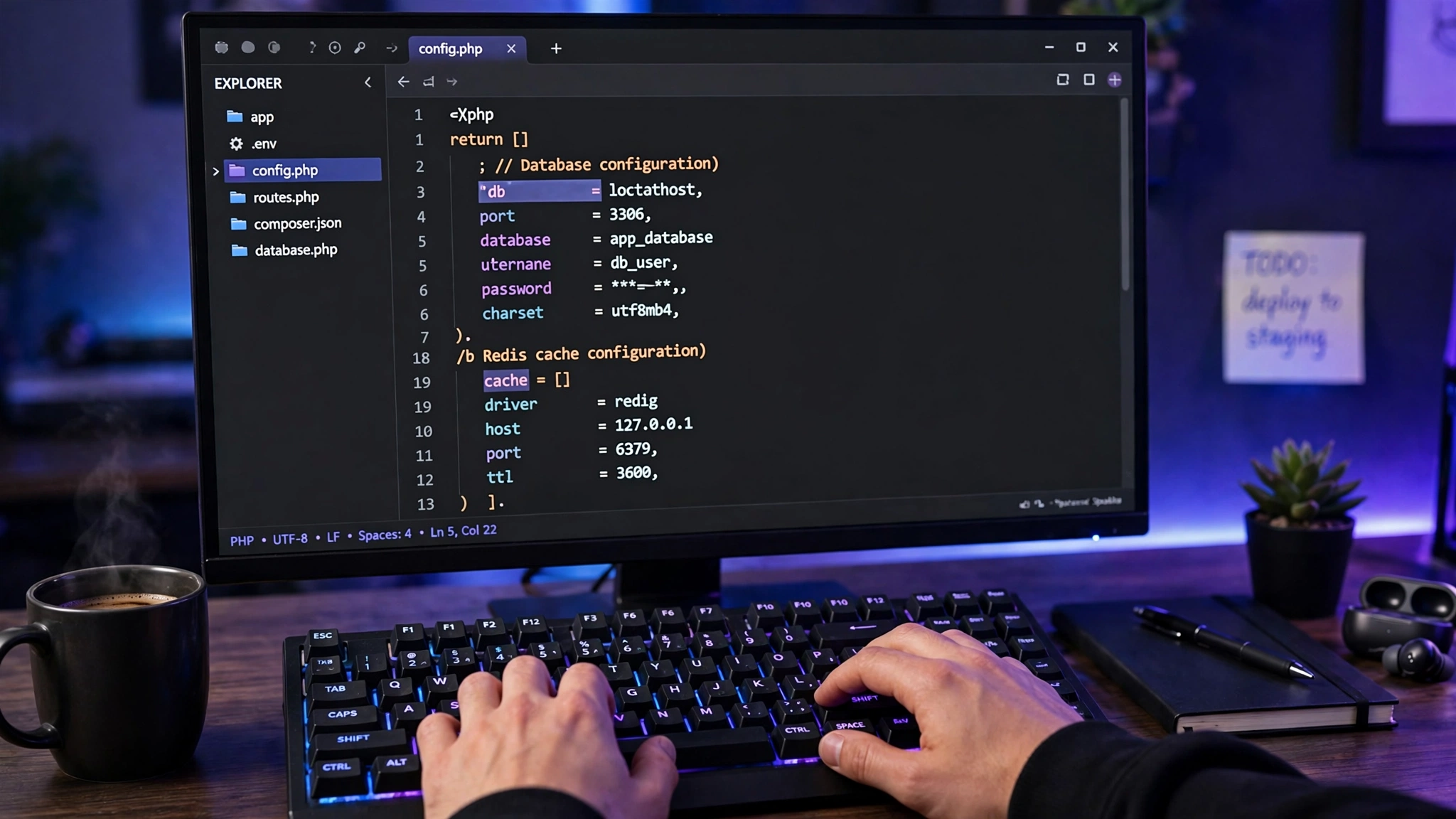
The four connection details live in wp-config.php, in the root folder, usually public_html:
define( 'DB_NAME', 'database_name_here' );
define( 'DB_USER', 'username_here' );
define( 'DB_PASSWORD', 'password_here' );
define( 'DB_HOST', 'localhost' );
Open it with your host’s file manager or an FTP client such as FileZilla: WordPress blocks editing wp-config.php from the admin file editor. Download a copy first, then read the four values.
Compare the values with your hosting panel
In Plesk, check Websites & Domains, then Databases; in cPanel, check MySQL Databases, then Current Databases.
Watch for two classic mistakes. On cPanel, names and usernames carry your account name as a prefix, such as yourname_wrdp1, and copying wp-config.php from an old host brings the old prefix with it. Second, a password reset on the host side breaks the match: reset it in the panel and paste the new one into wp-config.php.
Edit carefully and test
Change only the wrong values, keeping the single quotes and adding no spaces inside them. Save, upload if you edited locally, and reload. If the error establishing a database connection WordPress shows is still there, move to Fix 2.
Official reference: WordPress documentation on editing wp-config.php.
Fix 2: Check the database host value
If the name, username, and password are correct, check the host value. DB_HOST tells WordPress where the database lives: on most shared and managed hosts it is localhost, the same server as the files.
Some hosts run the database on a separate server, so DB_HOST is a hostname such as mysql.examplehost.com, or an address with a port, such as localhost:3306. Managed hosts show the exact value in the dashboard: copy it exactly.
A wrong DB_HOST is common after a migration: the old host used localhost and the new one a remote server, or the reverse. See How to Move a WordPress Site to a New Host Without Downtime.
Fix 3: Repair the database with the built-in tool
If the admin area says tables are unavailable, the database is corrupted. Enable the built-in repair tool, off by default, with one line in wp-config.php just above /* That’s all, stop editing! Happy publishing. */:
define( 'WP_ALLOW_REPAIR', true );Save, then visit https://yoursite.com/wp-admin/maint/repair.php with your domain. Choose Repair and Optimize Database unless you are in a hurry, since it also cleans up table overhead.
Wait for it to finish: WordPress lists every table and reports whether it was repaired or already fine. The tool fixes the error establishing a database connection WordPress shows when tables are corrupt, so reload to confirm.
Then remove the line again: the repair page is public, and anyone can run it while WP_ALLOW_REPAIR is true. Delete the line and confirm the URL no longer loads. Never leave the tool enabled on a live site.
Fix 4: Repair tables in phpMyAdmin
If the built-in tool does not fix the error establishing a database connection WordPress shows, repair the tables in phpMyAdmin: it talks to the database directly, so it works even when WordPress cannot load.
Open phpMyAdmin from your hosting panel: in Plesk, go to Databases; in cPanel, go to the Databases section. Select your database on the left to see its tables, usually with the wp_ prefix: wp_posts, wp_postmeta, wp_users, wp_options, and the rest.
Scroll down, click Check All, and choose Check Table from the With selected dropdown: damaged tables are marked clearly. Select them again and choose Repair Table. phpMyAdmin repairs them and reports the result for each one.
Reload your site: if only one or two tables were damaged, this usually brings it back. If a table cannot be repaired, restore it from a backup (Fix 7).
Fix 5: Check quota and disk space
A database over its size limit, or a full server disk, produces the same error establishing a database connection WordPress owners see from wrong credentials: MySQL cannot write to a full disk.
Check disk usage in the hosting panel first: Plesk and cPanel both show it on the dashboard. If the disk is nearly full, delete old server backups and unused themes and plugins. Then check table sizes in phpMyAdmin: a bloated wp_options table full of expired transients is a common culprit, and cleaning it often frees enough space.
If the database is over its quota, clean it, ask the host to raise the quota, or move to a larger plan. Never delete tables you do not recognise.
Fix 6: Check whether MySQL is down
Sometimes the problem is not your site at all: the MySQL server may be down, overloaded, or restarting after maintenance. Then every site sharing it shows the same error establishing a database connection WordPress displays, and no edit you make will fix it.
The fastest test is phpMyAdmin: if it fails to load, the database server is the problem. Check your host’s status page, where outages usually appear within minutes, and whether other sites on the same account are down.
If the status page lists the incident, wait and check your site every few minutes. If not, open a ticket saying the site shows “Error establishing a database connection,” phpMyAdmin also fails, and other sites are affected too.
Fix 7: Restore from a backup
If no fix above works, restore from a backup: it replaces the damaged database with a known-good copy, even when the error establishing a database connection WordPress shows has no clear trigger.
Restore the database first, and the files only if that alone does not fix it. Pick the most recent backup from before the error appeared, since restoring one made after the corruption started brings it back.
After the restore, reload the site and the admin area. If it loads, change your database password, update wp-config.php, and review what changed before the error: a restore fixes the damage, not the cause.
If you have no backup, do not keep experimenting. Export whatever you can from phpMyAdmin first, then contact your host: many keep server-side backups for a few days.
Repair methods compared
Three methods can repair the database behind the error establishing a database connection WordPress shows.
| Method | Best when | Login needed | Risk |
|---|---|---|---|
| Built-in repair (WP_ALLOW_REPAIR) | Tables are unavailable | No, the page is public | Low; remove the line after |
| phpMyAdmin repair | Built-in repair failed | Yes, panel login | Low, table by table |
| WP-CLI wp db repair | You have SSH access | Yes, SSH access | Low, fastest |
For most owners, the built-in tool is the right first try: one line in wp-config.php. phpMyAdmin is the better second step because it shows every table’s status. WP-CLI is fastest if you use SSH.
When to contact your host
Some cases of the error establishing a database connection WordPress shows are not fixable from your side: contact your host when phpMyAdmin fails to load, when the server is down, when you are over quota, or when the error returns within hours of a repair.
In the ticket, include the exact error, when it started, what changed just before, and what you have tried. If the host confirms a server-side fault, ask for a fix time and whether a server-side restore is possible. The WordPress guide to common errors lists this error among the issues hosts see daily.
Prevent this error in the future
You cannot prevent every case of the error establishing a database connection WordPress shows, but you can make the next one a ten-minute job instead of a lost day.
Keep automatic backups running and test a restore at least once: a backup you have never restored is a guess, not a safety net. Keep core, themes, and plugins updated, but test updates on staging first: see How to Create a WordPress Staging Site.
Clean the database on a schedule: delete spam comments, limit post revisions, and clear expired transients. Use strong, unique credentials and set a disk-usage alert before the disk fills.
Finally, never edit wp-config.php on a live site without a downloaded copy: the error establishing a database connection WordPress shows after a bad edit is entirely avoidable.
Frequently asked questions
What does “Error establishing a database connection” mean in WordPress?
The error establishing a database connection WordPress shows means WordPress tried to connect to its MySQL or MariaDB database and failed. Posts, pages, and settings live there, so no page can be built. Usual causes: wrong credentials, corrupted tables, a full disk, or a down database server.
Will I lose my content if I see this error?
Almost certainly not: the error means WordPress cannot reach the database, not that it is deleted. The content is usually still there, and the site returns once the connection is fixed.
How do I fix the error establishing a database connection WordPress shows after moving hosts?
A migration is the most common trigger. Check all four constants in wp-config.php against the new host’s MySQL databases page: DB_NAME, DB_USER, DB_PASSWORD, and DB_HOST. The name and username often have a different prefix, and the host may be remote instead of localhost. Update what differs and reload.
Is the WP_ALLOW_REPAIR tool safe to use?
Yes, when used correctly: add the line, visit /wp-admin/maint/repair.php, run the repair, then remove the line immediately. The repair page is public, so a leftover line lets anyone run it. Never leave WP_ALLOW_REPAIR enabled on a live site.
Why does the error keep coming back after I fix it?
A recurring error has a cause the repair did not touch: a disk that keeps filling up, a quota that is too small, a plugin that corrupts a table on every update, or an overloaded MySQL server. Check disk usage and database size first. If the pattern is unclear, send your host the last three outage times and ask them to check the logs.
Conclusion
The error establishing a database connection WordPress shows looks alarming, but it is one of the most fixable errors in WordPress. Diagnose fast, back up what you can, and work through the fixes in order.
Reaching Fix 7 is not a defeat: a restore is the safety net doing its job. Once the site is back, set up tested backups and staging. A blank white page is a different problem: see our white screen of death guide.
BadilHost verdict: The error establishing a database connection WordPress shows is a connection problem, not a content problem. Check credentials first, repair the tables second, and restore from backup if both fail.
Last verified: 20 November 2026 against the official WordPress documentation.