

Learning how to start a WordPress website is easy. Starting one you will not regret in six months is the hard part. Most beginners rush the first hour: the cheapest hosting deal, a heavy theme, twenty plugins, and publishing before setting up backups or security. Then the renewal bill arrives, the site slows down, and fixing it costs more than doing it right would have.
This checklist shows you how to start a WordPress website in the right order: pick the right kind of WordPress, choose a domain, buy hosting with your eyes open about renewal prices, install WordPress, then lock down security and speed. Our best WordPress hosting guide ranks hosts by three-year cost rather than teaser prices.
Prices checked 19 November 2026. Hosting prices change often, so confirm the final price at checkout before you pay.
In this guide
- Step 1: Decide what you are building — how to start a WordPress website the self-hosted way
- Step 2: Choose and register your domain name
- Step 3: Pick a hosting plan you will not regret
- Step 4: Install WordPress in five minutes
- Step 5: Pick a fast, lightweight theme
- Step 6: Install only the plugins you actually need
- Step 7: Lock down security on day one
- Step 8: Set up speed before you add content
- Step 9: Create your essential pages and first posts
- Step 10: Run the pre-launch checklist
- Common mistakes to avoid
- Frequently asked questions
Step 1: Decide What You Are Building — How to Start a WordPress Website the Self-Hosted Way
The first decision in how to start a WordPress website is not which host to buy. It is what kind of site you are building, because that decides which WordPress you need.
There are two WordPresses, and confusing them is the classic first mistake. WordPress.org is free, open-source software you install on hosting you buy yourself; WordPress.com is a commercial service run by Automattic that hosts the same software for you, for a monthly fee, with limits on what you can change.
For almost everyone learning how to start a WordPress website, self-hosted WordPress.org is the right choice: you own your files and can install any plugin or theme. The hosted route suits only someone who wants a simple personal blog and will never run ads or a store.
WordPress.org vs WordPress.com at a glance
| WordPress.org (self-hosted) | WordPress.com (hosted) | |
|---|---|---|
| Software cost | Free | Free tier, then paid plans |
| Hosting | You buy it separately | Included in the plan |
| Install any plugin or theme | Yes, unlimited | Restricted on lower plans |
| Monetisation and ads | Full control | Restricted on lower plans |
| Best for | Blogs, business sites, stores | Simple personal blogs |
The rest of this guide to how to start a WordPress website assumes you are self-hosting WordPress.org. Before you spend anything, write down what the site is for and who it is for.
Step 2: Choose and Register Your Domain Name
Your domain is your address on the internet, and it is hard to undo — changing it later means redirects and lost links. Spend twenty minutes on this step of how to start a WordPress website.
Pick a short name that is easy to spell out loud, with no hyphens or numbers — if a friend has to ask you to spell it twice, pick another one. A .com is still the safest choice for most sites.
A standard .com usually costs about $10–$15 for the first year and renews at roughly $11–$23. Check the renewal price, not just the first-year offer: a $1 first year that renews at $23 is a bad deal. Many hosts include a free domain for year one. Add domain privacy if it is not included free — a small step in how to start a WordPress website done right, and it hides your details from the public WHOIS record.
Step 3: Pick a Hosting Plan You Will Not Regret
Hosting is where beginners lose the most money. Never judge a host by its intro price alone: every budget host sells its first term cheap and renews at two to six times that price. Renewal prices are the least glamorous part of how to start a WordPress website.
Here is what the three most popular beginner hosts actually cost, checked 19 November 2026:
| Host | Entry plan | Intro price | Renews at |
|---|---|---|---|
| Hostinger | Premium | From $1.99/month (48-month prepay) | $10.99/month |
| SiteGround | StartUp | $2.99/month (first 12 months) | $17.99/month |
| Bluehost | Basic | $2.95/month (36-month term) | Around $10.99/month |
Three rules prevent the classic hosting regret. First, look at the renewal price — that is what you will pay for years. Our WordPress hosting renewal prices guide lays out intro versus renewal prices side by side. Second, match the term to your commitment: a 48-month prepay locks in the cheapest rate but means about $120 upfront, while a 12-month term lets you switch sooner. Third, check what is included: free SSL, backups, and a staging site. A plan that charges extra for backups and SSL is not cheap.
If your budget is tight, our guide to the cheapest WordPress hosting that is still worth buying sets an honesty floor, and our best WordPress hosting guide has the full picture. For a first site, any of the three hosts above will work.
Step 4: Install WordPress in Five Minutes
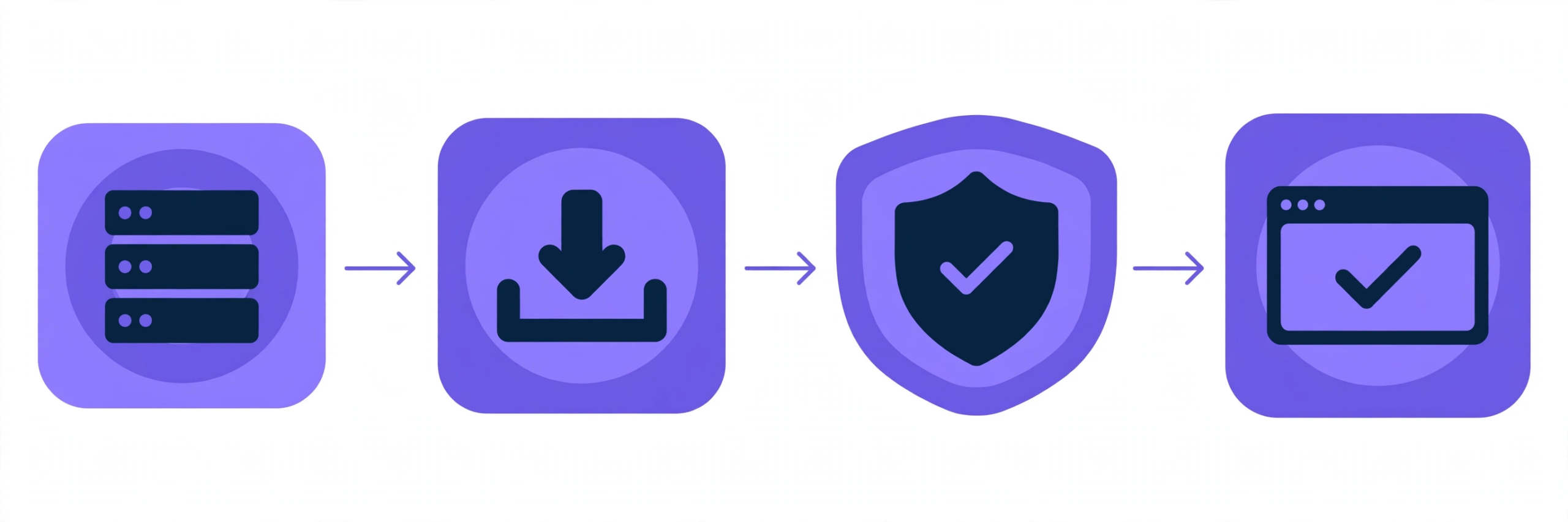
This is the easiest step in how to start a WordPress website: every mainstream host offers a one-click installer, so you will not touch a line of code.
In your hosting dashboard, find “WordPress” or “One-Click Install”, pick your domain, and create an admin username and password. Two warnings: never use “admin” as your username — it is the first name every automated attack tries — and use a strong, unique password stored in a password manager.
As of 19 November 2026, the current stable release is WordPress 7.1.5, a security update from 18 November 2026; WordPress 7.2 is scheduled for 8 December 2026. If your host offers an older version, update immediately from Dashboard > Updates. When the installer finishes, log in at yourdomain.com/wp-admin and bookmark it — that is the whole technical core of how to start a WordPress website.
Step 5: Pick a Fast, Lightweight Theme
Your theme controls how your site looks — and how fast it loads. A heavy theme with sliders and bundled page builders can add seconds to every page load. Choosing a light theme is one of the first decisions in how to start a WordPress website that stays fast.
Choose a lightweight theme with a recent update and many active installs. GeneratePress, Astra, and Kadence are all solid choices — this site runs on GeneratePress.
Install your theme from Appearance > Themes > Add New, then set your title, logo, and colours under Appearance > Customize. Keep it simple when you learn how to start a WordPress website: one accent colour, readable fonts, a clean layout. Never install a theme from a random download site — nulled themes are a common way new sites get hacked.
Step 6: Install Only the Plugins You Actually Need
The official directory holds more than 59,000 free plugins, and installing dozens is tempting. Resist it: every plugin adds load time, update work, and a security risk. Every guide to how to start a WordPress website should say it plainly — fewer plugins, fewer problems.
You need only a handful, from Plugins > Add New, only from the official directory or a developer you trust:
- A security plugin — Wordfence (firewall and login protection).
- A backup plugin — UpdraftPlus, or your host’s automatic backups.
- A caching plugin — WP Super Cache, unless your host handles caching.
- An SEO plugin — Rank Math or Yoast (titles, meta descriptions, sitemaps).
- A forms plugin — WPForms (contact forms).
That is enough to launch your first site when you learn how to start a WordPress website. Add plugins one at a time, only when you have a job for them, and delete any you stop using. Plugin discipline is what keeps a site fast for a year instead of slowing it down within a month.
Step 7: Lock Down Security on Day One
WordPress powers more than 40% of the web, which makes it a target — but most attacks are automated and lazy, trying known passwords and old software. A few day-one changes block almost all of them, because security is not an afterthought in how to start a WordPress website; it is a launch requirement.
Force HTTPS everywhere: your host should provide a free SSL certificate, and in Settings > General both addresses should start with https://. Lock out repeated login failures and turn on two-factor authentication.
Update everything under Dashboard > Updates — outdated software is how most sites get compromised, and updates take two minutes. Then set up automatic daily backups outside your hosting account, and test a restore once: a backup you have never tested is a hope, not a plan.
Step 8: Set Up Speed Before You Add Content
Speed is easier to build in now than to fix later — and the biggest wins are all free. Page speed is a ranking factor, so this step of how to start a WordPress website pays for itself.
First, turn on caching — in your hosting dashboard, or with your caching plugin. Then check for mixed-content warnings, which slow the browser down.
Second, deal with images before they become a problem: resize every image to its display size and compress it — free tools can shrink an image by 70% with no visible difference. No image goes live uncompressed.
Third, keep your plugin count low and skip page builders for simple pages — the built-in block editor is enough. Test your speed with Google PageSpeed Insights once your homepage is built.
Step 9: Create Your Essential Pages and First Posts
Before you announce your site, create the pages every real website needs.
Create About, Contact, Privacy Policy (WordPress generates a starter under Settings > Privacy), and Disclaimer pages. Then write three to five posts before launch day.
Set permalinks before you publish: Settings > Permalinks > “Post name” gives clean URLs like yourdomain.com/how-to-start-a-wordpress-website. Changing it later breaks every link you have shared — a small detail in how to start a WordPress website that lasts for the life of the site.
Finally, set up a simple top menu under Appearance > Menus: Home, categories, About, Contact.
Step 10: Run the Pre-Launch Checklist
Run this final checklist before you tell anyone the site exists. This final check is what separates knowing how to start a WordPress website from actually launching one well.
Check every page on a phone: click every link, submit your contact form, and confirm images load with no errors.
Check your SEO basics for how to start a WordPress website right: unique titles and meta descriptions, and a working sitemap (your SEO plugin generates it at yourdomain.com/sitemap_index.xml). Submit your site to Google Search Console and check robots.txt is not blocking search engines.
Then announce it and publish regularly.
Common Mistakes to Avoid
Most WordPress regrets come from a short list of avoidable errors — remember these from this guide to how to start a WordPress website.
Buying hosting on price alone is the biggest one: the cheapest intro price usually hides the highest renewal. Always compare renewal prices, as our renewal prices guide shows.
Installing too many plugins is second: twenty plugins means twenty updates, conflicts, and security risks. Start with five or six when you learn how to start a WordPress website, and add slowly.
Skipping backups is third, and the most painful: nobody thinks about backups until the day they need one, so set them up on day one and test a restore.
Ignoring updates is fourth: every week you delay one is a week your site runs with a known vulnerability. Turn on automatic updates for minor releases.
Finally, publishing thin content and expecting traffic is a mistake of patience: a new site takes months to earn search traffic, so publish helpful, complete articles on a steady schedule.
Frequently Asked Questions
How long does it take to learn how to start a WordPress website?
About an hour: fifteen minutes to buy hosting and a domain, five minutes to install WordPress, the rest to configure theme, plugins, security, and speed. The site can be live the same day.
How much does it cost to start a WordPress website?
About $50–$100. Hosting costs roughly $35–$60 for year one on an intro deal, a .com costs about $10–$15 (often free for year one with hosting), and the theme and essential plugins are free. Year two is the surprise, when hosting renews at $120–$215 a year.
Do I need to know how to code to start a WordPress website?
No — the block editor is built for people learning how to start a WordPress website without code. It handles layouts, themes handle design, and plugins handle features. A little HTML and CSS helps for small tweaks, but you can run a successful site for years without touching code.
Is WordPress.org really free?
The software itself is free from wordpress.org. You pay only for hosting and a domain name. A complete beginner site can be built entirely with free themes and plugins.
What is the difference between WordPress.org and WordPress.com?
WordPress.org is free, open-source software you install on your own hosting, with full control over plugins, themes, and monetisation. WordPress.com runs the same software for a monthly fee, with limits on the lower plans. For a serious site, self-hosted is better — see Step 1.
Conclusion
You now know how to start a WordPress website without the regrets most beginners collect in their first year. The sequence is the secret: decide what you are building, pick a domain, choose hosting by its renewal price, install WordPress, then lock down security, speed, and backups.
None of these steps is difficult alone; mistakes happen when they are skipped or done in the wrong order. Follow this checklist for how to start a WordPress website and your site starts life fast, secure, and cheap to keep.
Next step: pick your host, install WordPress, and publish your first post. Compare true long-term costs first in our best WordPress hosting guide, and bookmark this guide to how to start a WordPress website for your next launch.
2 thoughts on “How to Start a WordPress Website in 2026: The No-Regrets Setup Checklist”