
Long articles are good for readers and search engines, but they create one small problem: getting back to the top means a long drag of the scrollbar. A back to top button fixes that with a single click. In this guide, you will learn how to add a back to top button to WordPress using five methods that work in 2026.
In this guide
- What Is a Back to Top Button?
- Before You Start: Three Quick Decisions
- Method 1: How to Add a Back to Top Button to WordPress With GeneratePress
- Method 2: How to Add a Back to Top Button to WordPress With the WPFront Scroll Top Plugin
- Method 3: How to Add a Back to Top Button to WordPress With Code
- Method 4: How to Add a Back to Top Button to WordPress With a Page Builder
- Method 5: How to Add a Back to Top Button to WordPress With a Simple Footer Link
- How to Add a Back to Top Button to WordPress: Which Method Should You Choose?
- How to Style Your Back to Top Button
- Accessibility and Performance
- Troubleshooting
- Frequently Asked Questions
- Conclusion
What Is a Back to Top Button (and Why It Helps Your Readers)
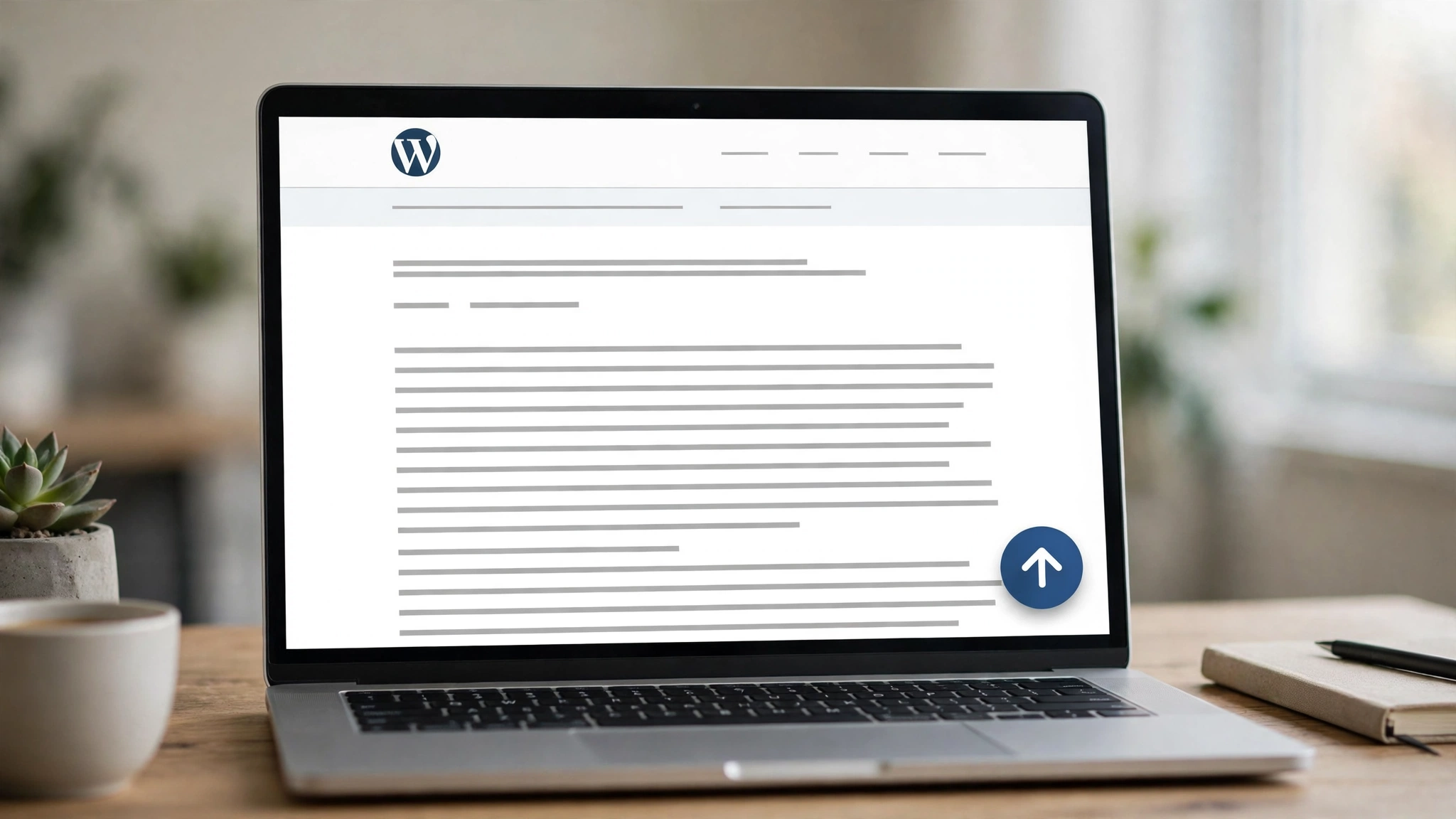
A back to top button is a small floating button, usually a circle with an upward arrow, that appears once a visitor scrolls down. Clicking it scrolls the page smoothly back to the top.
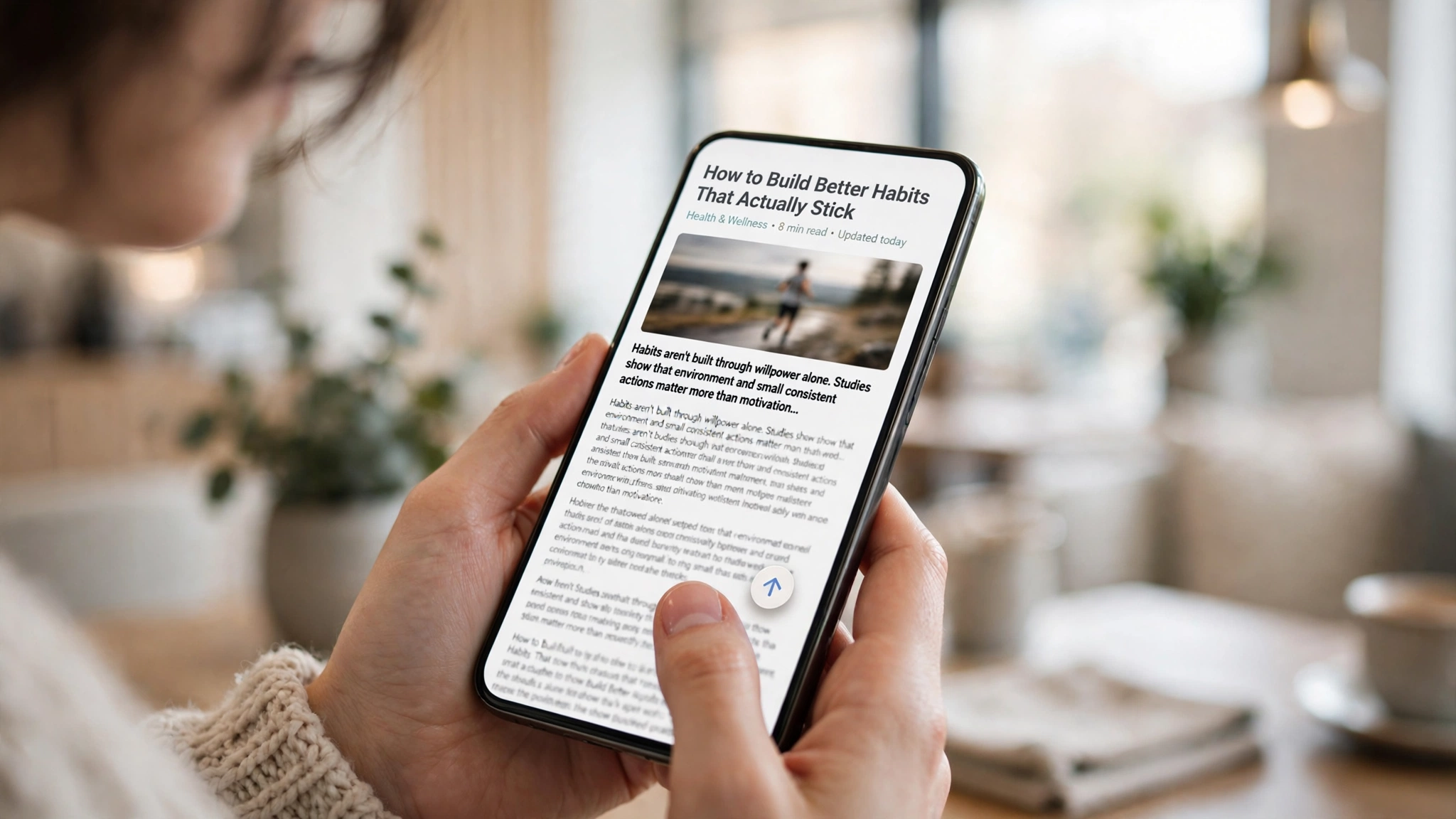
The benefit is simple: it removes friction. Readers on long guides scroll a long way down, and without a button the trip back is slow, especially on a phone.
Mobile visitors benefit the most: on a small screen, a long article takes dozens of swipes to escape, and a floating button gives them a one-tap exit.
It also pairs well with a sticky header or a reading progress bar. Together they cover the basics of how to add a back to top button to WordPress as part of a complete navigation setup.
Before You Start: Three Quick Decisions
Pick your method first
If your theme already includes a back to top button, use it: it is the lightest option. If not, a free plugin is the next best choice. Only reach for custom code if you enjoy maintaining it after every theme update.
Decide where the button should appear
Most sites put the button in the bottom-right corner, where readers expect it. If a live chat widget already sits there, use bottom-left instead. The goal is a button that is easy to find and never covers content.
Back up before you change anything
Any change to your theme files deserves a backup first. With the code method it is not optional: one misplaced character can take your site down until it is fixed.
Method 1: How to Add a Back to Top Button to WordPress With GeneratePress
If your site runs on GeneratePress, you already own a back to top button: it is built into the free theme and takes less than a minute to switch on. This is the method used on BadilHost itself.
In Appearance > Customize, open Layout > Footer and switch on the Back to Top Button setting, then set its colours in Colors > Footer to match your theme.
Click Publish, then open any long page and scroll down. The button should fade in after about 300 pixels, the theme default, and scroll you smoothly to the top in about 400 milliseconds, as the GeneratePress back-to-top discussion confirms.
For GeneratePress users, this is the best answer to how to add a back to top button to WordPress: no new plugin, no new script, nothing extra to maintain.
Method 2: How to Add a Back to Top Button to WordPress With the WPFront Scroll Top Plugin
If your theme has no built-in button, a dedicated plugin is the easiest route. WPFront Scroll Top is the most installed free option, and it gives you more control than any theme toggle: position, size, fade effects, and image or text buttons.
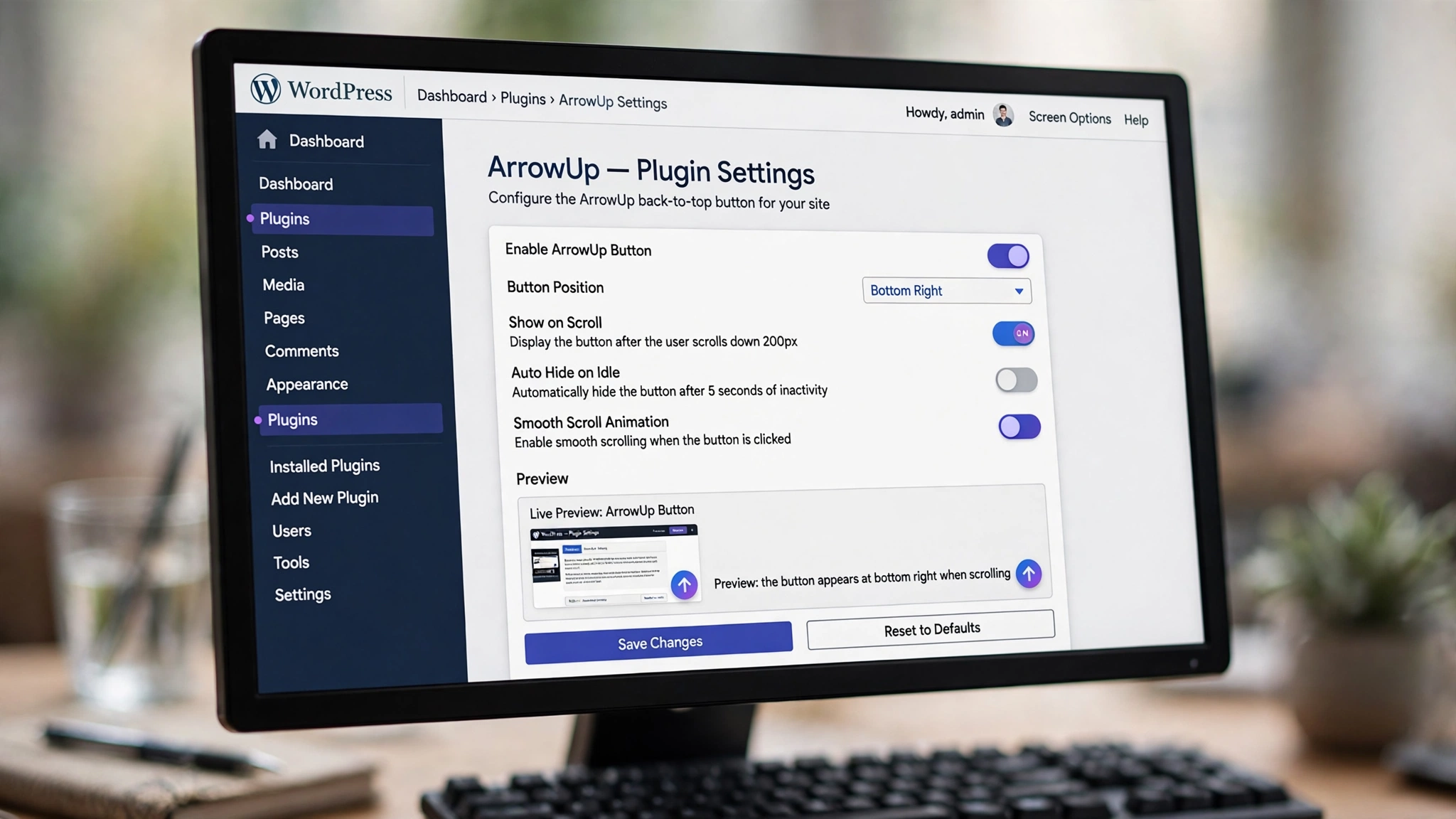
WPFront Scroll Top is at version 3.0.1, with more than 200,000 active installs and a 98% positive rating from 141 ratings. It requires WordPress 5.3 or higher, is tested up to WordPress 7.1.5, and was last updated on 18 August 2026. It is free.
In Plugins > Add New, search for “WPFront Scroll Top”, install and activate it — or download it from the official WPFront Scroll Top plugin page. Then open Settings > Scroll Top.
Set the position, size, and opacity to suit your site, and pick a fade-in effect if you like. If a chat widget sits at bottom-right, move the button to bottom-left.
You can also use an arrow icon, your own image, or text such as “Top”. An arrow is the clearest choice, because it needs no translation. Save, then test on a real phone and on desktop.
Method 3: How to Add a Back to Top Button to WordPress With Code
Adding the button with code gives you complete control and zero plugin overhead. It suits readers who already manage a child theme or a code snippets plugin; if you are not comfortable editing theme files, use Method 1 or 2 instead.
First, add this HTML to your footer:
<a href="#top" id="back-to-top" aria-label="Back to top">↑</a>Add id="top" to your header element, or the link has nowhere to go.
Next, add this CSS under Additional CSS, or in your child theme stylesheet:
#back-to-top {
  position: fixed;
  bottom: 30px;
  right: 30px;
  width: 45px;
  height: 45px;
  line-height: 45px;
  text-align: center;
  background: #0a2540;
  color: #fff;
  border-radius: 50%;
  opacity: 0;
  visibility: hidden;
  transition: opacity 0.3s ease, visibility 0.3s ease;
  z-index: 999;
}

#back-to-top.visible {
  opacity: 1;
  visibility: visible;
}
The button stays hidden until the visible class is added.
Finally, add this JavaScript through your child theme or a snippets plugin:
window.addEventListener('scroll', function () {
  var button = document.getElementById('back-to-top');
  if (window.scrollY > 300) {
    button.classList.add('visible');
  } else {
    button.classList.remove('visible');
  }
});
The button now appears after 300 pixels and hides again near the top. Add html { scroll-behavior: smooth; } to your CSS so the jump feels smooth. This is the leanest way to learn how to add a back to top button to WordPress: roughly fifteen lines of code and no plugin at all.
Method 4: How to Add a Back to Top Button to WordPress With a Page Builder
If you build your pages with Elementor or a similar builder, you can build the button from the builder itself: a fixed-position button linking to an anchor at the top of the page.
In the builder, give the top section of your header or page template the CSS ID top, then add a Button widget to your footer template. Set its text to a single upward arrow and its link to #top.
In Advanced settings, set the position to Fixed in the bottom-right corner, about 30 pixels from each edge, with a z-index of 999. Style it as a circle in your theme colours and set the display condition to Entire Site.
Preview a long post to confirm the button works, and check a standard post too, since it only appears where your builder footer applies.
Method 5: How to Add a Back to Top Button to WordPress With a Simple Footer Link
The fifth method for how to add a back to top button to WordPress is the simplest of all: a plain “Back to top” link in your footer, with smooth scrolling added by one line of CSS. It uses no JavaScript and no plugin.
In Appearance > Widgets, or in your footer template, add a “Back to top” link pointing to #top, with the matching id="top" anchor on your header as described in Method 3. Then add this CSS under Additional CSS:
html {
  scroll-behavior: smooth;
}
That single rule turns the jump into a smooth glide. Place the link in the last column of your footer, where readers expect utility links, and style it so it stands out.
How to Add a Back to Top Button to WordPress: Which Method Should You Choose?
The five methods for how to add a back to top button to WordPress all reach the same result, but they differ in speed, control, and maintenance. This table compares them side by side.
| Method | Difficulty | Cost | Control | Best for |
|---|---|---|---|---|
| GeneratePress toggle | Very easy | $0 | Low | GeneratePress sites |
| WPFront Scroll Top | Easy | $0 | High | Any theme |
| Custom code | Medium | $0 | Full | Developers |
| Page builder | Easy | $0 | Medium | Builder sites |
| Footer link | Very easy | $0 | Low | Small sites |
GeneratePress users should start with Method 1; any other theme, with Method 2 for the most options; page builder sites, with Method 4. Choose the code method only if you are happy maintaining it, and the footer link if you want the lightest solution.
Do not combine two methods at once: two floating buttons in the same corner look broken.
How to Style Your Back to Top Button So It Matches Your Site
A back to top button should look like it belongs to your site. Four details decide that: shape, colour, size, and position — and each one matters when you learn how to add a back to top button to WordPress.
Shape comes first: a circle reads clearly as a button, and a rounded square matches themes with sharper corners. Avoid unusual shapes — visitors should recognise the button in half a second.
Colour comes second. Use your theme accent colour for the background and white for the arrow, with a slightly darker shade on hover. The button must contrast with the page behind it, so test it over your dark footer too.
Size and position come last. A button between 40 and 50 pixels wide is easy to tap on a phone without covering the text. Bottom-right is the default; bottom-left is the answer when a chat widget owns the right side. Keep 20 pixels from the edge, and check the button against your cookie banner.
Our guide to adding custom CSS in WordPress shows five safe methods that survive theme updates.
Accessibility and Performance: Small Details That Matter
A back to top button is a small feature, but two areas still deserve care: accessibility and performance.
For accessibility, always give the button an aria-label such as “Back to top”, so screen readers announce its purpose instead of reading a bare arrow. Make sure it can be reached and activated by keyboard alone, with a visible focus style.
For performance, keep the feature light. A theme toggle or a few lines of code add almost nothing, while a plugin adds a small stylesheet and script. If your site is already slow, a plugin for a single button is a poor trade: use your theme toggle or the code method, and follow our guide on how to speed up WordPress first.
Troubleshooting: Your Back to Top Button Is Not Showing
If the button does not appear after you learn how to add a back to top button to WordPress, work through these checks in order. In almost every case, one of them is the cause.
First, check the feature is enabled: in GeneratePress, the toggle in Customizer > Layout > Footer must be on and published; in a plugin, the button must be enabled and saved.
Second, clear your cache: a caching plugin or server cache can serve old pages for hours, so clear it and hard-refresh.
Third, scroll far enough. Most buttons appear only after 300 pixels, so test on your longest article, not your homepage.
Fourth, look for a conflict: a chat widget, cookie banner, or sticky footer can cover the button, especially on mobile. Disable your chat widget briefly; if the button appears, move it to the opposite corner.
Fifth, check for a JavaScript error or a theme setup problem: an error from another plugin can stop every script on the page, so look at the browser console. If you added the button with code, confirm the child theme is active and the code is in the right file.
Frequently Asked Questions
Does WordPress have a built-in back to top button?
WordPress itself does not include one: the button comes from your theme, a plugin, or code you add. GeneratePress includes one in the free theme, so check your theme first.
What is the easiest way to learn how to add a back to top button to WordPress?
Use your theme built-in option if it has one, or install the free WPFront Scroll Top plugin. Both take under ten minutes and need no code.
Is a back to top button free?
Yes: the theme options and plugins here cost $0, and the code method costs only a few minutes. There is no reason to pay for one.
Will a back to top button slow down my site?
No, not in any way you can measure. A theme toggle or a few lines of code add almost nothing, and even a plugin adds only a tiny stylesheet and script. If your site feels slow after adding one, the cause is something else.
Should the button appear on mobile too?
Yes: mobile readers scroll the furthest and benefit the most. Test it on a real phone and keep it at least 40 pixels wide, so it never covers content or a chat widget.
Can I use a back to top button with any WordPress theme?
Yes: the plugin and code methods work with any well-built theme, and the page builder method works wherever your builder controls the footer. Only the GeneratePress toggle is tied to one theme.
Conclusion
A back to top button is a tiny feature with an outsized effect on how your site feels: it costs nothing, takes minutes to add, and removes one small frustration from every long page — which is why learning how to add a back to top button to WordPress is worth ten minutes of your time.
Now you know how to add a back to top button to WordPress in five ways. GeneratePress users can switch on the built-in toggle; everyone else can install WPFront Scroll Top; and developers can write the fifteen lines of code.
Pick one method and add the button today, then test it on your longest article from a real phone. The best navigation is the kind nobody has to think about.
Our Verdict: For most WordPress sites in 2026, the GeneratePress toggle is the best answer if you already use that theme, and the free WPFront Scroll Top plugin is the best for every other theme. Both cost $0 and take under ten minutes. Choose code only if you maintain a child theme.
Sources verified 24 November 2026: WPFront Scroll Top (wordpress.org plugin API — v3.0.1, 200,000+ active installs, 98% positive from 141 ratings, tested to WordPress 7.1.5, updated 18 August 2026, free); GeneratePress back-to-top toggle location and defaults (generatepress.com forums — Customizer > Layout > Footer, colours in Customizer > Colors > Footer, default start scroll 300 px, scroll speed 400 ms). Prices in USD; the plugin named is free ($0).