
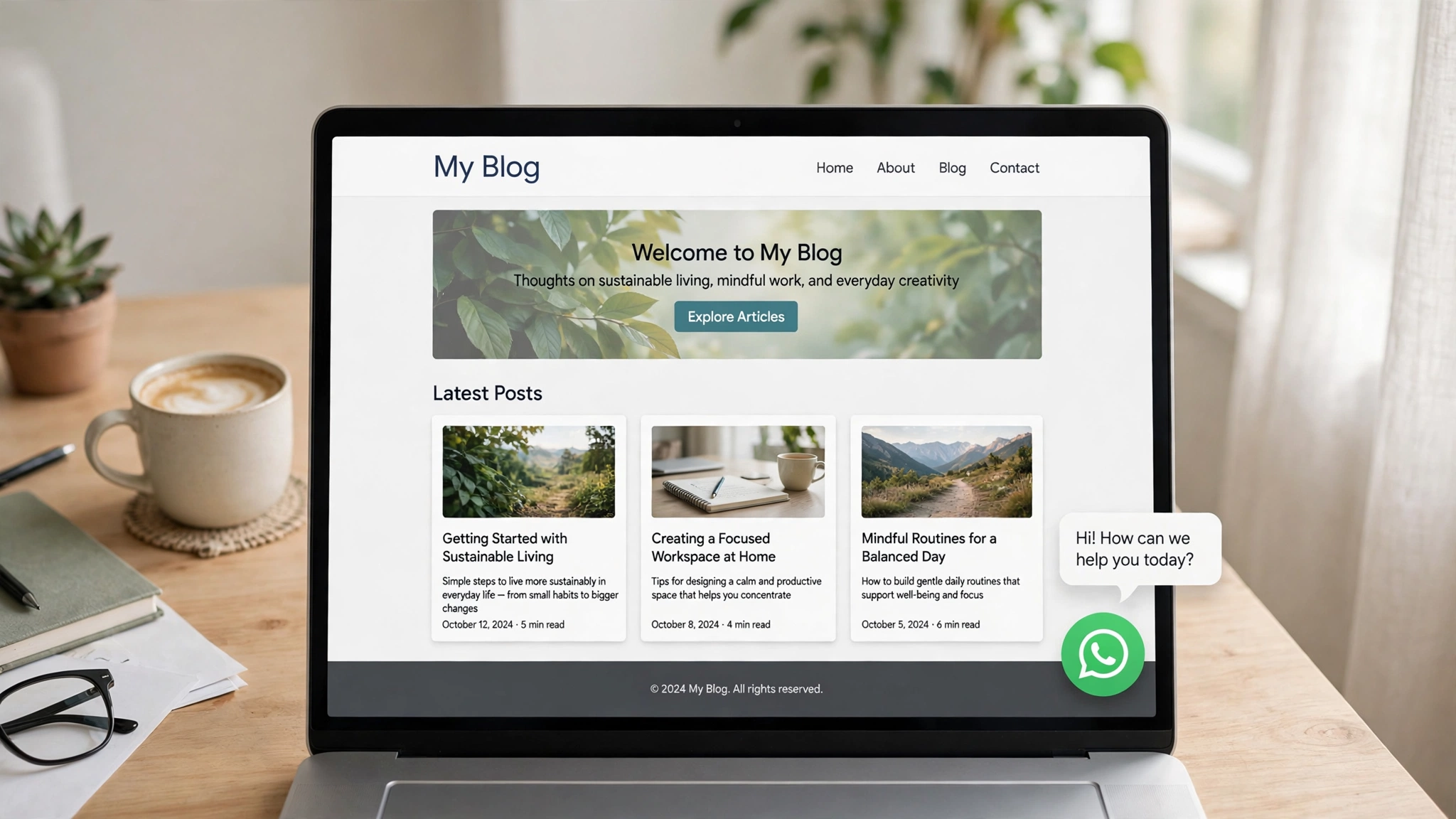
A WhatsApp chat button WordPress visitors can spot in seconds turns a quiet website into a conversation. Instead of hunting for a contact form, a visitor taps one green button and lands in your WhatsApp inbox with a message half written.
This guide compares the four tools that cover nearly every site in 2026 — Joinchat, Click to Chat, WP WhatsApp Chat and Elfsight — then walks through the free setup, so you can add a WhatsApp chat button WordPress visitors will actually use today for $0 and pay only when a paid feature earns its keep.
In this guide
- The short answer
- How a WhatsApp chat button WordPress owners add actually works
- The 4 options compared at a glance
- Method 1: Joinchat — the most installed free plugin
- Method 2: Click to Chat — the cheapest paid upgrade
- Method 3: WP WhatsApp Chat — the multi-agent pick
- Method 4: Elfsight WhatsApp Chat — the design-first widget
- How to add a WhatsApp chat button to WordPress step by step
- The no-plugin method: a wa.me link
- Placement and display rules that get replies
- WooCommerce: WhatsApp buttons on product pages
- Mistakes that hurt conversions — and trust
- Frequently asked questions
- Our verdict
The short answer
The fastest answer is Joinchat: install the free plugin, enter your WhatsApp number, write a pre-filled message, and publish — no payment and no code. It is the most installed option on WordPress.org.
Click to Chat is the better pick for the cheapest paid plan: Pro costs $18 a year and unlocks every paid feature, with a lifetime licence at $34. WP WhatsApp Chat is the pick for teams, because visitors choose between several agents free of charge. Elfsight leads on design, but its free plan allows only 200 views a month.
One rule applies whichever tool you pick: answer fast. A WhatsApp chat button WordPress visitors tap expects a reply in minutes, not tomorrow.
How a WhatsApp chat button WordPress owners add actually works
A WhatsApp chat button is a floating button, usually fixed in the bottom corner of every page, that opens a chat when tapped. On a phone it opens the WhatsApp app; on a desktop it opens WhatsApp Web. The visitor never types your number, and a pre-filled message means they only have to press send.
It is not live chat: there is no queue, no operator status and no chat transcript inside WordPress. The conversation happens on your phone, in the WhatsApp or WhatsApp Business app — setup takes minutes and costs nothing, but you cannot hand a chat to a colleague mid-conversation. It is also not a WhatsApp Business Platform integration: the plugins here use simple click-to-chat links, so Meta charges nothing per message.
The button works best for small businesses, freelancers, clinics, restaurants, real estate agents and WooCommerce stores — any site where a short question often decides a sale. It works worst as a replacement for support documentation: if the same five questions arrive daily, write the answers on the site first.
The 4 options compared at a glance
Prices in US dollars, checked 23 November 2026, for anyone about to add a WhatsApp chat button WordPress visitors will trust.
| Tool | Active installs | WordPress.org rating | Free version | Paid from | Best for |
|---|---|---|---|---|---|
| Joinchat | 700,000+ | 4.7 out of 5 (189 reviews) | Yes, full button | €96/year Premium, about $112 USD | Most sites, one number |
| Click to Chat | 600,000+ | 4.8 out of 5 (131 reviews) | Yes, full button | $18/year Pro, $34 lifetime | Cheapest paid upgrade |
| WP WhatsApp Chat | 100,000+ | 4.9 out of 5 (212 reviews) | Yes, with multiple agents | $29/year Pro | Teams answering together |
| Elfsight WhatsApp Chat | Hosted widget, no install count | No WordPress.org listing | Yes, 200 views/month | $5/month billed yearly | Design-led sites |
Method 1: Joinchat — the most installed free plugin
Joinchat, by Creame, is the most installed WhatsApp plugin on WordPress.org, with more than 700,000 active installs and a 4.7 out of 5 rating from 189 reviews. Version 6.4.4 was released in November 2026.
The free version covers the work most sites need: a floating button with a greeting bubble, pre-filled messages that change per page, WooCommerce product-page buttons, and analytics events for Google Analytics and Tag Manager.
Premium costs €96 a year for one site — about $112 USD at current rates — and adds multiple support agents with schedules, extra channels such as Telegram and Messenger, and Chat Funnels that qualify visitors first. Premium Plus costs €180 a year for one site and adds lead saving inside WordPress and webhooks for Zapier and Google Sheets.
Joinchat is the default recommendation for a WhatsApp chat button WordPress site owners can set up free: the most capable free version and the largest install base. Look elsewhere only for a specific need — the cheapest paid tier, several free agents, or a hosted visual builder. The official listing is on WordPress.org.
Method 2: Click to Chat — the cheapest paid upgrade
Click to Chat, by HoliThemes, is the second most installed option, with more than 600,000 active installs and a 4.8 out of 5 rating from 131 reviews. It has been on WordPress.org since October 2017, and version 4.45 arrived in September 2026.
The free version is a focused tool: a floating button in eight styles, greeting dialogs, pre-filled messages, WooCommerce buttons and basic analytics, with no cookies set by default. Its settings screen is shorter than Joinchat’s.
Pro is where Click to Chat wins on price for a WhatsApp chat button WordPress owners pay little for. At $18 a year for one site — or $34 once for a lifetime licence — it unlocks every paid feature, the cheapest paid tier of any plugin in this guide by a wide margin.
Pick Click to Chat for a simple button, a clean settings page and the cheapest upgrade path. Pick Joinchat instead if you expect to need agents, funnels or WooCommerce variables later.
Method 3: WP WhatsApp Chat — the multi-agent pick
WP WhatsApp Chat, also listed as WP Chat App by NinjaTeam, is the only plugin here that gives visitors a choice of people to talk to without paying. It has more than 100,000 active installs and a 4.9 out of 5 rating from 212 reviews, the highest of the four plugins here.
The free version of this WhatsApp chat button WordPress teams use shows a floating button, a chat widget with agent profiles, working hours and shortcodes that place a button anywhere on the site. A visitor picks an agent — sales, support or bookings — and the chat opens with that person’s number and a pre-filled message. It also works with WooCommerce and translation plugins such as WPML and Polylang.
Pro starts at $29 a year and adds more design and behaviour controls. The free version already covers the feature other plugins reserve for paid plans, so if three people answer messages, this plugin saves you a subscription on day one.
The trade-off is reach: 100,000 installs is large, but a seventh of Joinchat’s base, so community tutorials are thinner. For a team site that trade is worth it; for a one-person site, Joinchat’s bigger community fits better.
Method 4: Elfsight WhatsApp Chat — the design-first widget
Elfsight WhatsApp Chat is different: a hosted widget, not a WordPress plugin. You design it in Elfsight’s visual editor, then paste a short embed code into a Custom HTML block. It is the most polished editor of the four, with agent profiles, response-time labels, triggers and scheduling.
The free plan is the tightest here: one widget and 200 views a month, with Elfsight branding shown. A view is counted each time the widget loads, so even modest traffic passes 200 views in days. Treat the free plan as a trial, not a live solution.
Paid plans start at $5 a month billed yearly ($60 a year) for three widgets and 5,000 views, or $6 a month billed monthly. The next tier is $10 a month billed yearly for nine widgets and 50,000 views, all checked on the official Elfsight pricing page on 23 November 2026.
Choose Elfsight when the button must match a brand exactly and you are comfortable managing a subscription outside WordPress. For most sites, a native WhatsApp chat button WordPress owners run inside their dashboard is better value: no view limit, no branding, no second dashboard, and no monthly bill.
How to add a WhatsApp chat button to WordPress step by step
The steps below use Joinchat’s free version to add a WhatsApp chat button WordPress visitors will actually use. The job takes about fifteen minutes, and you need only a WhatsApp number that can receive messages — ideally a WhatsApp Business number, which is free and adds a business profile, away messages and quick replies.
Step 1: Install and activate Joinchat
In your WordPress dashboard, go to Plugins, then Add New, and search for “Joinchat”. Click Install Now on the plugin by Creame, then Activate — the button is live with default settings as soon as the plugin is active.
Before going further, check that the button does not clash with another floating element in the same corner — two stacked buttons look broken. Our guide to how to add a popup to WordPress covers display rules that apply here too.
Step 2: Add your number in international format
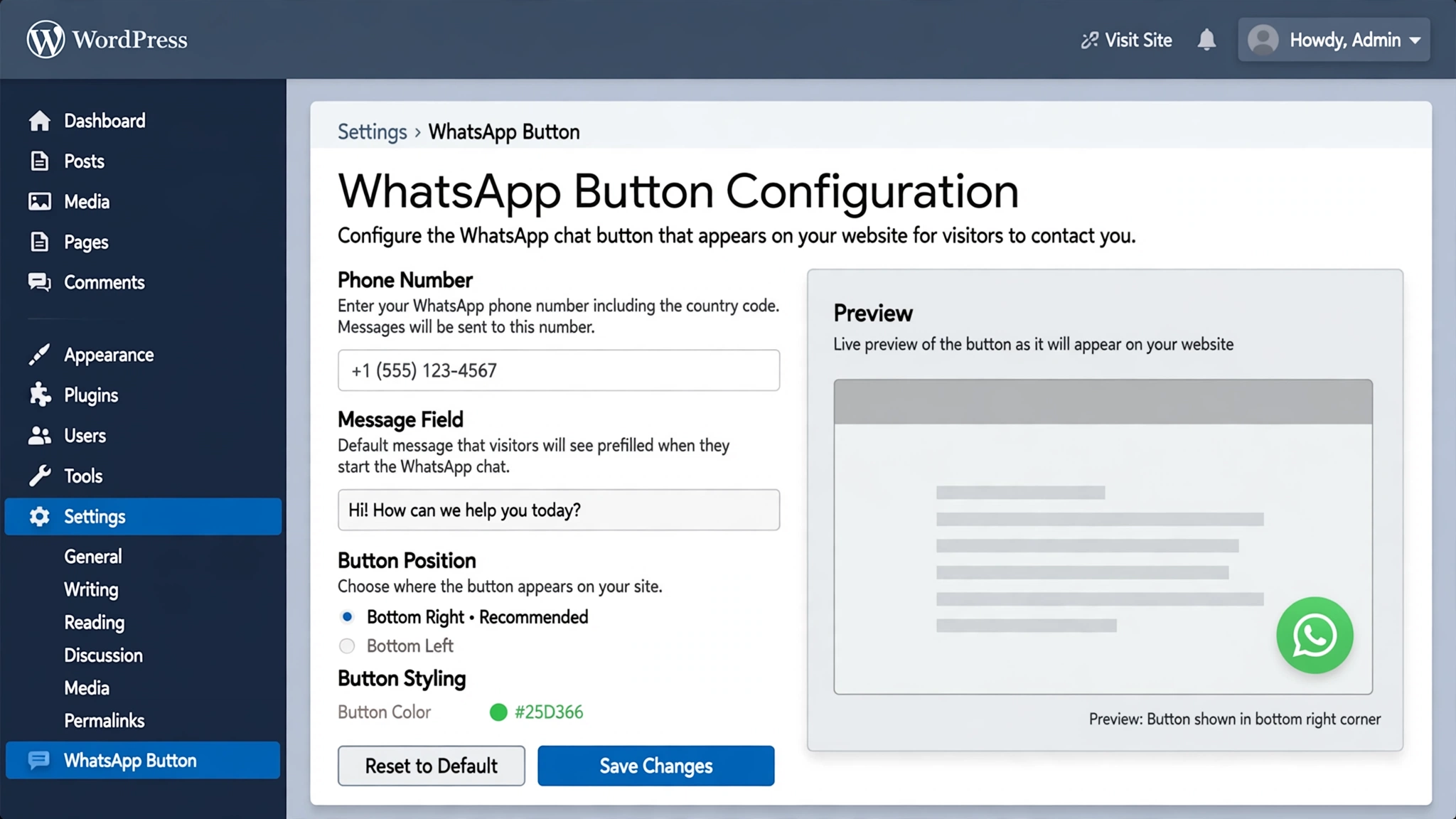
Open Joinchat, then Settings, and enter your WhatsApp number in international format, without the plus sign, spaces or dashes: a US number becomes 15551234567. A number in local format sends visitors to an error page instead of a chat.
Use a number you actually answer for the WhatsApp chat button WordPress visitors will message. A personal number works for a one-person business, but a separate WhatsApp Business number is better: it keeps customer chats out of your personal messages and lets you set an away message for nights and weekends.
Step 3: Write a pre-filled message that helps you
The pre-filled message is the text in the visitor’s chat box before they press send — the most useful setting in the plugin. A good one names the page or the product, so you know what the visitor is asking about.
For a service site, use: “Hi, I have a question about your services.” For a store, use Joinchat’s variables to include the product name and link automatically, so a question arrives with the product attached. Keep it under one sentence: a long template feels like a form in disguise.
Step 4: Choose the position, colour and greeting
Place the WhatsApp chat button WordPress visitors look for in the bottom-right corner, where visitors look for chat. Bottom-left works only if something else already owns the right corner. Set the greeting bubble to appear after about five seconds, so it does not cover content the moment the page loads.
Keep the WhatsApp green: the button works because visitors recognise it instantly. Match the greeting text to your tone, but leave the icon and colour alone.
Step 5: Set display rules and test on mobile
Decide where the WhatsApp chat button WordPress visitors see appears. Show it on every page for a service business, but hide it on checkout and account pages for a store, where it can cover the payment button on a small screen. Joinchat lets you show or hide the button per page, post type and device.
Then test it like a visitor: open your site on a real phone, tap the button, and confirm WhatsApp opens with your number and the pre-filled message. Test on desktop too, where it should open WhatsApp Web. If either fails, recheck the number format first — nine times out of ten, that is the cause.
The no-plugin method: a wa.me link
You can add a WhatsApp chat button WordPress visitors can tap without installing anything, using WhatsApp’s own click-to-chat link format: https://wa.me/ followed by your number in international format, for example https://wa.me/15551234567. Add a pre-filled message with ?text= followed by the message with spaces encoded.
Add the link to a Button block, a menu item, or a text link inside a page. Style it with a green background and a label such as “Chat on WhatsApp”. The official home of WhatsApp is whatsapp.com, where the click-to-chat format is documented.
The trade-off is control: a link cannot float in the corner of every page, show a greeting bubble, hide on checkout, or change its message per product. It is the right answer for a single button on a contact page, and the wrong answer for a site-wide WhatsApp chat button WordPress owners want on every page. If you want the button everywhere, use a plugin.
Placement and display rules that get replies
Where the button sits decides whether it gets tapped or ignored. Bottom-right is the default because chat widgets have trained visitors to look there. On mobile, keep a WhatsApp chat button WordPress visitors tap clear of the browser’s controls and of sticky add-to-cart bars.
Timing matters as much as position. A greeting bubble that pops up instantly feels like an interruption; one that appears after five to ten seconds, or after the visitor scrolls halfway down, feels like an offer of help. Show it once per visit, and never animate it with shaking or pulsing effects.
Match the button to opening hours. If you answer messages from 9 to 6, say so in the greeting: “We usually reply within an hour, 9am to 6pm.” If you run a store, read our guide to how to add live chat to WordPress for the cases where a staffed chat queue fits better than WhatsApp.
WooCommerce: WhatsApp buttons on product pages
For a WooCommerce store, a WhatsApp chat button WordPress shoppers see on the product page answers the question that blocks the sale: is this the right size, does it fit my model, can it arrive by Friday. Joinchat and Click to Chat both add a button near add-to-cart.
A WhatsApp chat button WordPress shoppers tap should carry the product with it: a message that arrives with the product name and link attached lets you answer in one message instead of three. Joinchat does this with variables in the free version, which is one reason it leads this guide.
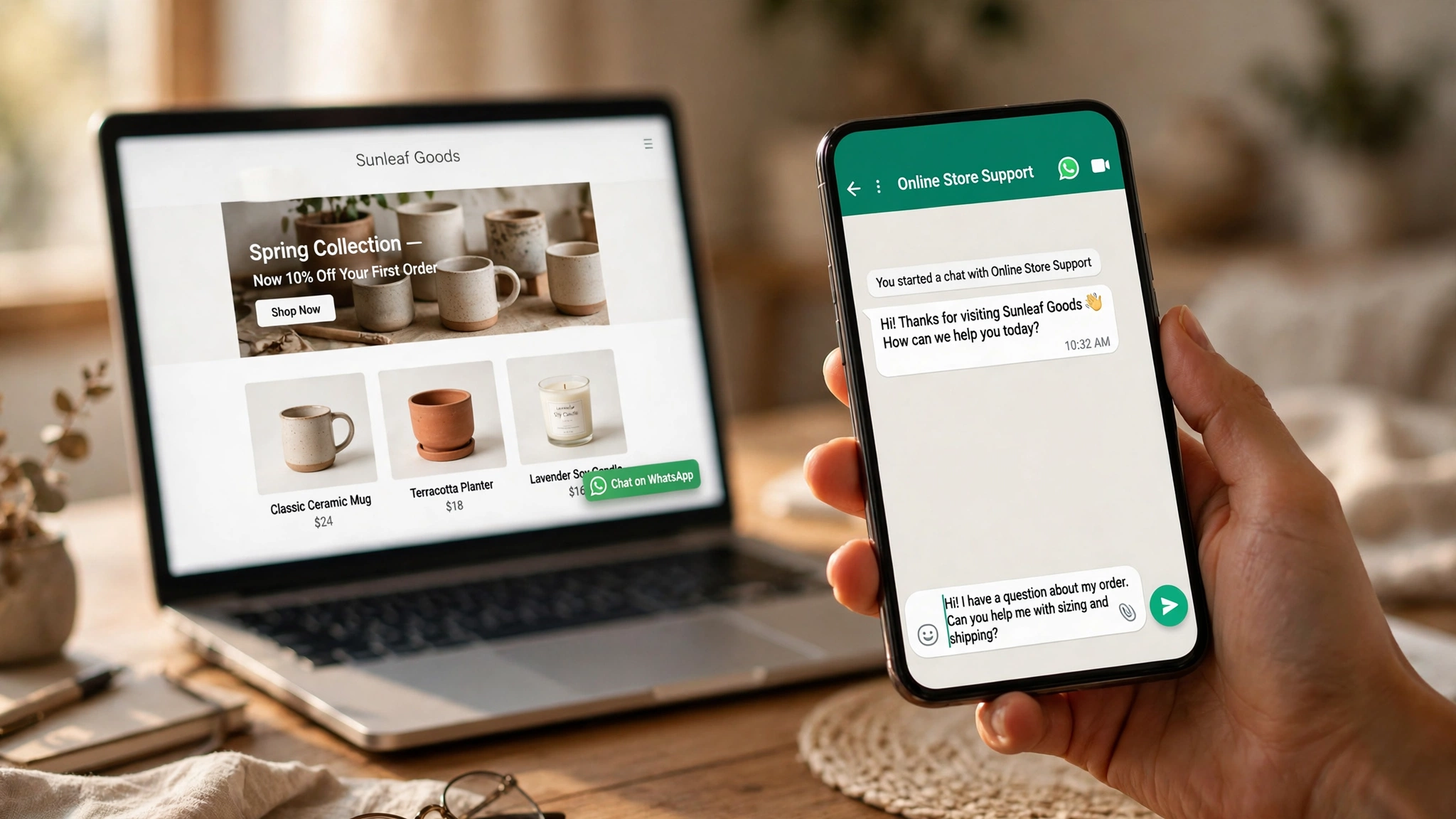
Keep the button below add-to-cart, not above it: the buy button is the priority, and a chat button that outranks it costs sales. Hide the floating button on cart and checkout pages, where the visitor has already decided to buy — a support question there belongs in the checkout help text.
Mistakes that hurt conversions — and trust
The most common mistake is a dead number behind a WhatsApp chat button WordPress visitors still tap. Businesses change phones, staff leave, and the number quietly stops being answered. Check it monthly with a test message, and update the site the same day a number changes. A button that opens a chat nobody reads is worse than no button at all.
The second mistake is promising instant replies you cannot keep. “We reply instantly” on a button answered once a day trains visitors to distrust the next promise on your site. State a realistic time instead.
The third mistake is treating WhatsApp as a broadcast channel. The button invites a conversation, not permission to send offers to everyone who ever messaged you. WhatsApp bans numbers that spam, and a banned business number is hard to recover. Leave marketing to email, where unsubscribing is one click.
Security deserves a line too: a public WhatsApp number attracts spam, so enable two-step verification in the WhatsApp app and keep the recovery email current. Our guide to how to add two-factor authentication to WordPress covers the same habit for your site login.
Frequently asked questions
Is adding a WhatsApp chat button to WordPress free?
Yes. Joinchat, Click to Chat and WP WhatsApp Chat all offer free versions on WordPress.org that add a working floating button with a pre-filled message. You pay only if you want paid features such as multiple agents, funnels or a hosted design builder. WhatsApp itself charges nothing for click-to-chat conversations.
Do visitors need WhatsApp installed to use the button?
On a phone, yes: tapping the button opens the WhatsApp app, and a visitor without it is sent to install it. On a desktop, the button opens WhatsApp Web, which works in the browser once the visitor scans the code with their phone. If a large share of your audience does not use WhatsApp, keep a contact form alongside the button.
Can I use one WhatsApp number on several websites?
Yes. The same number can receive chats from any number of sites, and each site can set its own pre-filled message. That is convenient for owners with two or three sites, but remember that all chats land in one inbox, so use a message that names the site when the sites sell different things.
Does a WhatsApp button slow down my WordPress site?
Barely. The free plugins in this guide are lightweight: they add one small script and a button, with no external dashboard to load. Elfsight is the exception, because a hosted widget loads its code from Elfsight’s servers. If speed is a priority, a native plugin is the faster choice, and our guide to how to speed up WordPress covers the bigger wins first.
Can I add a WhatsApp button without a plugin?
Yes, with a wa.me link: https://wa.me/ followed by your number in international format, added to a Button block or a menu. It works with no plugin, but it cannot float on every page, show a greeting bubble or change per product. For a site-wide floating button, install Joinchat or Click to Chat instead.
Which plugin is best for a WooCommerce store?
Joinchat, for most stores. Its free version adds product-page buttons with the product name and link in the pre-filled message, plus analytics events you can track. WP WhatsApp Chat is the better pick when several staff answer, because visitors choose an agent before the chat opens. Either beats a plain link on a product page.
Our verdict
BadilHost verdict: For most sites, install Joinchat free and be done in fifteen minutes: the most installed WhatsApp plugin on WordPress.org and the most capable free version, for $0. If you want the cheapest paid upgrade later, Click to Chat Pro at $18 a year is the bargain of the category. Choose WP WhatsApp Chat only when several people answer messages, and Elfsight only when the design must be pixel-perfect and $5 a month is already in your budget. Whatever you pick, answer fast and keep the number alive — a WhatsApp chat button WordPress visitors tap is a promise, and a promise kept turns a question into a sale.
Prices and install counts in this guide were checked on 23 November 2026 on WordPress.org and the official vendor pricing pages. Prices change, so confirm the current price before you buy. Related reading: how to create a custom login page in WordPress and how to add Google Analytics to WordPress.